


Introduction
In today’s fast-paced software development and business analysis landscape, the ability to quickly create clear, maintainable diagrams is crucial. Mermaid has emerged as a powerful text-to-diagram tool that allows developers and analysts to create flowcharts, sequence diagrams, class diagrams, and more using simple markdown-like syntax. However, working with raw Mermaid code can sometimes be challenging, especially for complex diagrams or when you need real-time feedback.
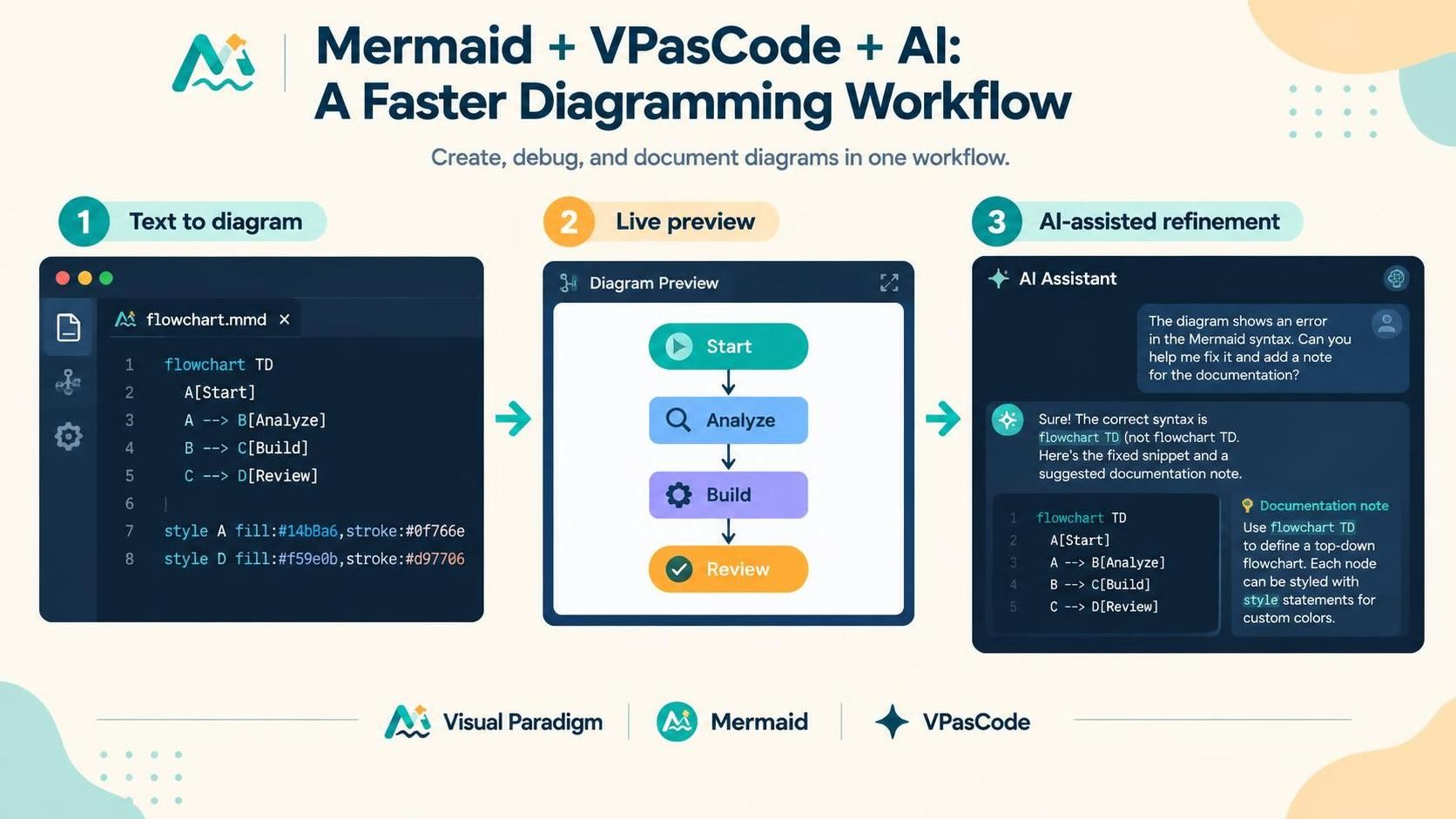
Visual Paradigm’s VPasCode tool bridges this gap by providing an integrated environment where you can write Mermaid code and instantly see the rendered diagram. When combined with AI chatbot capabilities, this creates a powerful workflow that accelerates diagram creation, debugging, and documentation. This guide will walk you through everything you need to know about leveraging Visual Paradigm’s Mermaid editor with AI assistance to supercharge your diagramming productivity.
Key Concepts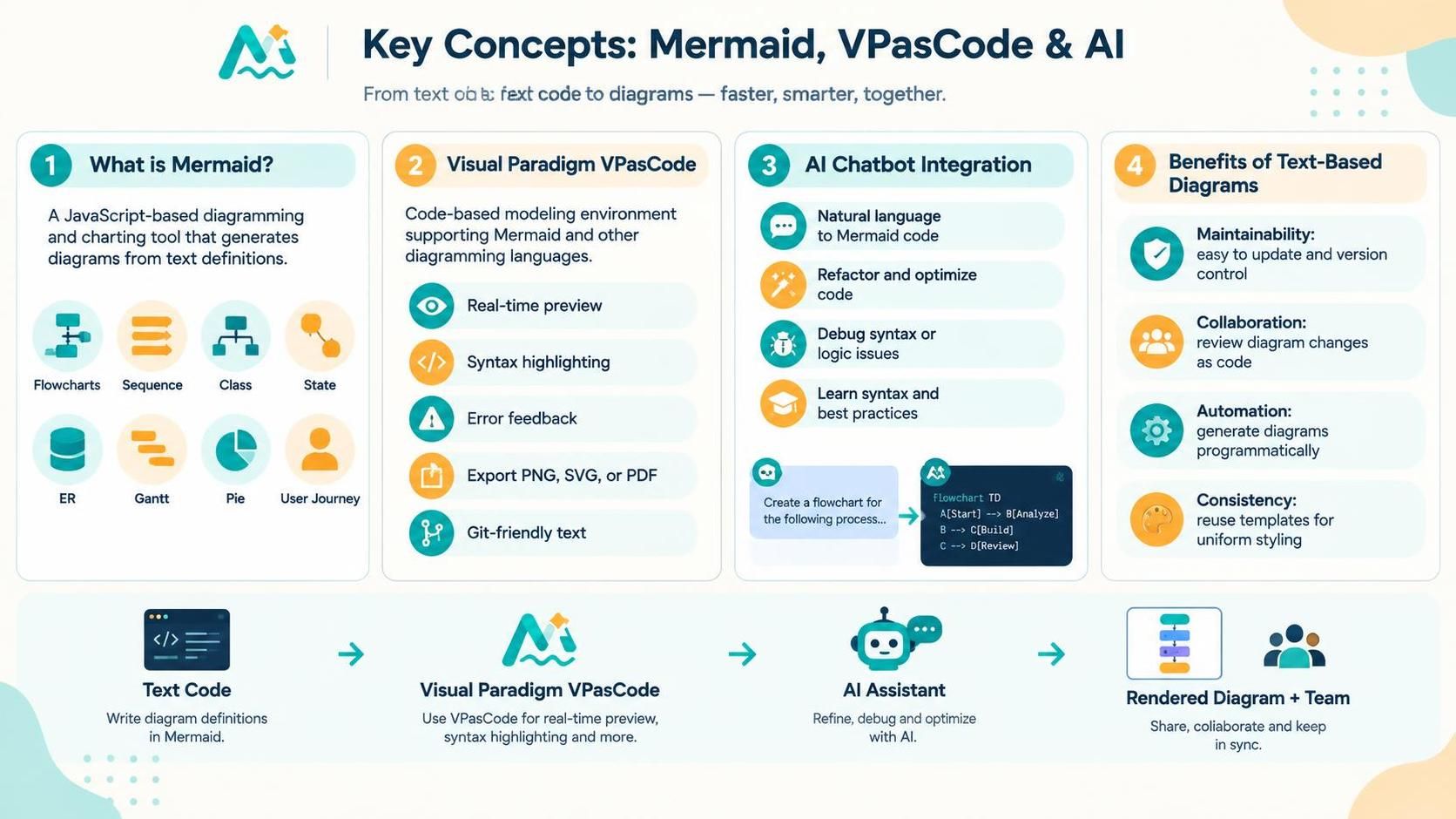
1. What is Mermaid?
Mermaid is a JavaScript-based diagramming and charting tool that uses text definitions to generate diagrams dynamically. It supports multiple diagram types including:
-
Flowcharts
-
Sequence diagrams
-
Class diagrams
-
State diagrams
-
Entity Relationship diagrams
-
Gantt charts
-
Pie charts
-
User Journey diagrams
2. Visual Paradigm VPasCode
VPasCode is Visual Paradigm’s code-based modeling environment that supports multiple diagramming languages, including Mermaid. Key features include:
-
Real-time preview: See your diagram update as you type
-
Syntax highlighting: Color-coded Mermaid syntax for better readability
-
Error detection: Immediate feedback on syntax errors
-
Export options: Save diagrams as PNG, SVG, or PDF
-
Version control friendly: Text-based diagrams work seamlessly with Git
3. AI Chatbot Integration
The integration of AI chatbots with Mermaid editing provides several advantages:
-
Natural language to diagram: Describe what you want, and AI generates the Mermaid code
-
Code optimization: AI can refactor and improve existing Mermaid code
-
Debugging assistance: Get help fixing syntax errors or logical issues
-
Best practices: Learn proper Mermaid syntax and diagramming conventions
4. Benefits of Text-Based Diagrams
-
Maintainability: Easy to update and version control
-
Collaboration: Code reviews for diagrams become possible
-
Automation: Generate diagrams programmatically
-
Consistency: Templates ensure uniform styling across projects
Getting Started with Visual Paradigm’s Mermaid Editor
Installation and Setup
-
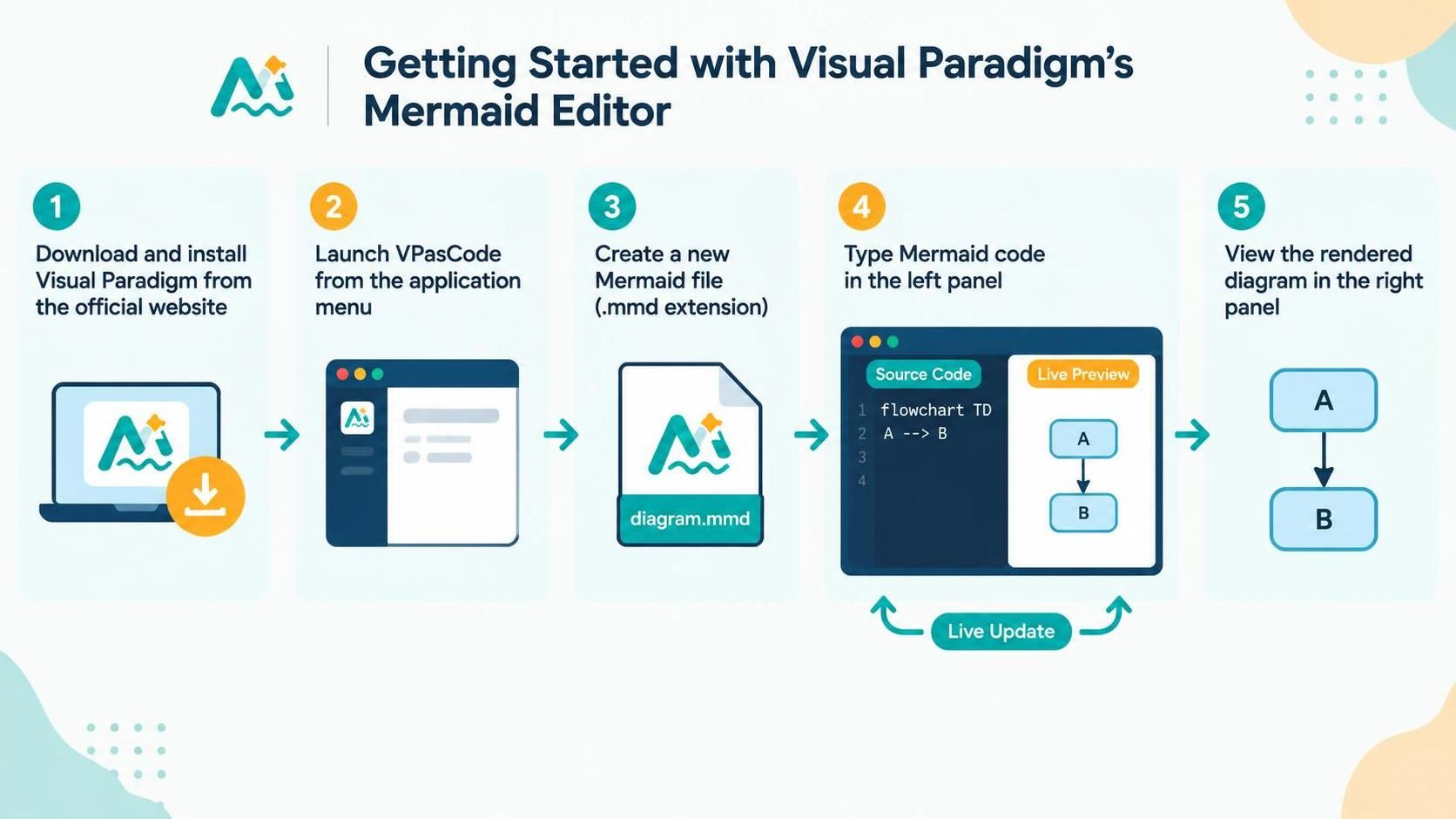
Download and install Visual Paradigm from the official website
-
Launch VPasCode from the application menu
-
Create a new Mermaid file (.mmd extension)
-
Start typing your Mermaid code in the left panel
-
View the rendered diagram in the right panel
Basic Syntax Overview
Mermaid diagrams start with a declaration of the diagram type, followed by the diagram definition. Here are some common diagram types:
Flowchart Example
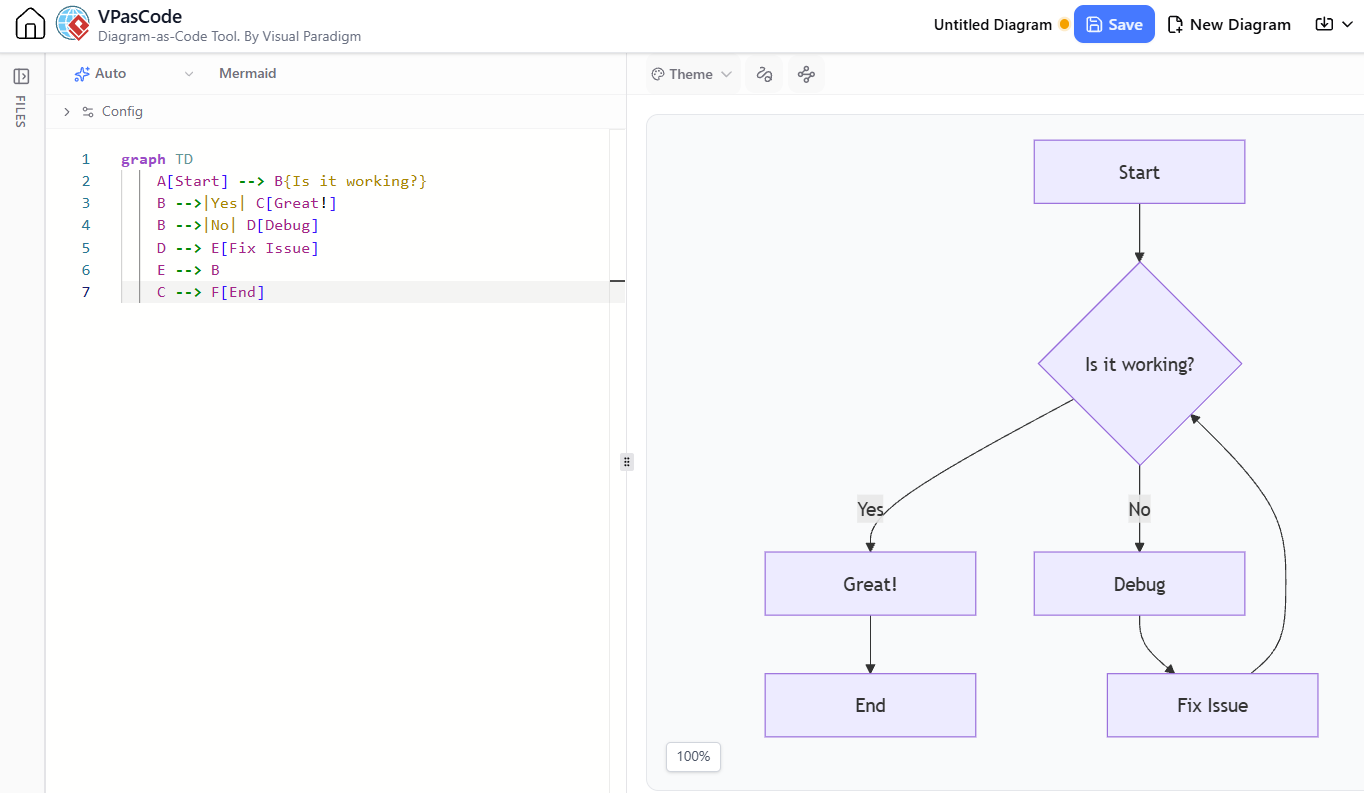
graph TD
    A[Start] --> B{Is it working?}
    B -->|Yes| C[Great!]
    B -->|No| D[Debug]
    D --> E[Fix Issue]
    E --> B
    C --> F[End]
Sequence Diagram Example
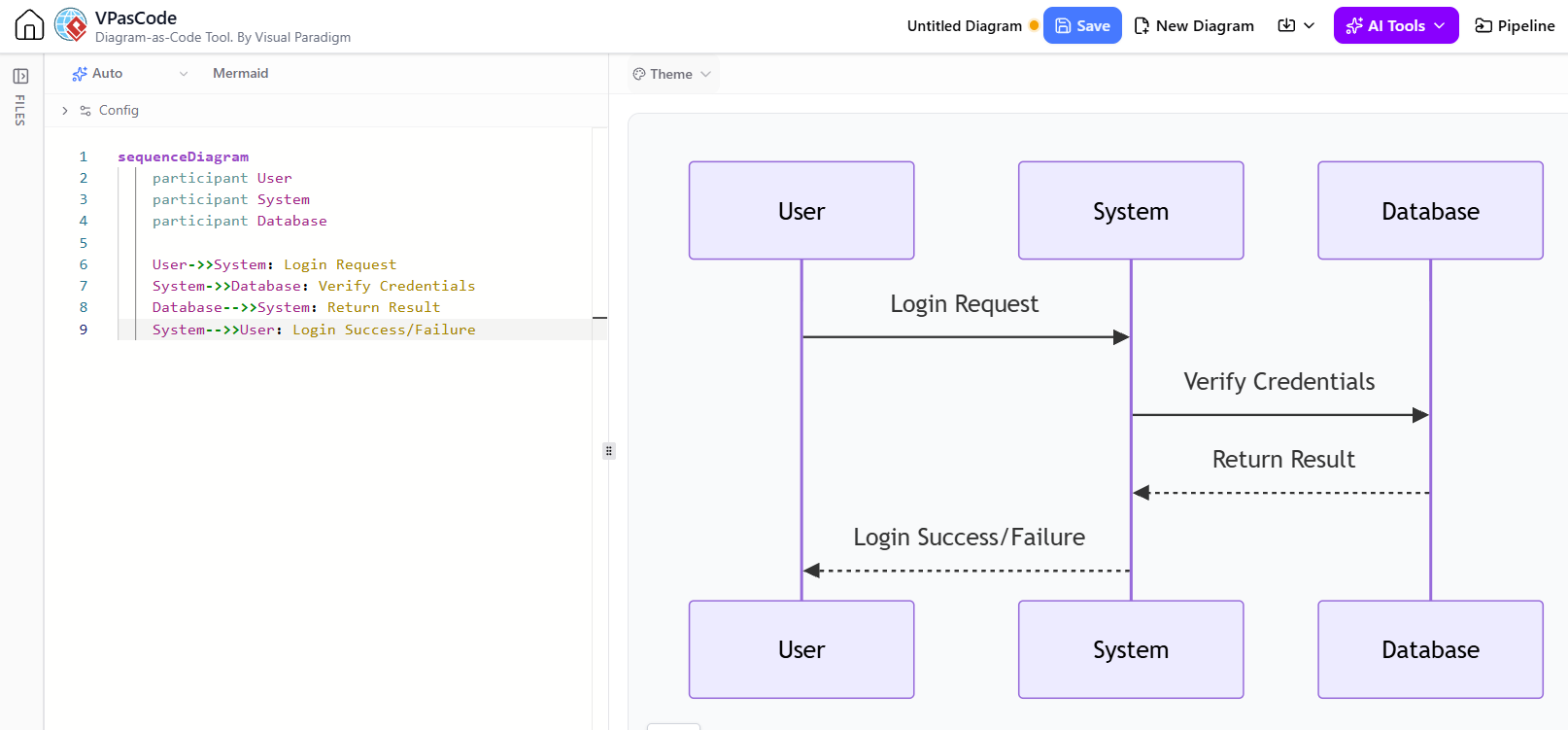
sequenceDiagram
    participant User
    participant System
    participant Database

    User->>System: Login Request
    System->>Database: Verify Credentials
    Database-->>System: Return Result
    System-->>User: Login Success/Failure
Class Diagram Example
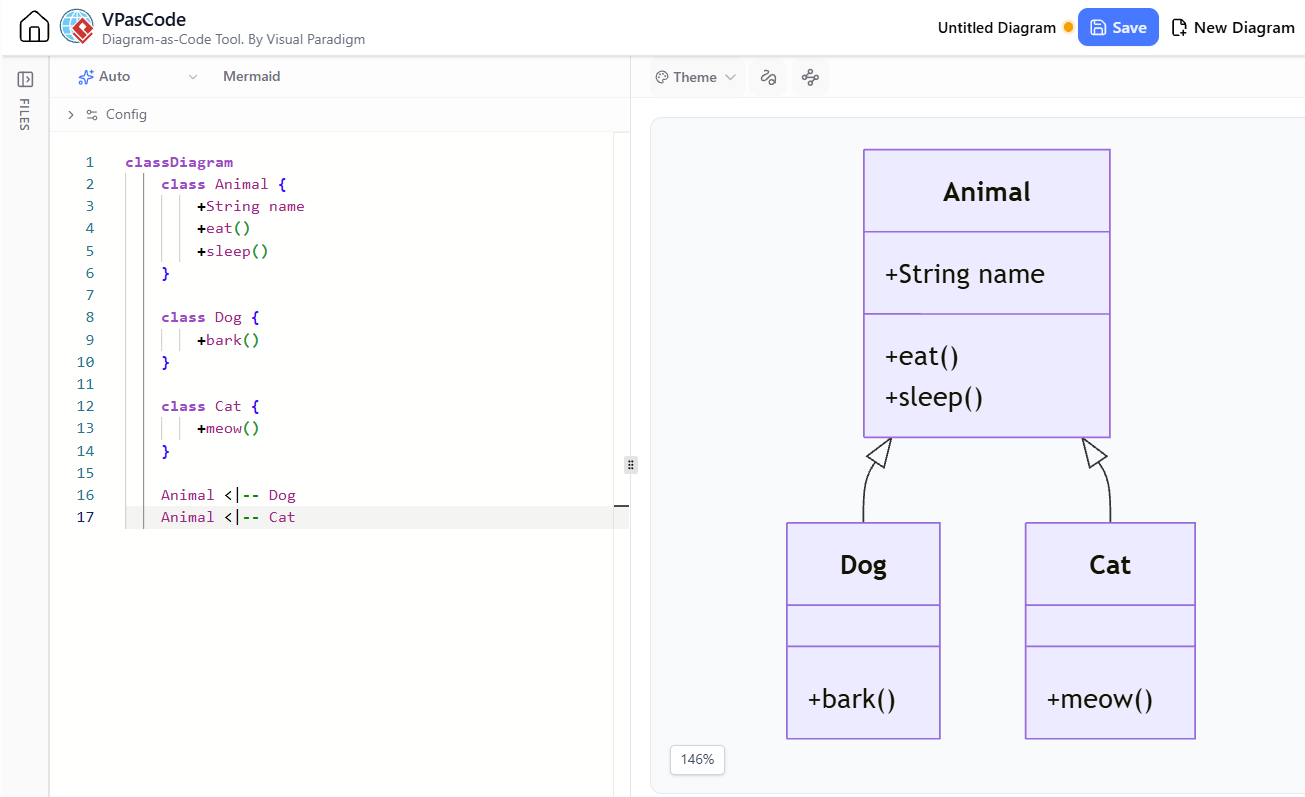
classDiagram
    class Animal {
        +String name
        +eat()
        +sleep()
    }

    class Dog {
        +bark()
    }

    class Cat {
        +meow()
    }

    Animal <|-- Dog
    Animal <|-- Cat
Leveraging AI Chatbot for Mermaid Diagram Creation
Workflow: From Idea to Diagram
Step 1: Describe Your Diagram
Instead of writing Mermaid code from scratch, describe what you want to visualize:
“Create a flowchart showing the user registration process including email verification, password validation, and account activation.”
Step 2: AI Generates Initial Code
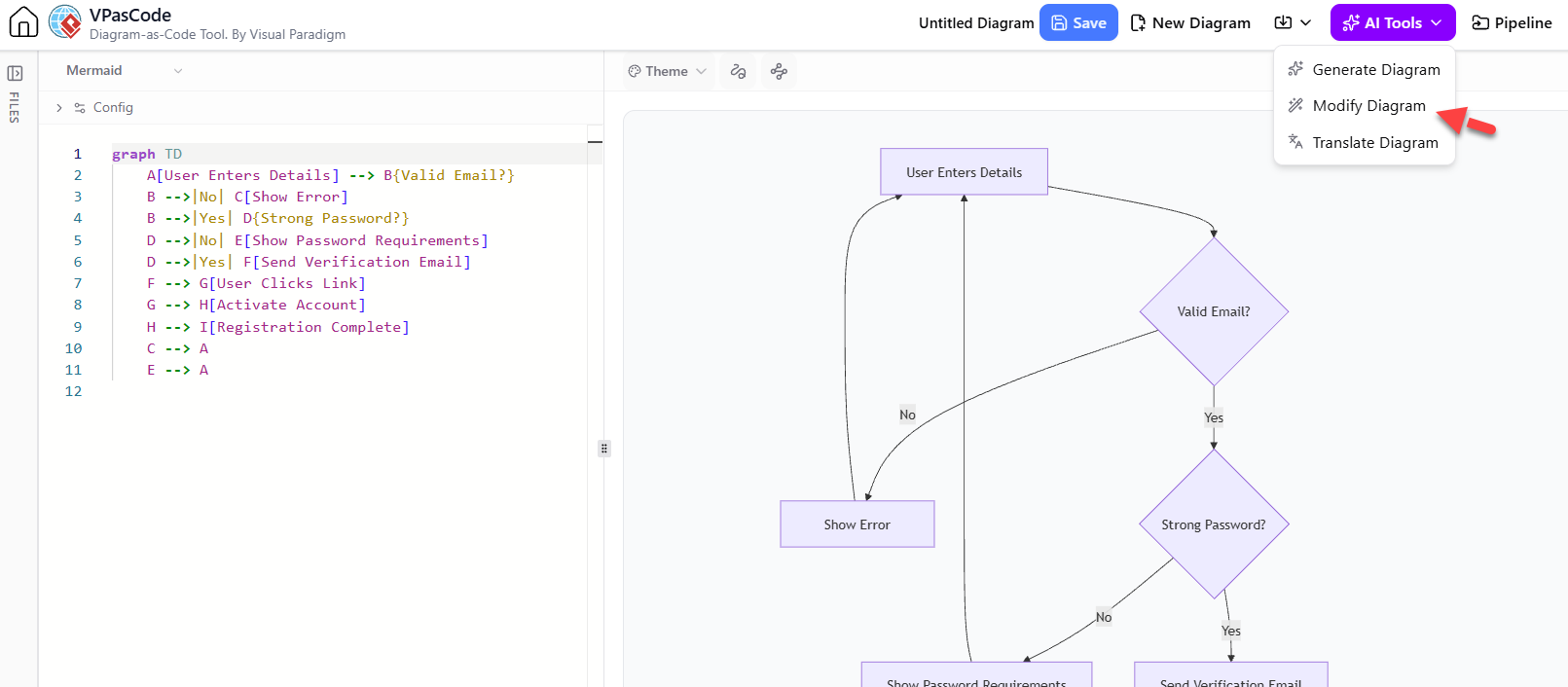
The AI chatbot will generate Mermaid code based on your description:
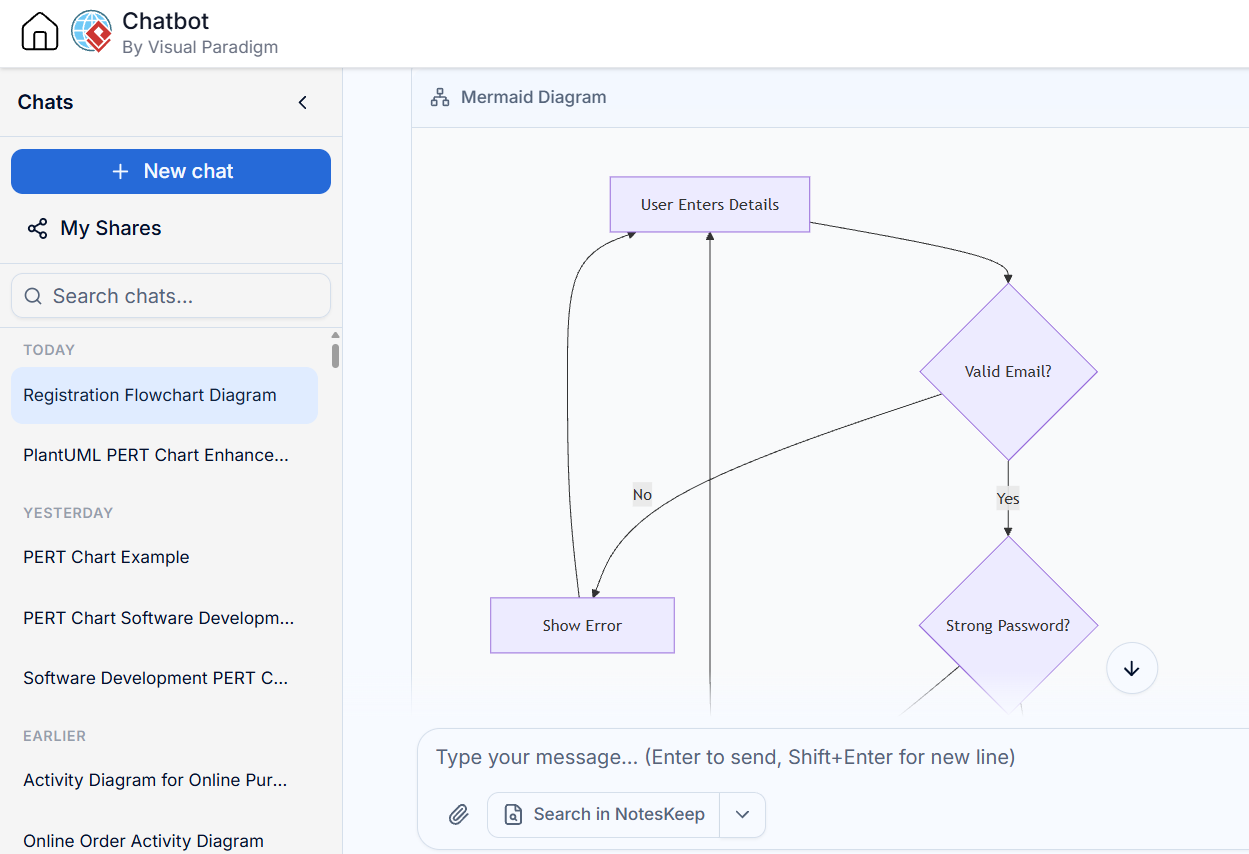
graph TD
    A[User Enters Details] --> B{Valid Email?}
    B -->|No| C[Show Error]
    B -->|Yes| D{Strong Password?}
    D -->|No| E[Show Password Requirements]
    D -->|Yes| F[Send Verification Email]
    F --> G[User Clicks Link]
    G --> H[Activate Account]
    H --> I[Registration Complete]
    C --> A
    E --> A
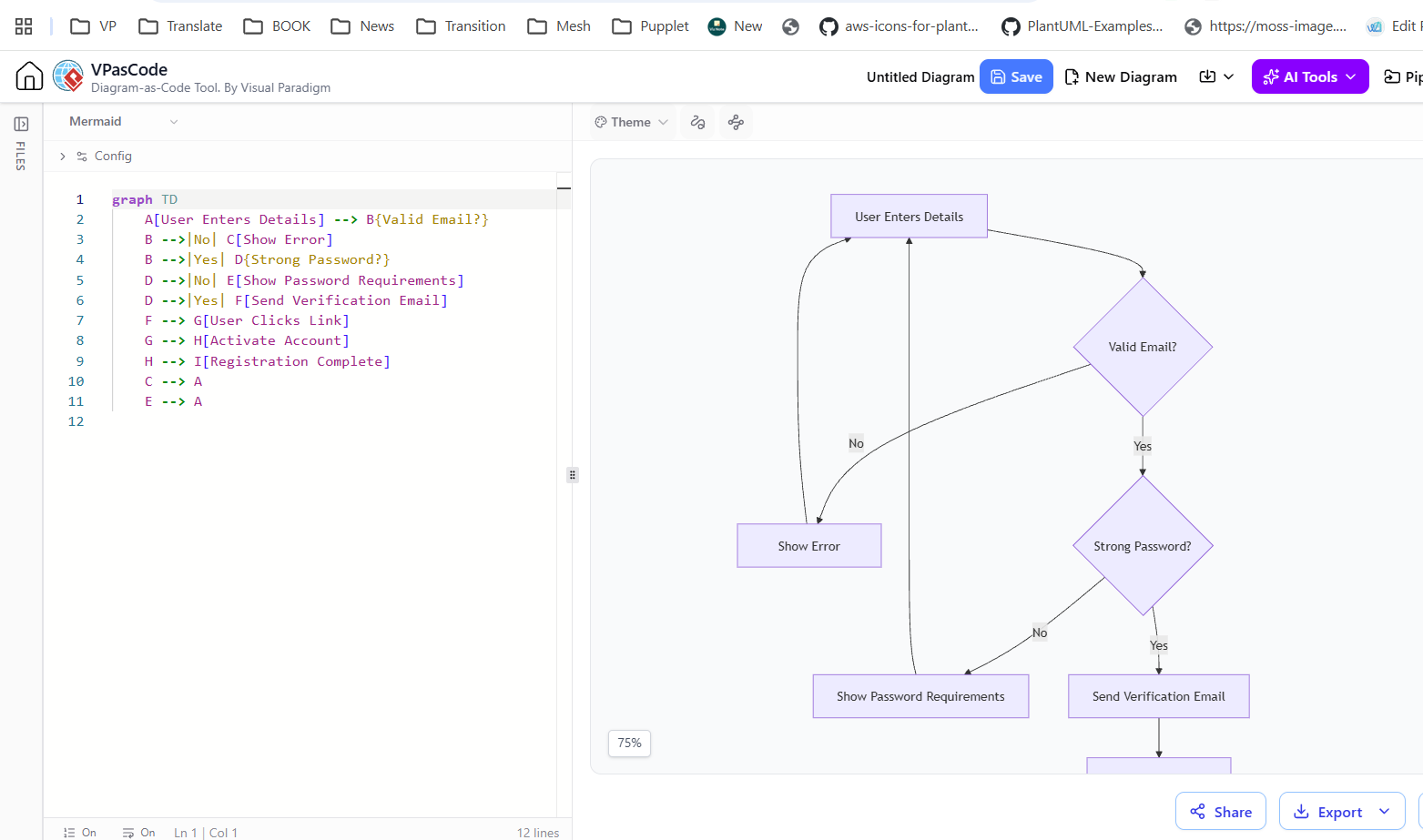
Step 3: Refine and Customize
Use the VPasCode editor to:
-
Adjust layout and styling
-
Add more details or branches
-
Fix any logical issues
-
Apply consistent formatting
Step 4: Iterate with AI Assistance
Ask the AI to:
-
Add error handling paths
-
Include additional stakeholders
-
Convert to a different diagram type
-
Optimize for clarity
Common AI Prompts for Mermaid Diagrams
-
“Convert this process description into a Mermaid flowchart”
-
“Add error handling to this sequence diagram”
-
“Make this class diagram follow SOLID principles”
-
“Simplify this complex diagram while keeping key information”
-
“Add styling to make this diagram more visually appealing”
Advanced Mermaid Features in VPasCode
1. Subgraphs and Grouping
Organize complex diagrams using subgraphs:
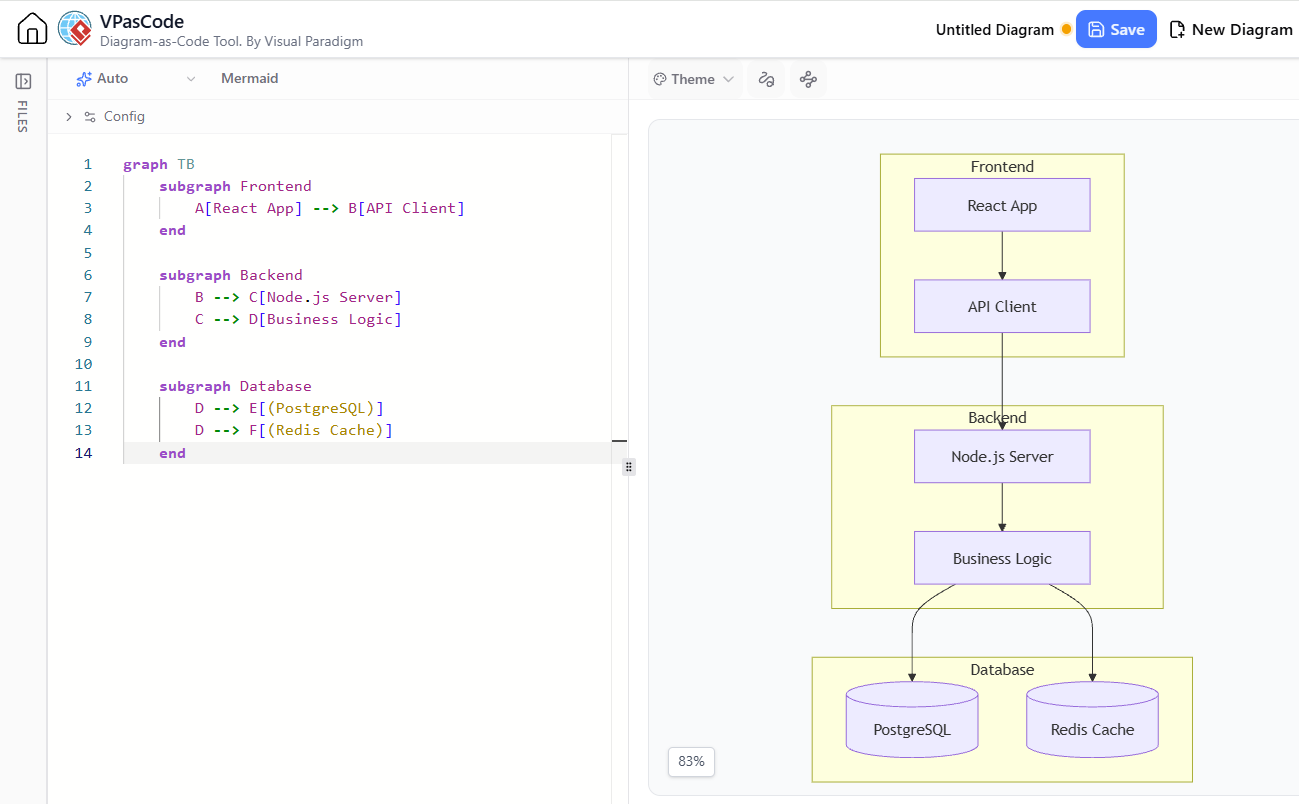
graph TB
    subgraph Frontend
        A[React App] --> B[API Client]
    end

    subgraph Backend
        B --> C[Node.js Server]
        C --> D[Business Logic]
    end

    subgraph Database
        D --> E[(PostgreSQL)]
        D --> F[(Redis Cache)]
    end
2. Styling and Theming
Customize appearance with built-in themes and custom styles:
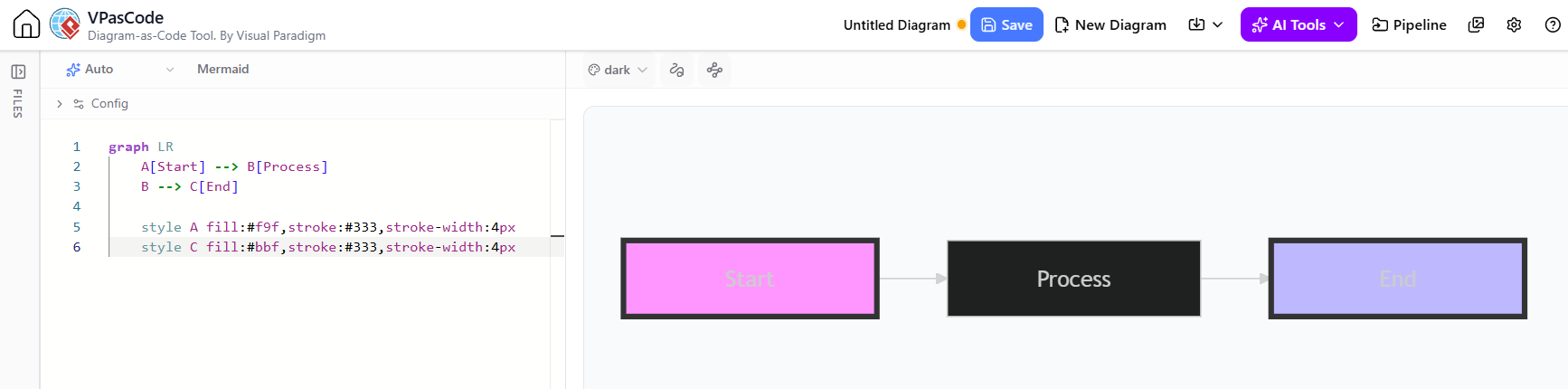
%%{init: {'theme':'dark'}}%%
graph LR
    A[Start] --> B[Process]
    B --> C[End]

    style A fill:#f9f,stroke:#333,stroke-width:4px
    style C fill:#bbf,stroke:#333,stroke-width:4px
3. Interactive Elements
Add click events and links (when supported):
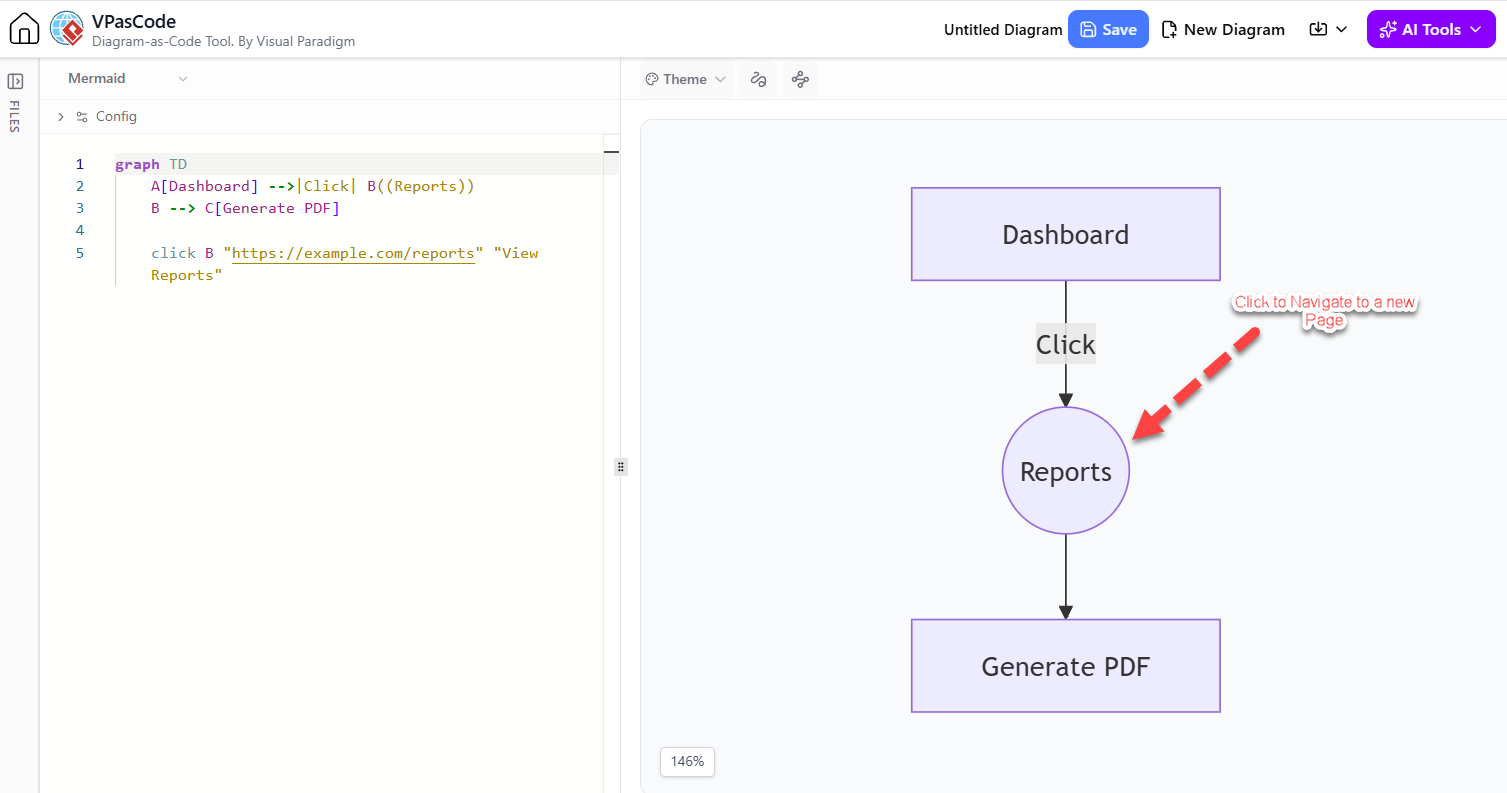
graph TD
    A[Dashboard] -->|Click| B((Reports))
    B --> C[Generate PDF]

    click B "https://example.com/reports" "View Reports"
4. Complex Sequence Diagrams
Handle advanced scenarios with activations and notes:
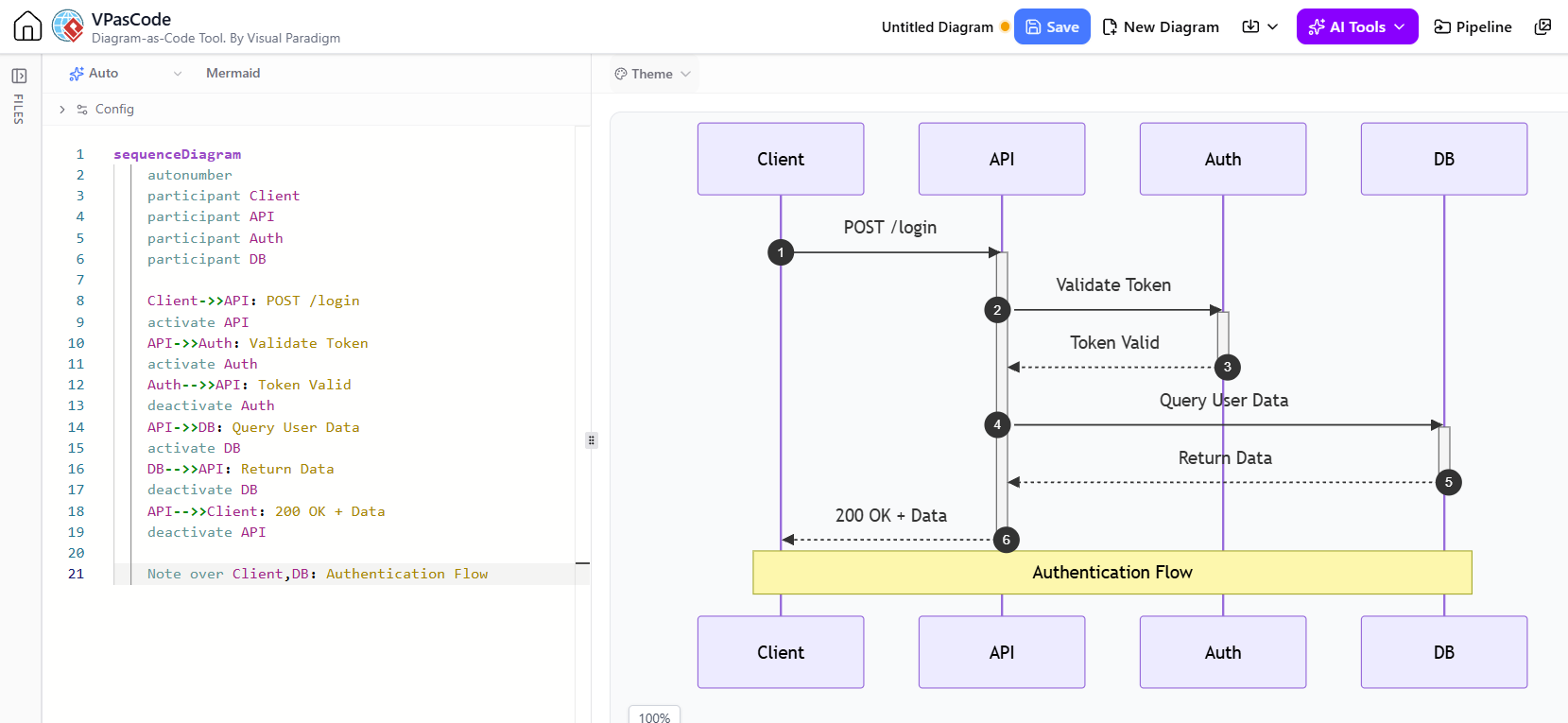
sequenceDiagram
    autonumber
    participant Client
    participant API
    participant Auth
    participant DB

    Client->>API: POST /login
    activate API
    API->>Auth: Validate Token
    activate Auth
    Auth-->>API: Token Valid
    deactivate Auth
    API->>DB: Query User Data
    activate DB
    DB-->>API: Return Data
    deactivate DB
    API-->>Client: 200 OK + Data
    deactivate API

    Note over Client,DB: Authentication Flow
Best Practices for Mermaid Diagrams
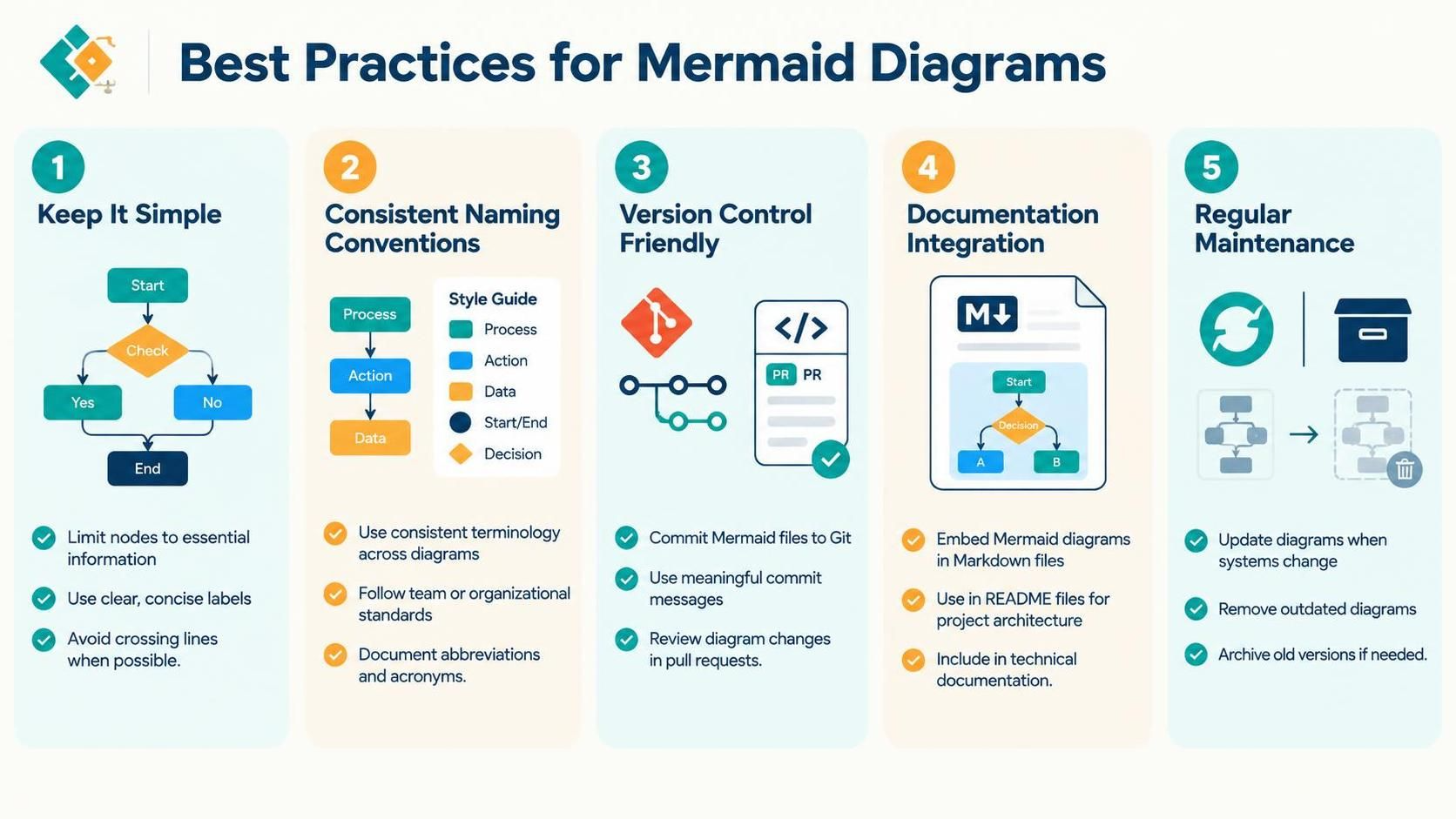
1. Keep It Simple
-
Limit nodes to essential information
-
Use clear, concise labels
-
Avoid crossing lines when possible
2. Consistent Naming Conventions
-
Use consistent terminology across diagrams
-
Follow team or organizational standards
-
Document abbreviations and acronyms
3. Version Control Friendly
-
Commit Mermaid files to Git
-
Use meaningful commit messages
-
Review diagram changes in pull requests
4. Documentation Integration
-
Embed Mermaid diagrams in Markdown files
-
Use in README files for project architecture
-
Include in technical documentation
5. Regular Maintenance
-
Update diagrams when systems change
-
Remove outdated diagrams
-
Archive old versions if needed
Real-World Use Cases
1. Software Architecture Documentation
Document microservices architecture with clear component interactions:
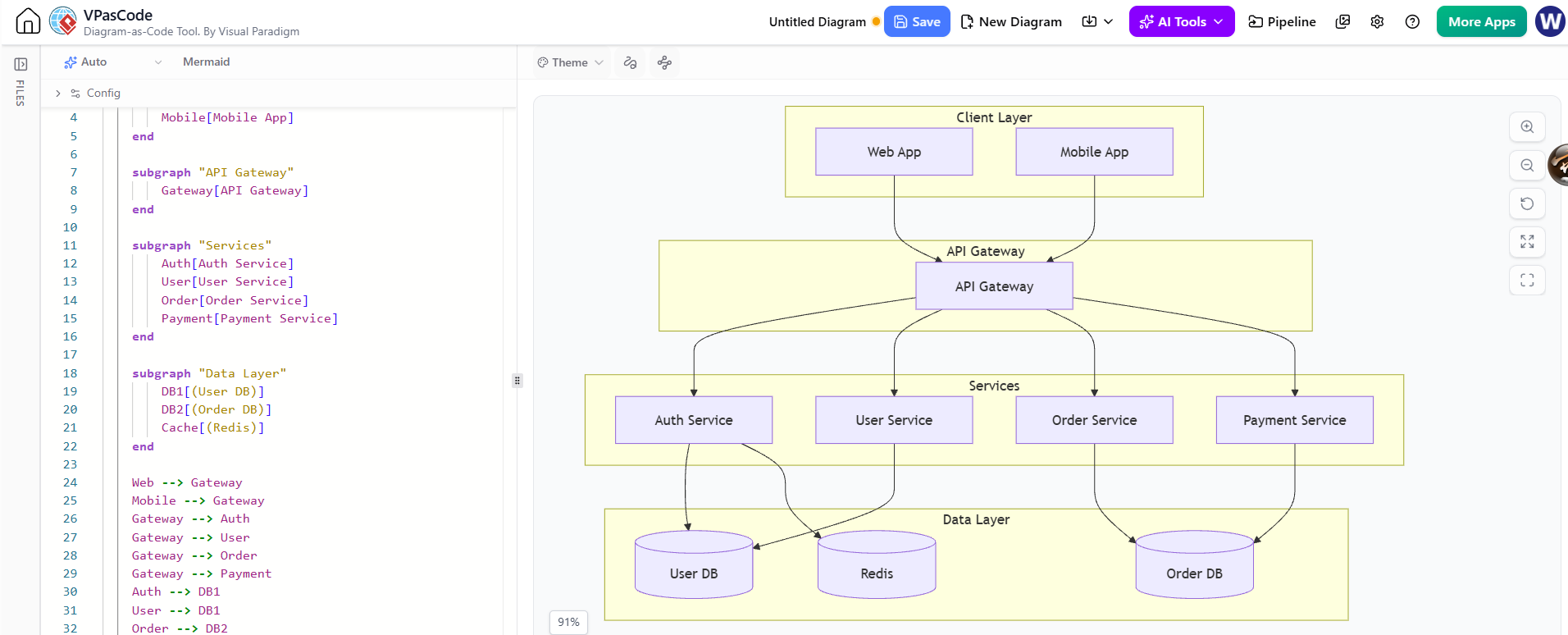
graph TB
    subgraph "Client Layer"
        Web[Web App]
        Mobile[Mobile App]
    end

    subgraph "API Gateway"
        Gateway[API Gateway]
    end

    subgraph "Services"
        Auth[Auth Service]
        User[User Service]
        Order[Order Service]
        Payment[Payment Service]
    end

    subgraph "Data Layer"
        DB1[(User DB)]
        DB2[(Order DB)]
        Cache[(Redis)]
    end

    Web --> Gateway
    Mobile --> Gateway
    Gateway --> Auth
    Gateway --> User
    Gateway --> Order
    Gateway --> Payment
    Auth --> DB1
    User --> DB1
    Order --> DB2
    Payment --> DB2
    Auth --> Cache
2. Business Process Modeling
Map out business workflows for stakeholder alignment:
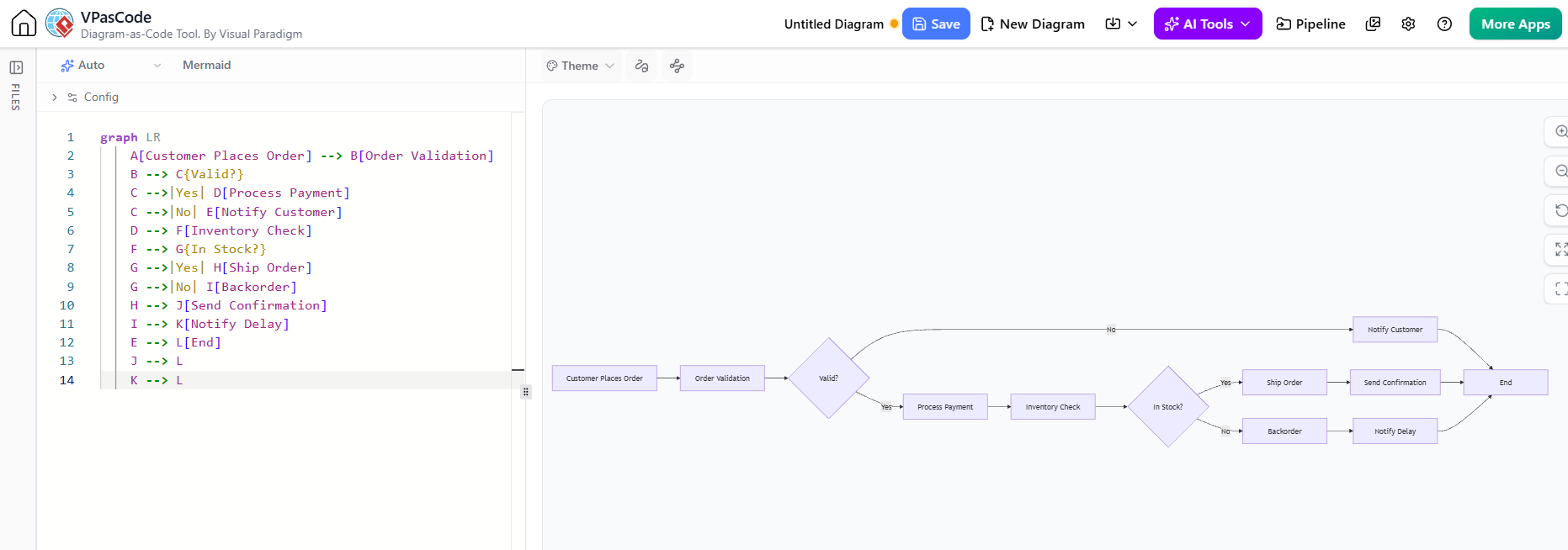
graph LR
    A[Customer Places Order] --> B[Order Validation]
    B --> C{Valid?}
    C -->|Yes| D[Process Payment]
    C -->|No| E[Notify Customer]
    D --> F[Inventory Check]
    F --> G{In Stock?}
    G -->|Yes| H[Ship Order]
    G -->|No| I[Backorder]
    H --> J[Send Confirmation]
    I --> K[Notify Delay]
    E --> L[End]
    J --> L
    K --> L
3. Project Timeline Visualization
Use Gantt charts for project planning:
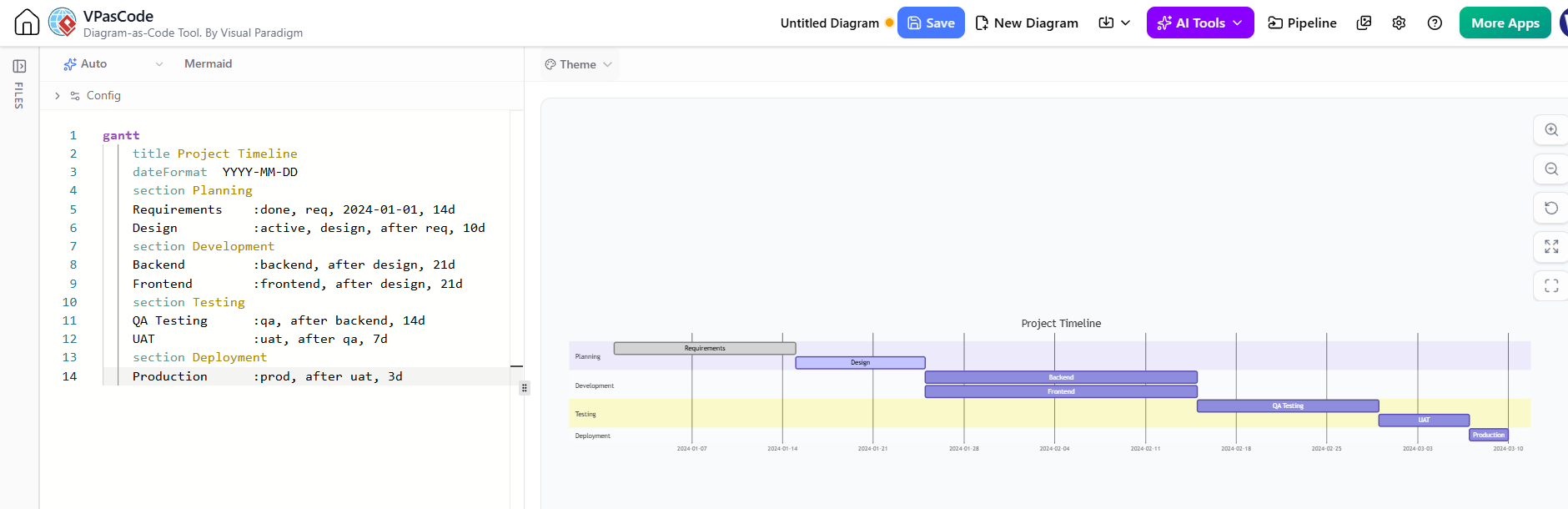
gantt
    title Project Timeline
    dateFormat  YYYY-MM-DD
    section Planning
    Requirements    :done, req, 2024-01-01, 14d
    Design          :active, design, after req, 10d
    section Development
    Backend         :backend, after design, 21d
    Frontend        :frontend, after design, 21d
    section Testing
    QA Testing      :qa, after backend, 14d
    UAT             :uat, after qa, 7d
    section Deployment
    Production      :prod, after uat, 3d
Troubleshooting Common Issues
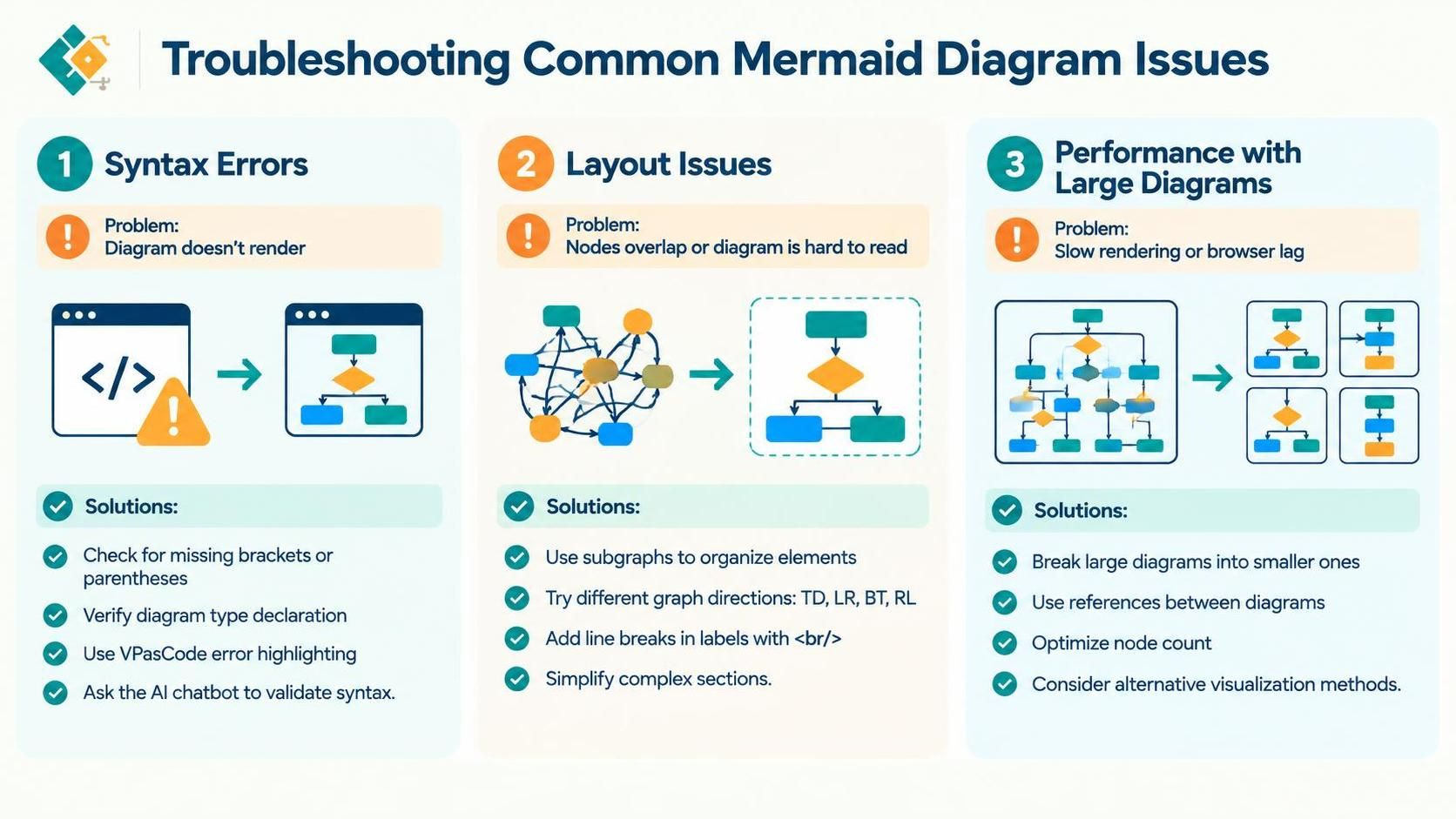
1. Syntax Errors
Problem: Diagram doesn’t render
Solution:
-
Check for missing brackets or parentheses
-
Verify diagram type declaration
-
Use VPasCode’s error highlighting
-
Ask AI chatbot to validate syntax
2. Layout Issues
Problem: Nodes overlap or diagram is hard to read
Solution:
-
Use subgraphs to organize elements
-
Try different graph directions (TD, LR, BT, RL)
-
Add line breaks in labels with
<br/> -
Simplify complex sections
3. Performance with Large Diagrams
Problem: Slow rendering or browser lag
Solution:
-
Break large diagrams into smaller ones
-
Use references between diagrams
-
Optimize node count
-
Consider alternative visualization methods
Integrating Mermaid into Your Workflow
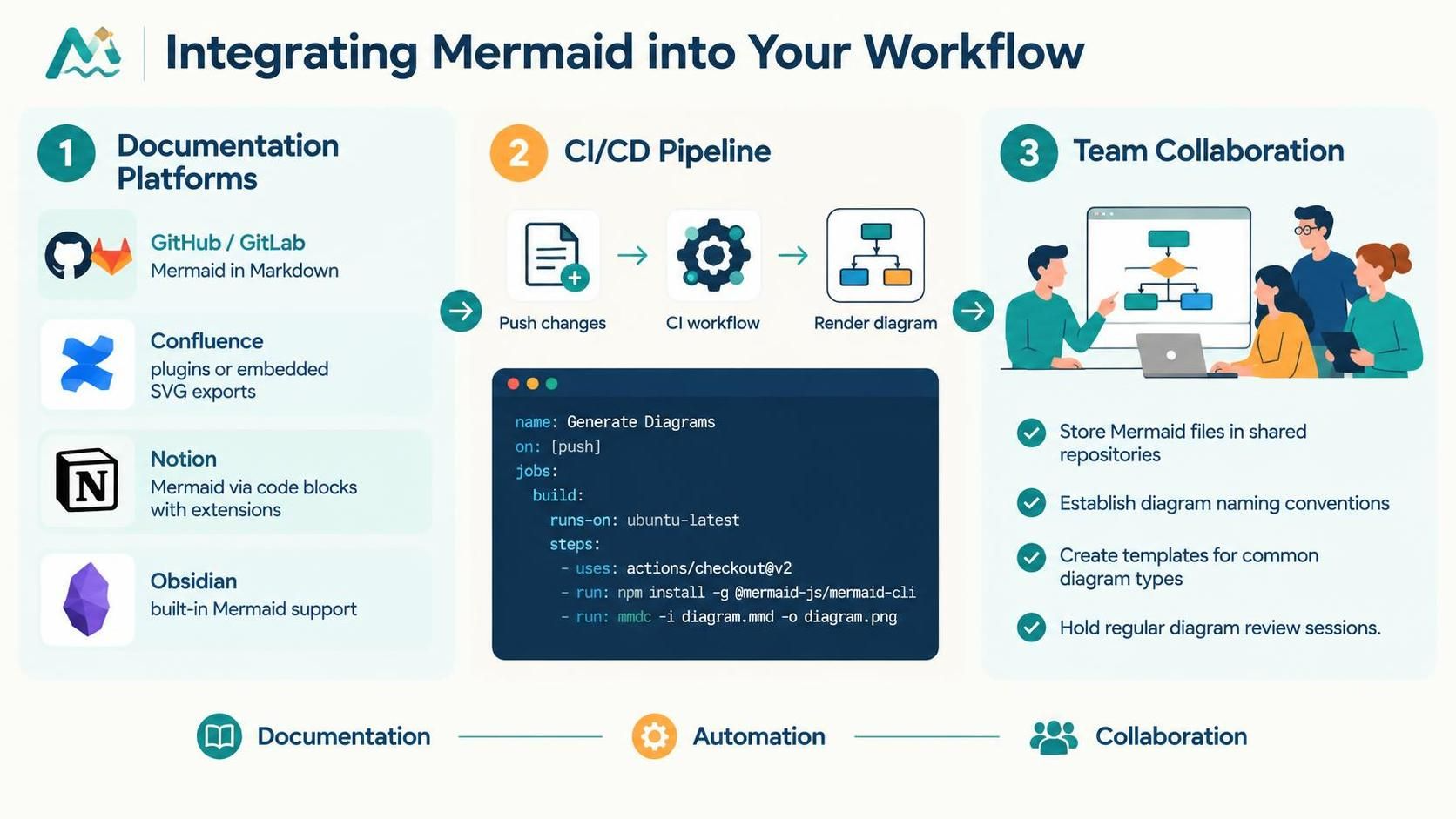
1. Documentation Platforms
-
GitHub/GitLab: Native Mermaid support in Markdown
-
Confluence: Use Mermaid plugins or embed SVG exports
-
Notion: Embed Mermaid via code blocks with extensions
-
Obsidian: Built-in Mermaid support for knowledge bases
2. CI/CD Pipeline
Automate diagram generation:
# Example GitHub Actions workflow
name: Generate Diagrams
on: [push]
jobs:
  build:
    runs-on: ubuntu-latest
    steps:
      - uses: actions/checkout@v2
      - name: Install Mermaid CLI
        run: npm install -g @mermaid-js/mermaid-cli
      - name: Generate PNGs
        run: mmdc -i diagram.mmd -o diagram.png
3. Team Collaboration
-
Store Mermaid files in shared repositories
-
Establish diagram naming conventions
-
Create templates for common diagram types
-
Conduct regular diagram review sessions
Conclusion
Visual Paradigm’s VPasCode tool, combined with AI chatbot capabilities, represents a significant advancement in how we create and maintain diagrams. By leveraging text-based Mermaid syntax, you gain the benefits of version control, easy collaboration, and automated generation while maintaining the visual clarity that diagrams provide.
The integration of AI assistance transforms the diagramming process from a tedious manual task into an efficient, conversational workflow. Whether you’re documenting system architecture, mapping business processes, or planning project timelines, the combination of Mermaid, VPasCode, and AI enables you to create professional-quality diagrams faster than ever before.
As you continue to use these tools, remember that the goal is not just to create diagrams, but to communicate ideas clearly and maintain documentation that evolves with your projects. Start small, experiment with different diagram types, and gradually build a library of reusable templates and patterns that work for your team.
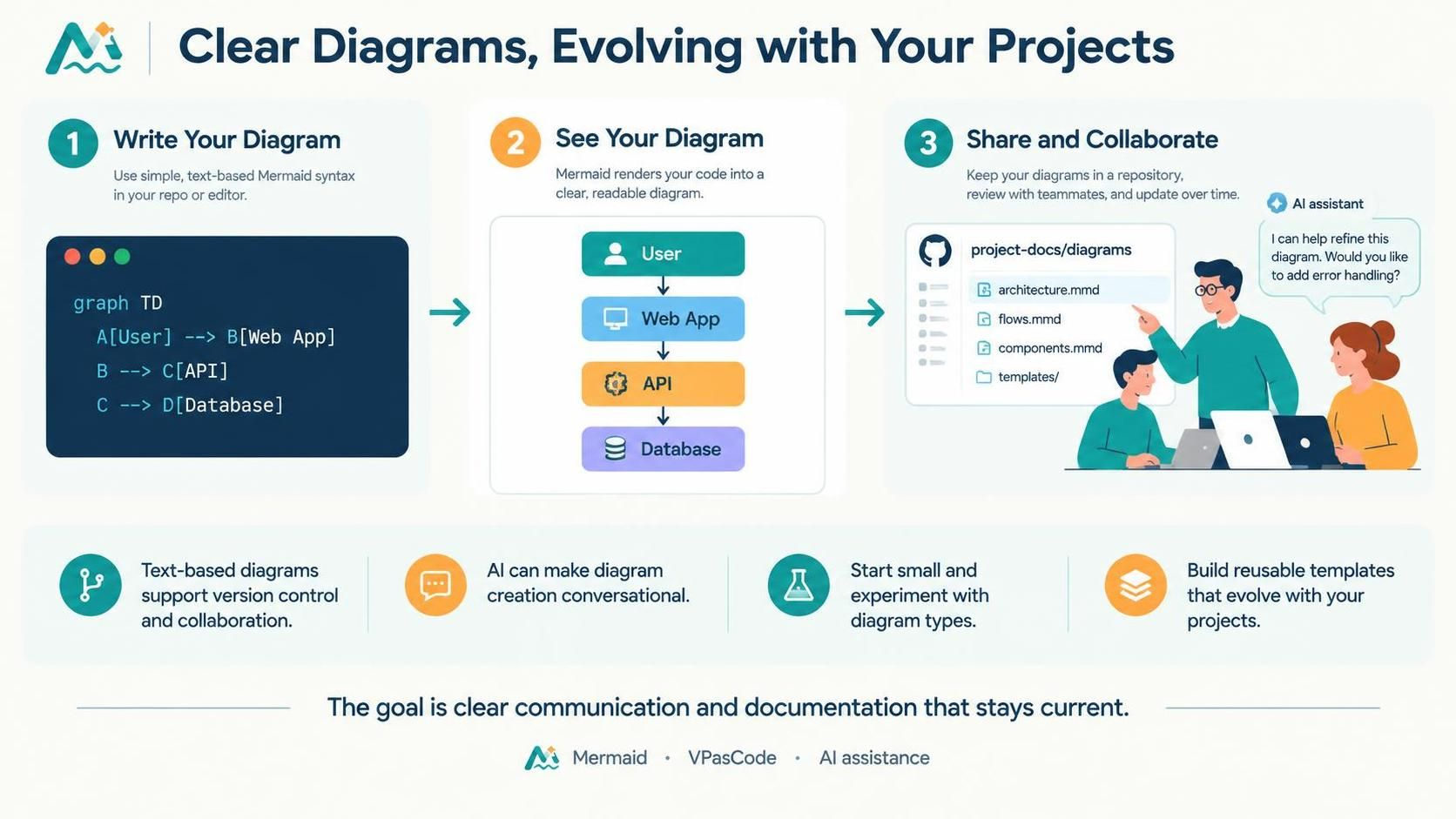
The future of diagramming is text-based, AI-assisted, and deeply integrated into our development workflows. By mastering Mermaid and tools like Visual Paradigm’s VPasCode today, you’re positioning yourself at the forefront of this evolution.