


A project plan often starts as a brief in plain language: launch a product, prepare the website, test the release, and coordinate marketing. Turning that into a useful schedule means identifying tasks, estimating durations, setting dates, and showing what depends on what.
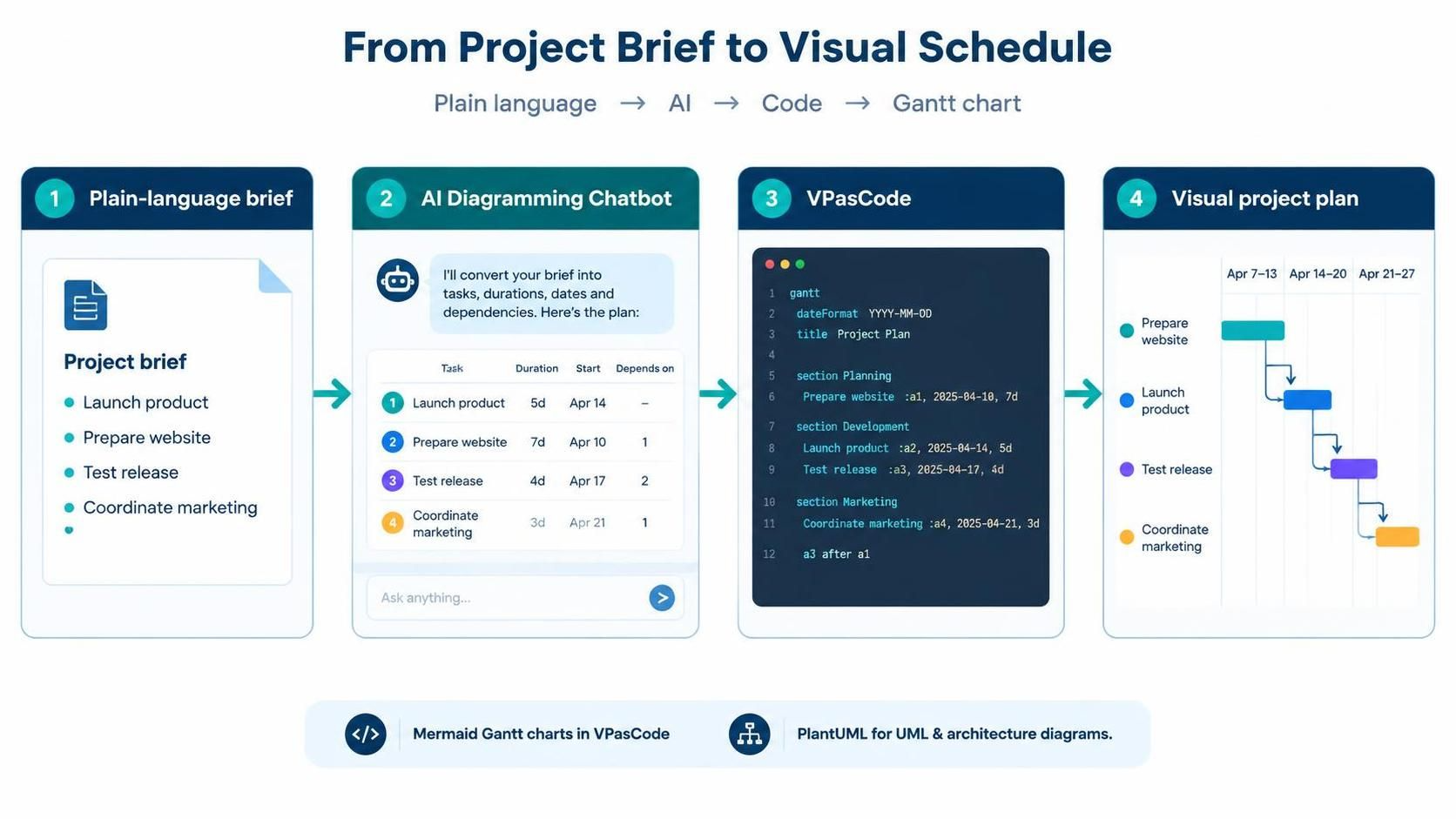
A conversational AI workflow can help draft that structure. Diagram-as-code then makes the plan easy to edit, review, and reuse. Visual Paradigm brings those steps together through its AI Diagramming Chatbot and VPasCode editor: generate a starting point from a prompt, refine the diagram code, and render a visual plan. VPasCode supports Mermaid Gantt charts, while PlantUML is suited to many UML and architecture diagrams.
What “Gantt Chat” means
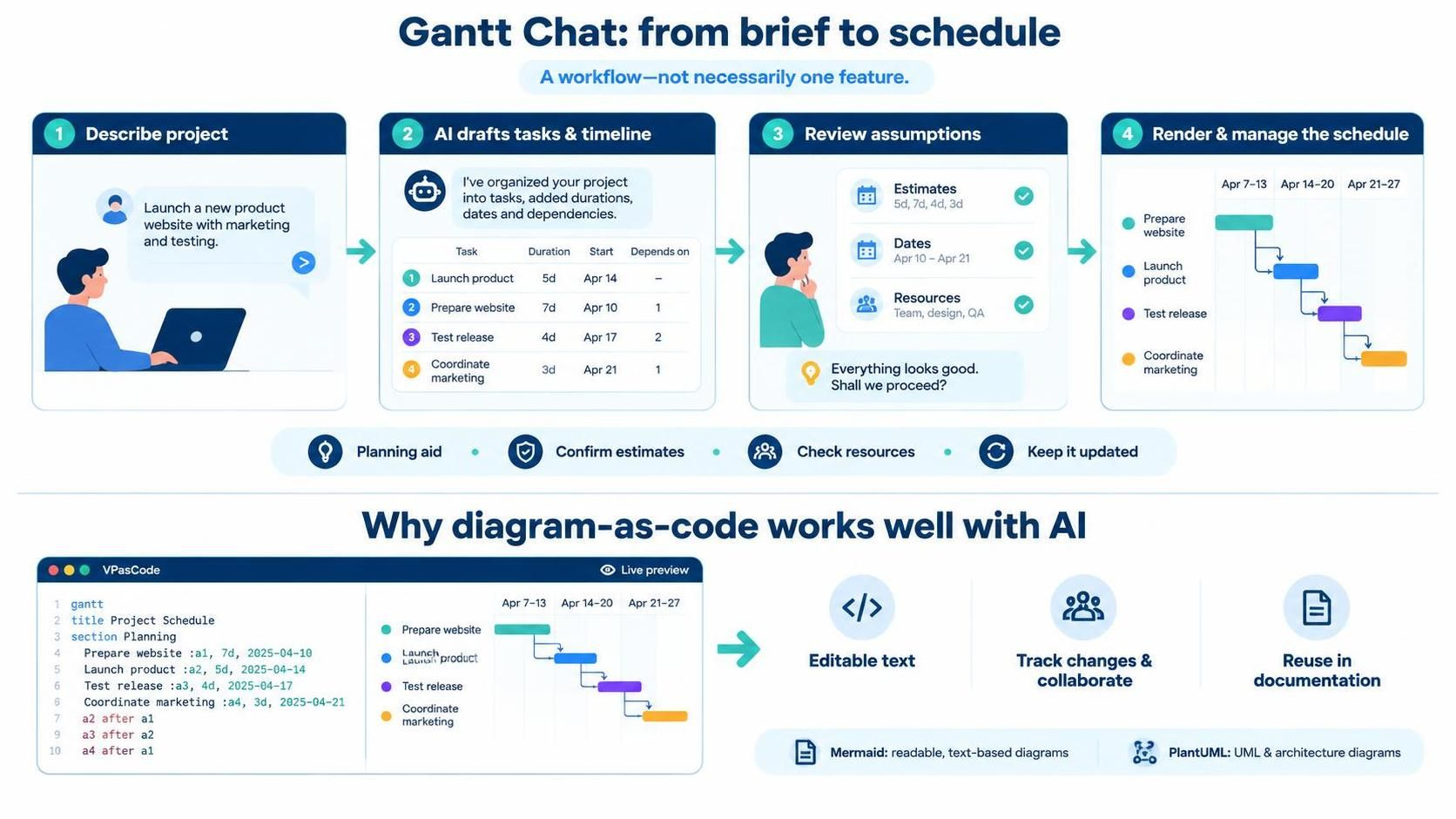
“Gantt Chat” is a useful way to describe a workflow—not necessarily the name of a single Visual Paradigm feature. You tell an AI assistant what the project involves, and it helps turn the brief into a task list and timeline. You then check the assumptions and use a Gantt-capable tool to render or manage the schedule.
A Gantt chart typically places tasks along a calendar timeline. It helps people see when tasks are planned, how long they may take, and where dependencies affect the order of work. It’s a planning aid, not a substitute for agreed estimates, resource checks, or ongoing project management.
Why diagram-as-code works well with AI
Diagram-as-code represents a diagram as editable text instead of only as manually positioned shapes. That makes it practical to ask AI for a first draft, then review and adjust the underlying code.
The approach can make changes easier to track in version control, review collaboratively, and incorporate into documentation. Mermaid is a natural option for readable diagrams in text-based workflows; PlantUML supports a broad set of UML and architecture diagram types. VPasCode offers a browser-based editor with real-time previews for Mermaid and PlantUML, among other formats.
A practical workflow
-
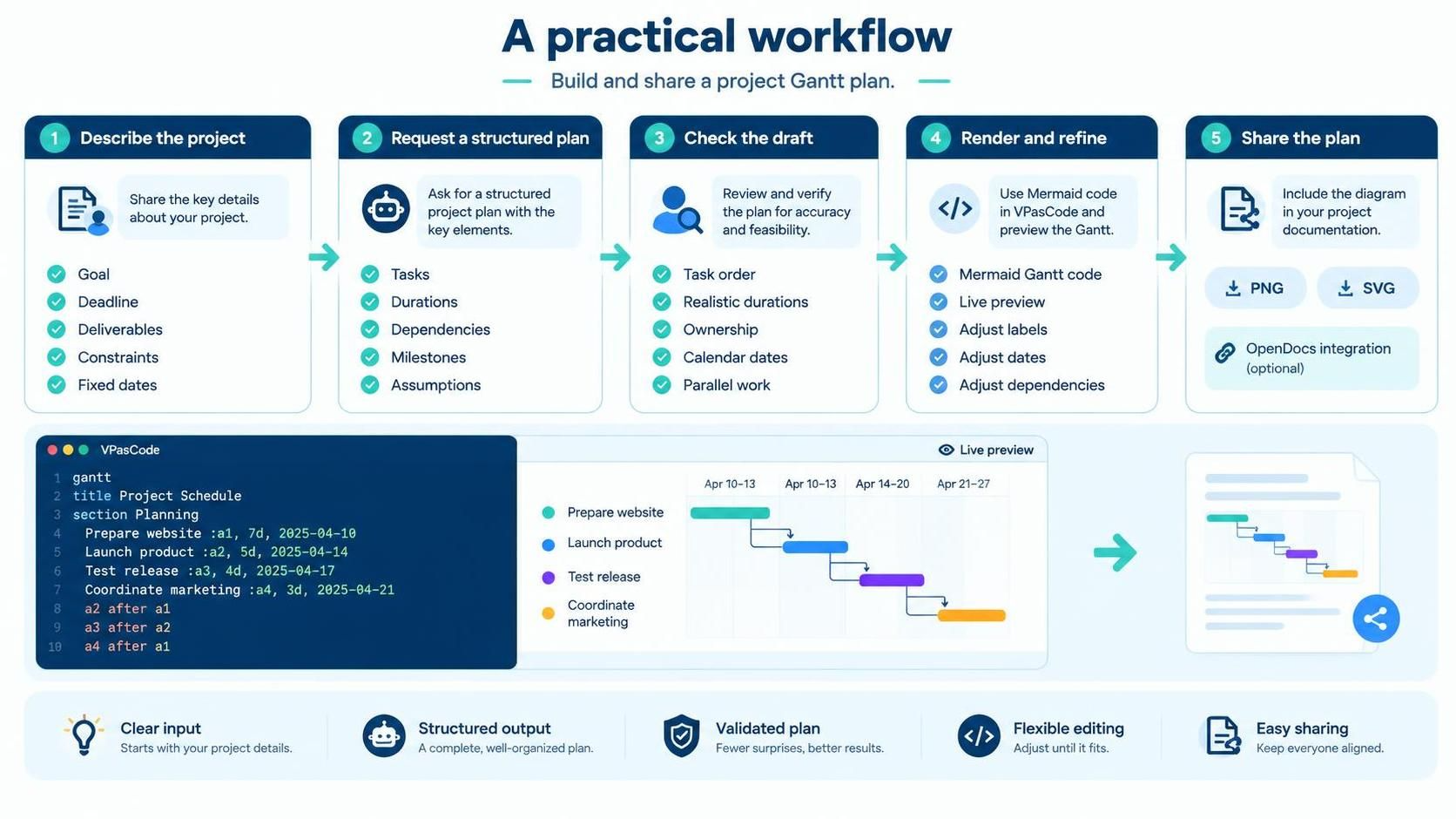
Describe the project. Include the goal, deadline, major deliverables, known constraints, and any fixed dates.
-
Ask for a structured plan. Request tasks, durations, dependencies, milestones, and assumptions—not just a list of phases.
-
Check the draft. Confirm task order, realistic durations, ownership, calendar dates, and whether work can happen in parallel.
-
Render and refine. Put Mermaid Gantt code into VPasCode for a live preview, then adjust labels, dates, and dependencies.
-
Share the plan. Export or include the diagram in project documentation. Visual Paradigm describes export to PNG or SVG and integration options with OpenDocs for diagrams.
A prompt might be:
Create a draft Gantt plan for a small website launch. Include discovery, design, development, content preparation, testing, and launch. The target launch date is 30 September. Show dependencies and identify tasks that could run in parallel. Mark all durations and dates as estimates, and list any assumptions.
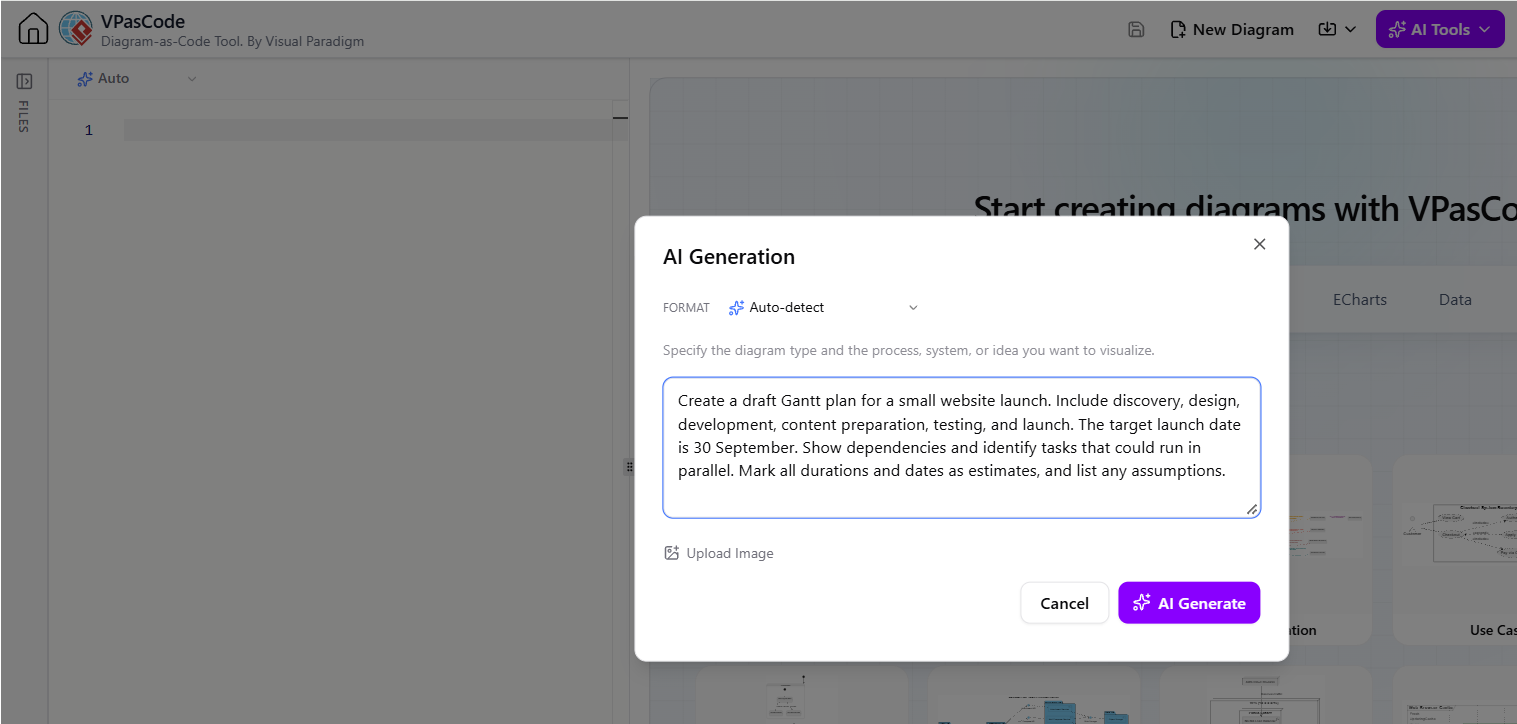
The key instruction is to ask for assumptions. AI can organize a plan, but it cannot know your team’s actual availability or validate estimates without reliable project information.
gantt
    title Website Launch Plan (draft) — target go-live Fri 30 Sep
    dateFormat YYYY-MM-DD
    axisFormat %d %b
    excludes weekends

    section Discovery (est.)
    Kickoff and stakeholder interviews      :done, disc1, 2026-08-03, 4d
    Requirements and scope sign-off         :crit, disc2, after disc1, 2d
    Technical and content audit             :disc3, after disc1, 3d
    Sitemap and page inventory              :disc4, after disc2 disc3, 2d

    section Design (est.)
    Wireframes                              :crit, des1, after disc4, 5d
    Visual design / UI kit (parallel)       :des2, after disc4, 7d
    Design review and sign-off              :crit, des3, after des1 des2, 2d

    section Content (est.)
    Content plan and owner assignment       :cnt1, after disc4, 2d
    Copywriting (parallel with design)      :cnt2, after cnt1, 8d
    Image and media sourcing (parallel)     :cnt3, after cnt1, 7d
    Content review and edits                :cnt4, after cnt2 cnt3, 3d

    section Development (est.)
    Environment and repo setup              :dev1, after des3, 2d
    Template and component build            :crit, dev2, after dev1, 8d
    CMS integration and content load        :crit, dev3, after dev2 cnt4, 4d
    SEO, analytics and tracking             :dev4, after dev2, 3d

    section Testing (est.)
    QA pass and bug fixes                   :crit, tst1, after dev3 dev4, 5d
    Accessibility and performance check     :tst2, after dev3, 3d
    UAT and stakeholder acceptance          :crit, tst3, after tst1, 3d

    section Launch (est.)
    Go / no-go decision                     :crit, lau1, after tst2 tst3, 1d
    Production deploy and DNS switchover    :crit, lau2, 2026-09-30, 1d
    Post-launch monitoring and handover     :lau3, after lau2, 3d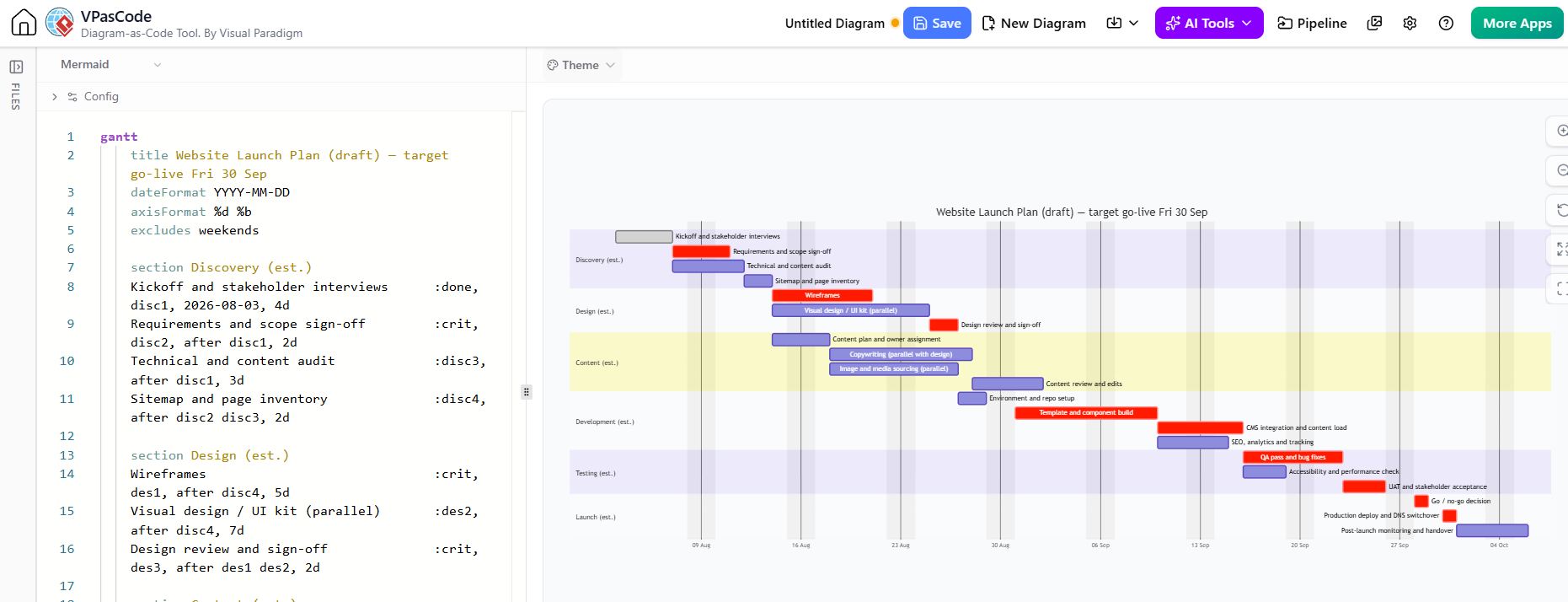
Mermaid Gantt example
Mermaid includes a Gantt chart syntax, and Visual Paradigm’s Mermaid editor lists Gantt charts among its supported diagram types.
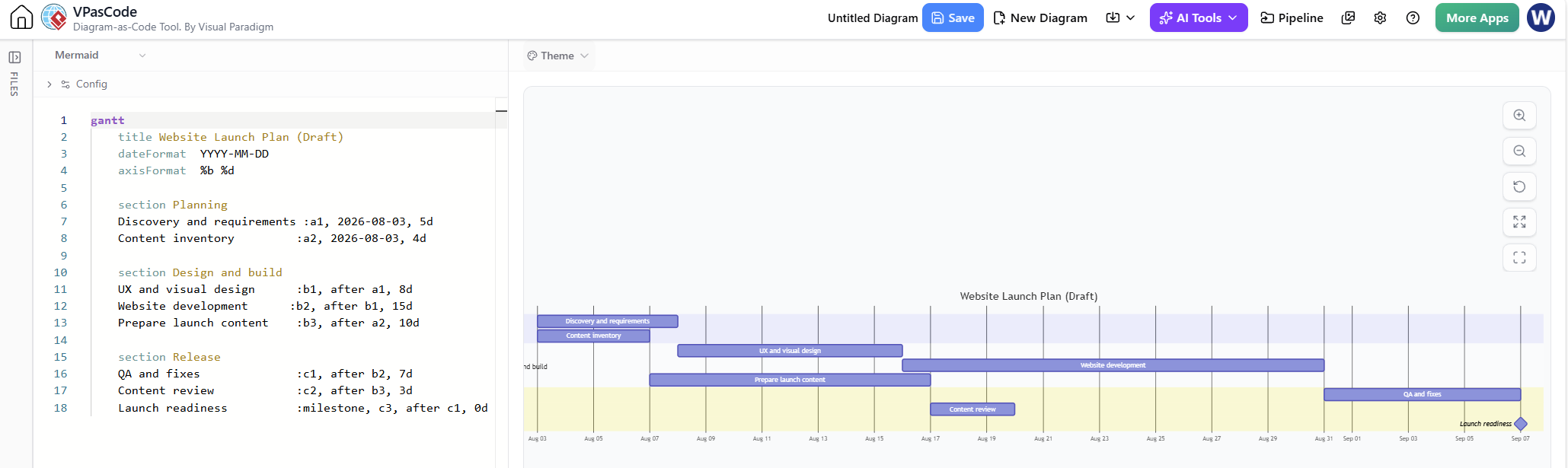
gantt
    title Website Launch Plan (Draft)
    dateFormat  YYYY-MM-DD
    axisFormat  %b %d

    section Planning
    Discovery and requirements :a1, 2026-08-03, 5d
    Content inventory         :a2, 2026-08-03, 4d

    section Design and build
    UX and visual design      :b1, after a1, 8d
    Website development      :b2, after b1, 15d
    Prepare launch content    :b3, after a2, 10d

    section Release
    QA and fixes              :c1, after b2, 7d
    Content review            :c2, after b3, 3d
    Launch readiness          :milestone, c3, after c1, 0d
This example is illustrative: task durations and start dates should be replaced with estimates your team has reviewed. The schedule includes parallel work—the content inventory can begin alongside discovery, and content preparation can overlap with development.
PlantUML example: represent the plan as a task breakdown
PlantUML is useful for expressing structured diagrams such as work breakdown structures. Visual Paradigm lists WBS among its PlantUML-supported diagram types. It is not the same as a calendar-based Gantt schedule, so use it to show scope and hierarchy, and use Mermaid Gantt or a Gantt editor when the timeline is the main point.
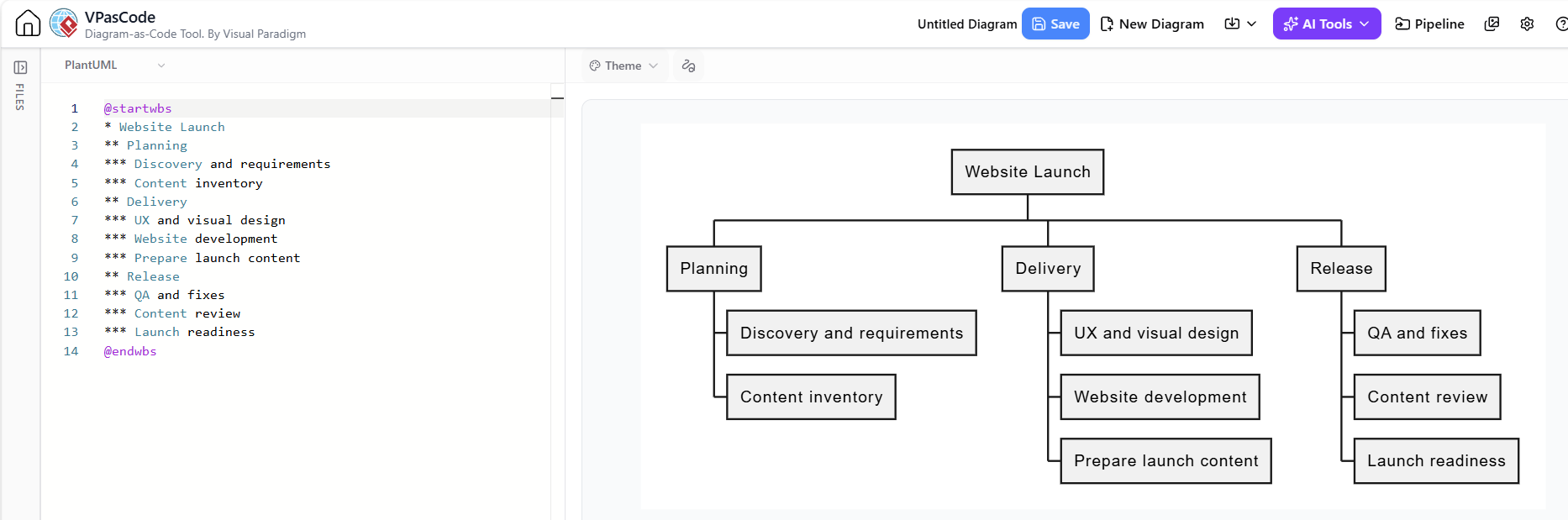
@startwbs
* Website Launch
** Planning
*** Discovery and requirements
*** Content inventory
** Delivery
*** UX and visual design
*** Website development
*** Prepare launch content
** Release
*** QA and fixes
*** Content review
*** Launch readiness
@endwbs
Pairing a task breakdown with a Gantt chart can help separate two questions: what work is included? and when is it planned?
Benefits and standout features
Visual Paradigm’s value is the combination of AI-assisted diagram creation and code-level editing. Its AI Diagramming Chatbot can generate diagram concepts from natural-language prompts; diagrams can then be opened in VPasCode for code editing, styling, or translation. VPasCode also provides live previews and supports multiple diagram syntaxes in one browser-based workspace.
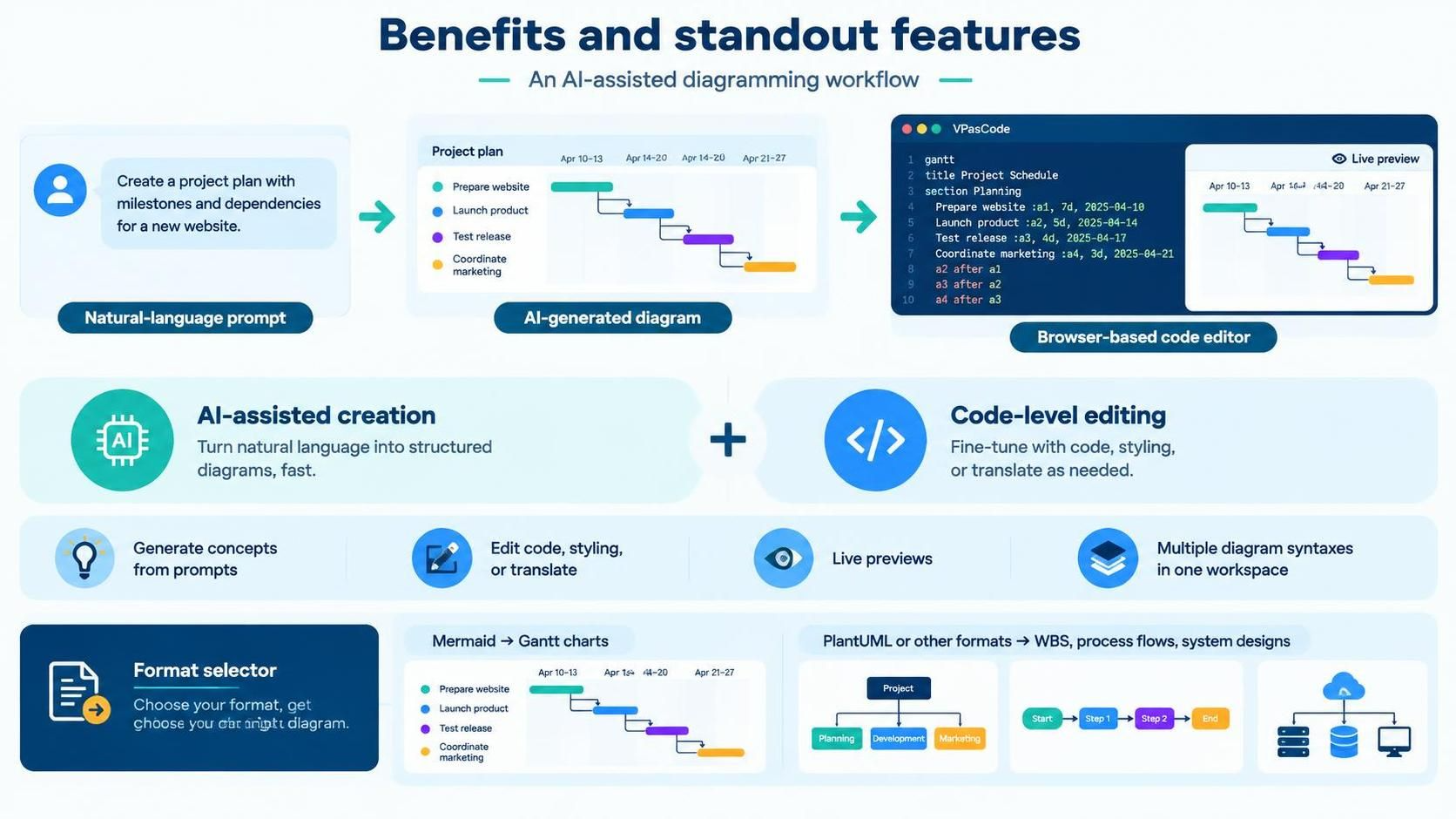
For a Gantt-oriented workflow, Mermaid is the relevant format in VPasCode: the editor supports Gantt charts, and its Mermaid tooling provides a visual preview. For other project artifacts—such as a work breakdown structure, process flow, or system design—PlantUML or another supported format may be more appropriate.
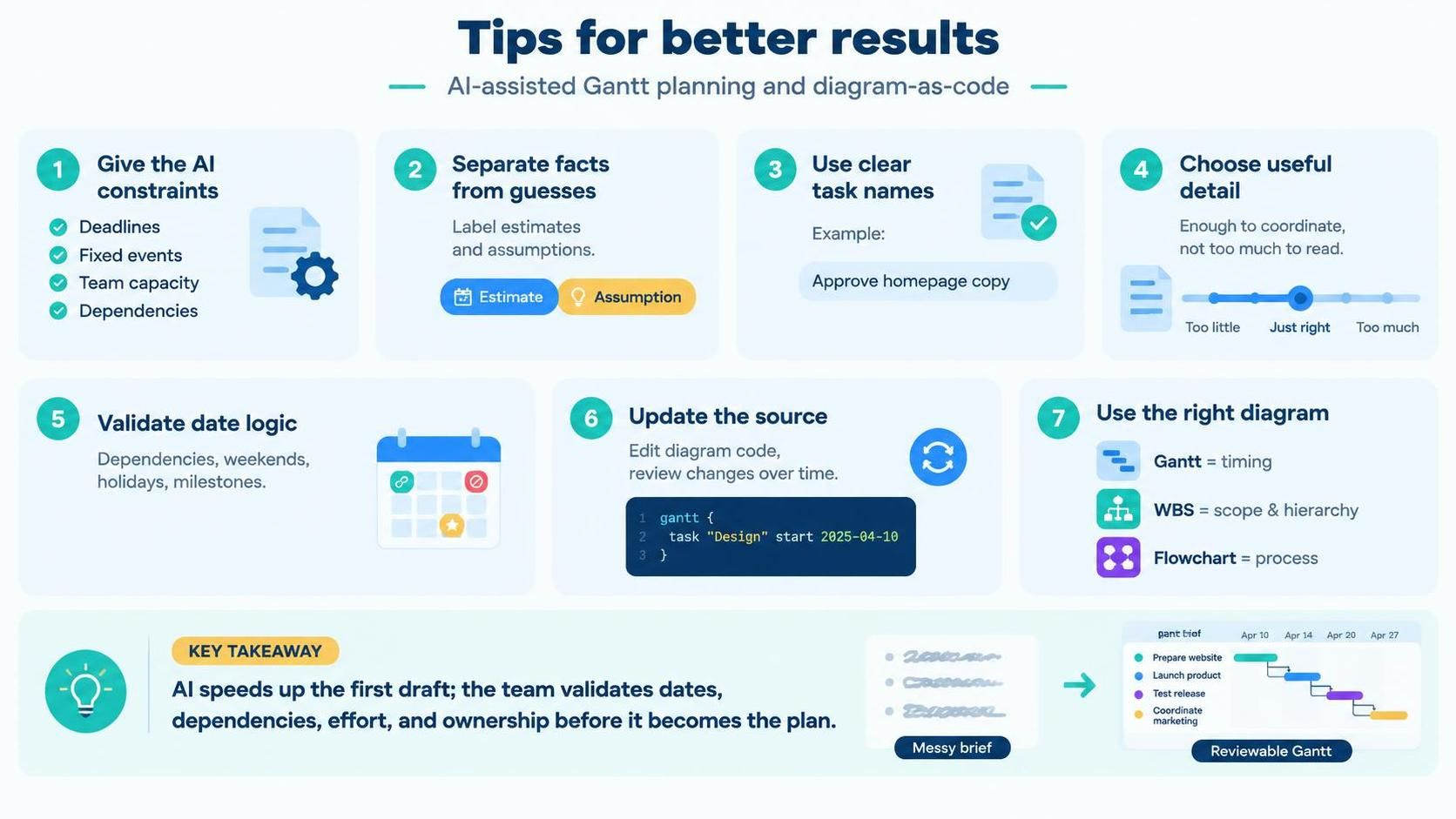
Tips for better results
-
Give the AI constraints. State deadlines, fixed events, team capacity, and known dependencies.
-
Separate facts from guesses. Label estimates and assumptions so readers don’t mistake them for commitments.
-
Use clear task names. “Approve homepage copy” is easier to assign and track than “content.”
-
Keep the schedule at a useful level. Too few tasks hide coordination; too many make the chart hard to read.
-
Validate date logic. Check that dependencies, weekends, holidays, and milestone dates match your actual work calendar.
-
Make updates in the source. Treat diagram code as the editable artifact, not just a screenshot, and review changes as the plan evolves.
-
Use the right diagram for the question. Gantt charts show timing; WBS diagrams show scope and hierarchy; flowcharts show process.
The practical payoff is a quick route from an unstructured project brief to a reviewable visual draft. AI can accelerate the first pass, while diagram-as-code and VPasCode make the result easier to inspect and refine. The project team still owns the final schedule: validate the dates, dependencies, effort, and responsibilities before treating the chart as a plan.