Step-by-Step Guide: Refining a Class Diagram with VPasCode Embedded AI
Refining a Class Diagram quickly and conveniently within VPasCode without external tools can be accomplished in a few simple steps using the built-in AI feature.
The Starting Point
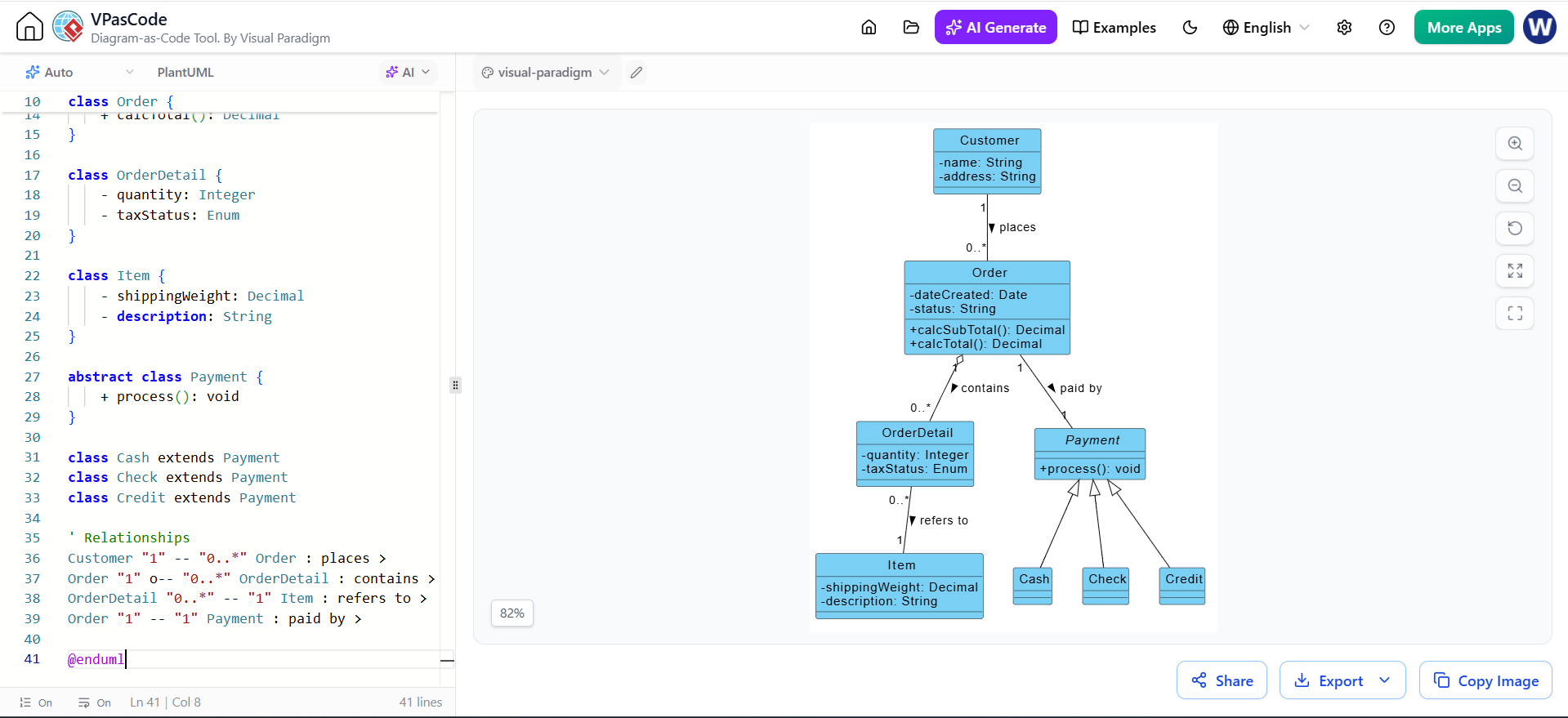
Imagine you have a basic e-commerce class diagram defined in PlantUML. You have a Payment class with three children: Cash, Check, and Credit. Currently, these child classes are empty shells, inheriting only from the parent.
(Note: In the actual interface, this corresponds to the first image provided, showing the code on the left and the rendered diagram on the right with empty child classes.)
Figure 1: The initial state of the Class Diagram in VPasCode. Note the Cash, Check, and Credit classes lack specific attributes.
Step 1: Open the AI Menu
To begin the refinement process, locate the AI controls within the editor interface.
Click on the AI dropdown button located at the top-left section above the code editor. This menu is your gateway to intelligent diagram manipulation.
Figure 2: Clicking the AI dropdown reveals options to Modify or Translate the diagram code.
Step 2: Select the Modify Option
The AI menu offers different capabilities depending on your needs. For structural changes, you will use the Modify function.
From the dropdown menu, click on the Modify option with the AI icon next to it. This tells the system you intend to alter the existing logic and structure of the diagram rather than generating something from scratch.
Step 3: Describe the Desired Changes
This is the most critical step where natural language replaces manual coding. You do not need to know the exact PlantUML syntax for the new attributes; you simply describe what you want.
In the AI Modify dialog box that appears, enter a natural language description of how you want to refine or change your diagram.
Example Prompt: “Add some attributes to the children Classes of the Payment Class in the Class Diagram”
Click the AI Modify button to submit your request.
Figure 3: The AI Modify dialog box. The user enters a natural language prompt (1) and triggers the process (2).
Step 4: View the Refined Diagram
Once you submit the prompt, the VPasCode engine goes to work. It analyzes the request, identifies the target classes (Cash, Check, Credit), and injects relevant attributes and methods based on standard domain knowledge.
The AI will automatically process your description, update the code, and reflect the newly added classes, attributes, or methods directly in your visual Class Diagram.
Result: As seen below, the Cash class now has cashTendered, the Check class has bankID and bankName, and the Credit class includes number and expDate. The code on the left has been updated to match the visual on the right.
Figure 4: The refined diagram. The AI has successfully populated the child classes with relevant attributes and methods, updating both the code and the visual representation.