


In the rapidly evolving landscape of enterprise architecture and software design, the ability to rapidly prototype ideas and integrate them into a larger project structure is paramount. Visual Paradigm’s AI Chatbot features a powerful diagramming engine that can generate MarkMaps (Markdown-based mind maps) instantly based on natural language prompts. However, the true value of these diagrams emerges when they are moved from a temporary generation session into the persistent Pipeline repository.
This tutorial explores the technical workflow of transferring an AI-generated MarkMap into the Visual Paradigm ecosystem. We will examine the architecture of this data transfer, the importance of the naming convention, and how this integration enables a unified workflow across connected applications.
The Architecture of AI-Generated Diagrams
Before diving into the “how-to,” it is essential to understand the “why” and the underlying technical context. When the AI Chatbot generates a MarkMap, it is essentially creating a lightweight, text-based representation of a hierarchical graph. Unlike complex UML sequence diagrams or state machines that require heavy computational resources to render, MarkMaps are structured data objects optimized for quick visualization and parsing.
The Pipeline acts as the central repository for these artifacts. It serves as the bridge between the generative AI interface and the standard modeling workspace. By sending a diagram to the Pipeline, you are effectively:
- Converting a transient chat artifact into a persistent project asset.
- Registering the diagram within the version control system of the application.
- Enabling interoperability with other Visual Paradigm tools (such as VP Online or desktop clients).
Step-by-Step: The Integration Workflow
The process of moving a diagram from the chat interface to the pipeline is designed to be frictionless. Below is the detailed technical breakdown of the steps involved.
1. Locating the Generated Artifact
Once the AI has processed your prompt and rendered the MarkMap, the diagram appears in the Diagram Viewer. This viewer is a sandboxed environment designed for immediate inspection and editing. The diagram is currently in a “local” state, meaning it is only visible within the current chat session.
2. Initiating the Transfer
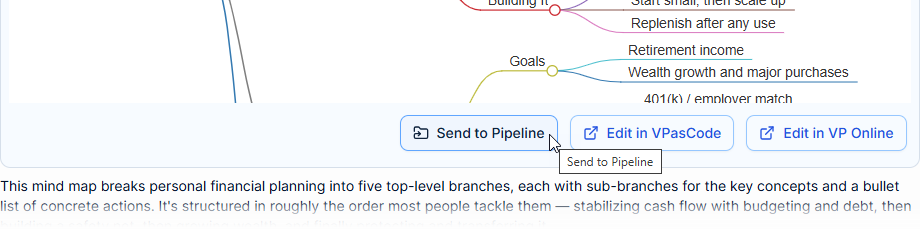
To persist this diagram, locate the control panel at the bottom of the diagram viewer. You will see a dedicated button labeled Send to Pipeline. Clicking this button triggers the backend service responsible for serializing the MarkMap data and writing it to the repository.
3. Metadata Management (Naming)
Upon clicking the transfer button, the system prompts you to enter a name for the diagram. This is a critical step in system architecture for information retrieval. You must provide a clear, descriptive identifier (e.g., Personal Financial Planning or System Architecture v1).
Why is this important? In a technical environment where you may be managing dozens of diagrams generated by AI, the filename serves as the primary key for indexing. A well-named diagram allows for rapid discovery within the Pipeline interface later.
4. Confirmation and Persistence
Click Confirm. The system validates the input and commits the MarkMap to the Pipeline. At this point, the diagram is no longer just a chat response; it is a registered asset available for:
- Reusability: Opening the diagram in a new session without regenerating it.
- Collaboration: Accessing the diagram via connected Visual Paradigm applications.
- Evolution: Using the diagram as a base for further detailed modeling.
Technical Benefits of Pipeline Integration
The transition from the Chatbot to the Pipeline represents a shift from Generative to Operational states. By integrating the MarkMap into the Pipeline, you gain access to the full suite of Visual Paradigm’s modeling capabilities.
For instance, a MarkMap created for a “Personal Financial Planning” scenario can be re-imported into the desktop application to be converted into a more formal BPMN process or a detailed UML Use Case Diagram. The Pipeline acts as the universal translator, ensuring that the structural data of your MarkMap is preserved and accessible regardless of the interface used to view it.
Conclusion
Utilizing the “Send to Pipeline” feature is the final step in a robust AI-assisted modeling workflow. It ensures that your creative output from the AI Chatbot is immediately actionable, searchable, and integrated into your broader project management structure. By following these steps, you ensure that your diagrams are not lost in the ephemeral nature of a chat session but are instead solidified as enduring assets within your organization’s knowledge base.