


From Chaos to Clarity: Mastering Complex BPMN Workflows with Visual Paradigm
Master complex BPMN workflows with Visual Paradigm by eliminating spaghetti diagrams and applying structured thinking to create clear, actionable process models.
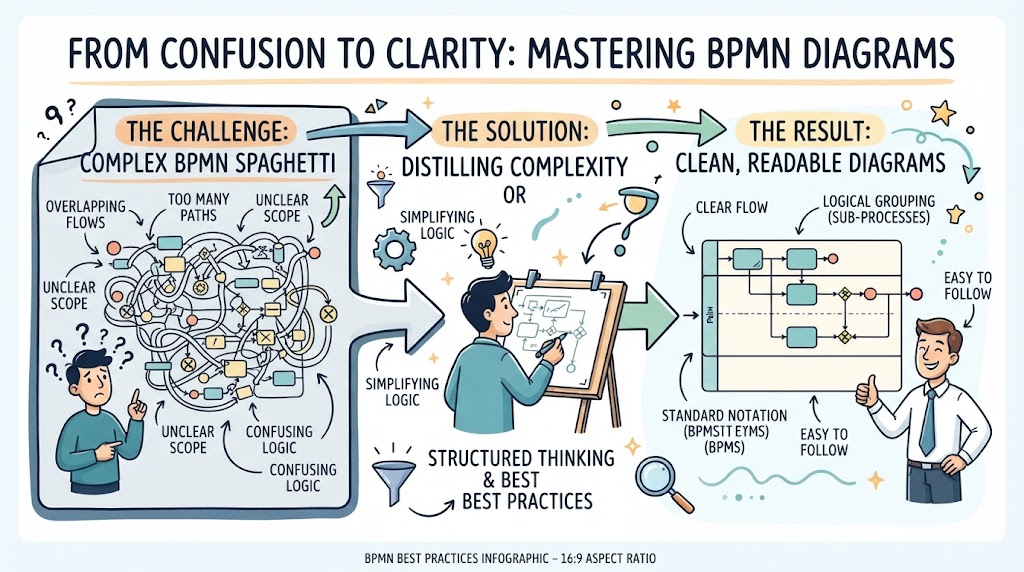
Master complex BPMN workflows with Visual Paradigm by eliminating spaghetti diagrams and applying structured thinking to create clear, actionable process models.
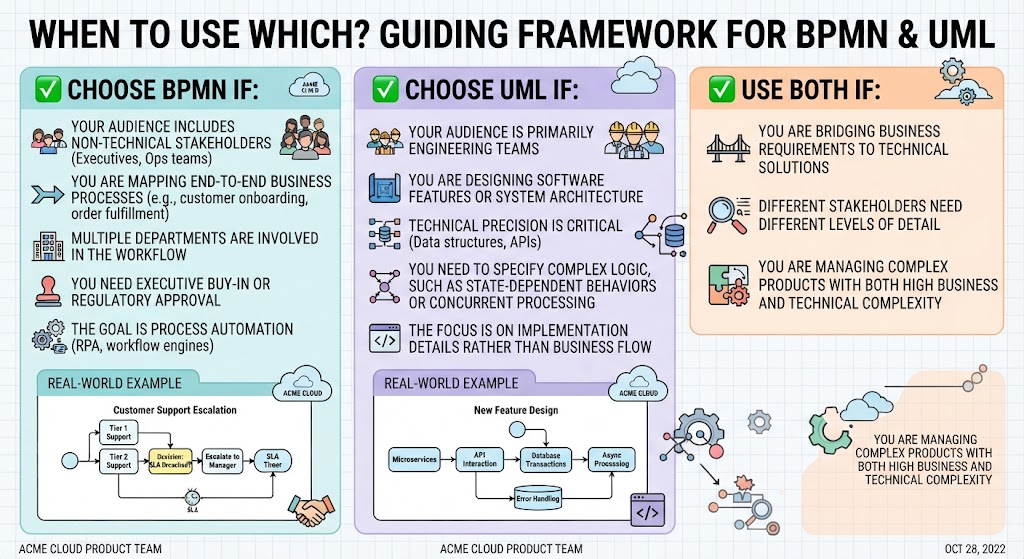
Discover when to use BPMN versus UML to visualize systems, choose the right modeling language for your audience, and bridge the gap between business and engineering teams.
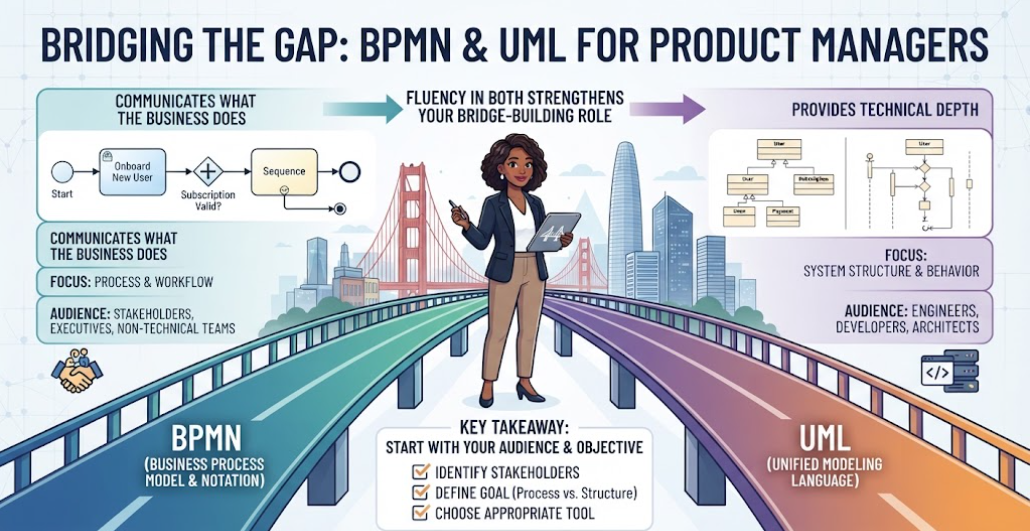
Master when to use BPMN for business workflows versus UML for system design. Learn to bridge communication gaps between strategy and engineering to prevent scope creep and technical debt.
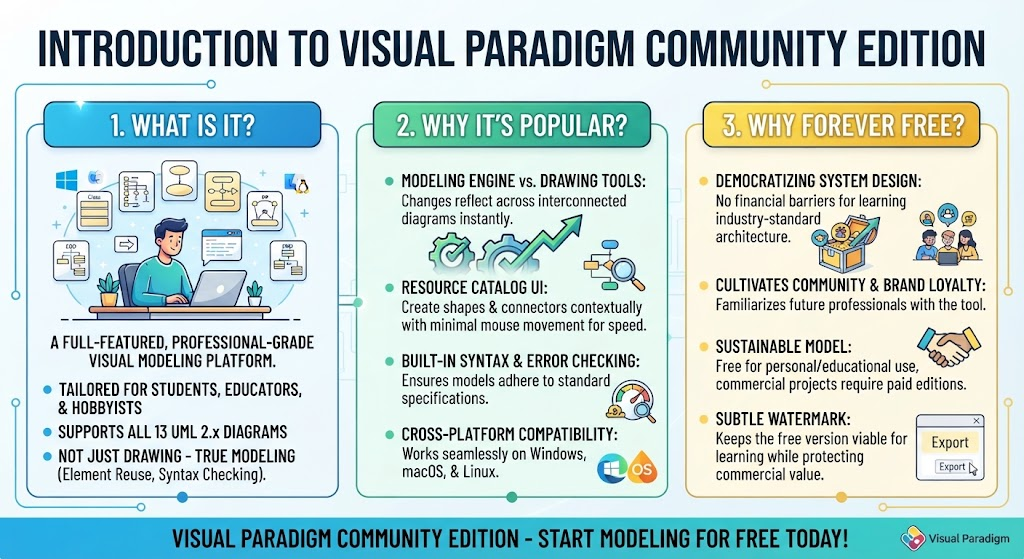
Learn how Visual Paradigm Community Edition transforms static diagrams into dynamic UML and ERD models for system architecture, database design, and professional software engineering.
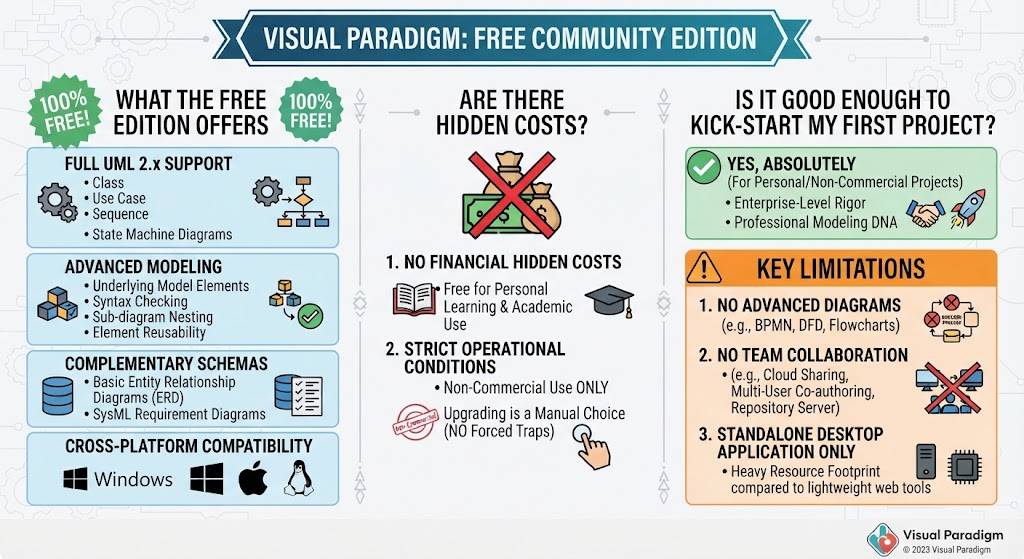
Master UML 2.x design and system architecture with the free Visual Paradigm Community Edition. Learn to build Class, Use Case, and Sequence diagrams for professional software modeling.
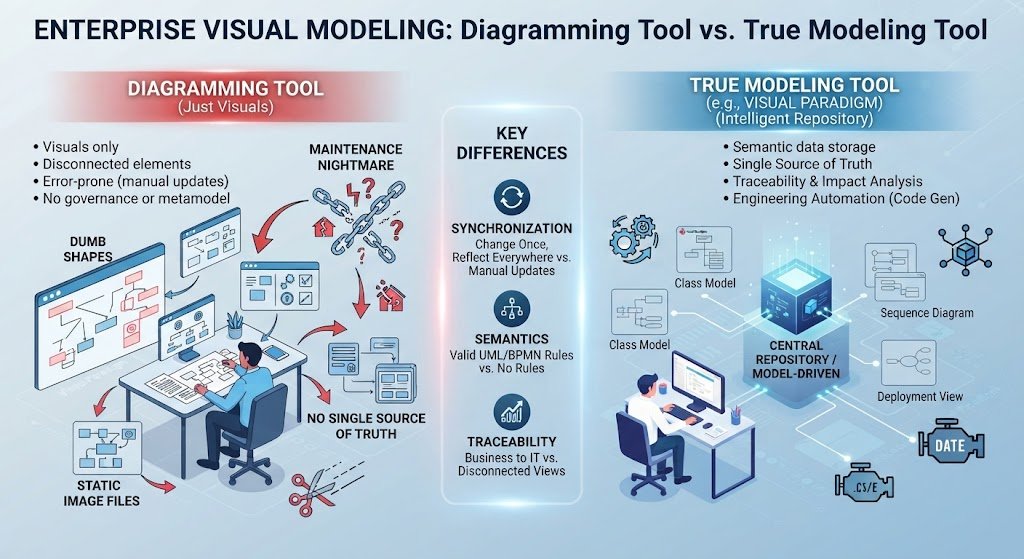
Discover why standard diagramming tools fail enterprise scalability and learn how true modeling transforms static visuals into a living, semantic single source of truth.
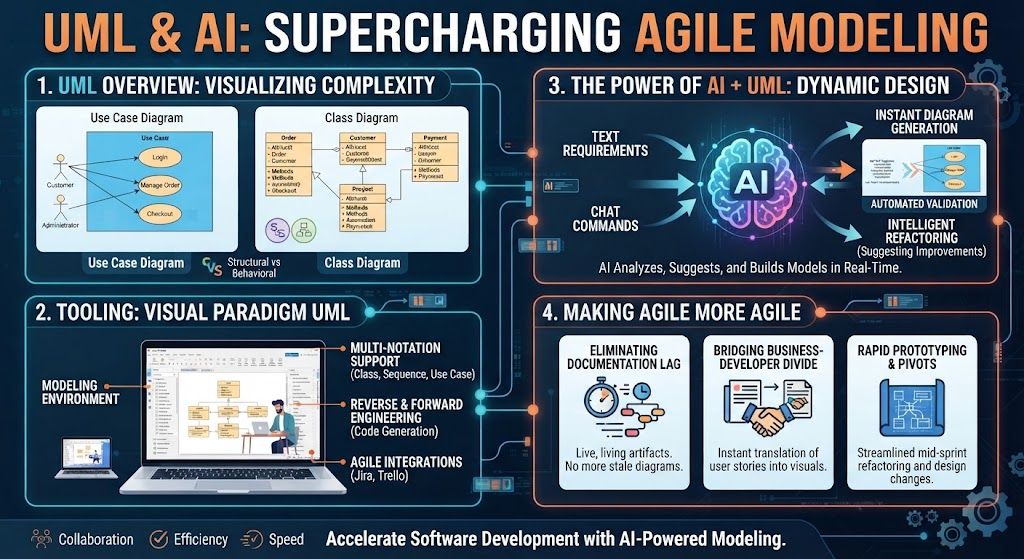
Discover how AI transforms static UML diagrams into dynamic design accelerators, streamlining Agile workflows and bridging the gap between business requirements and technical execution.
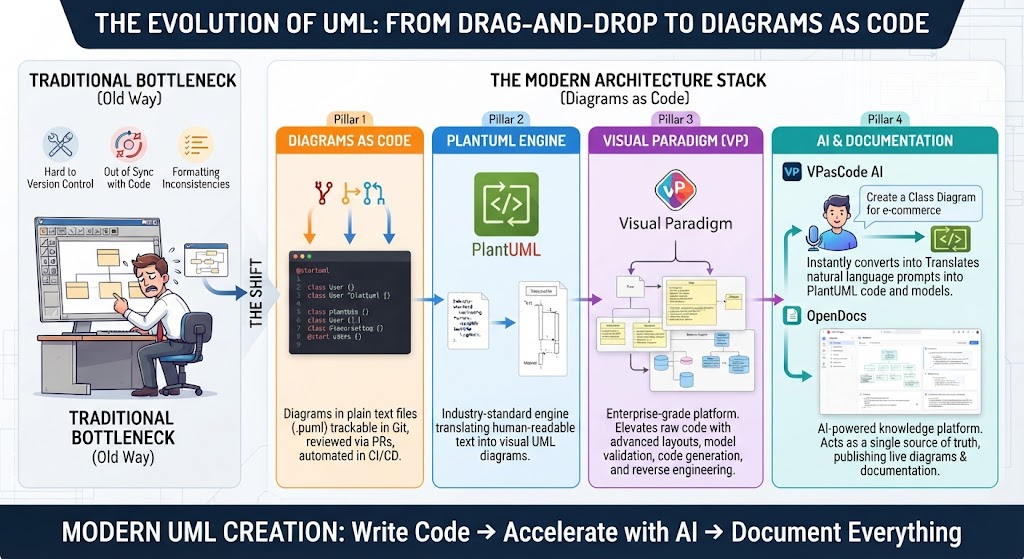
Discover how to replace fragile drag-and-drop tools with a modern stack including PlantUML, Visual Paradigm, and VPAI Code to manage UML diagrams as code in Git.
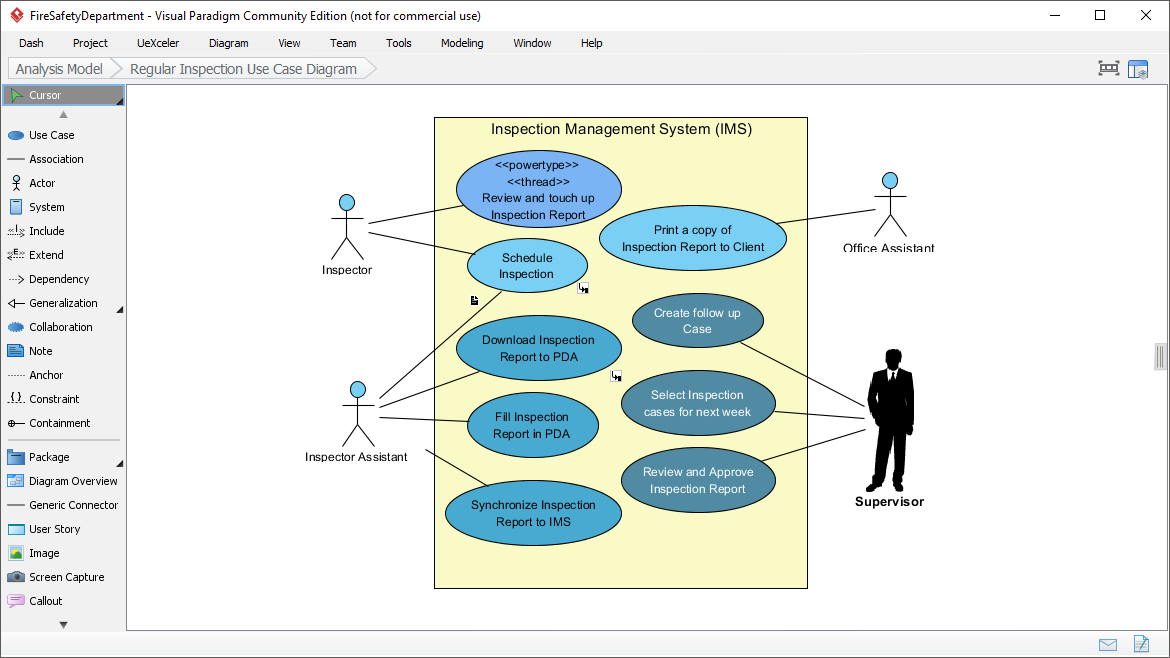
Learn to analyze the Inspection Management System UML use case diagram, identifying actors, system boundaries, and technical stereotypes for effective software architecture.
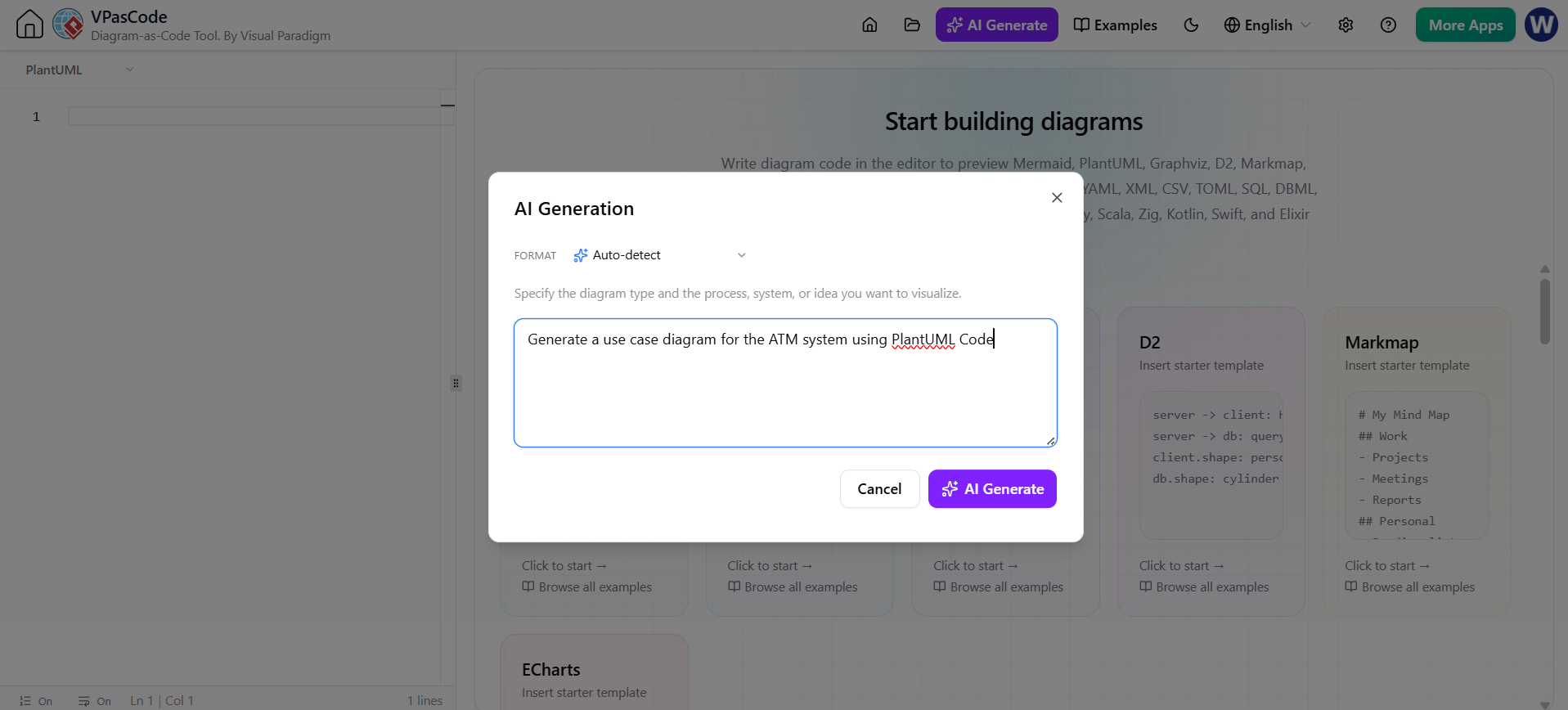
Instant AI Diagram Generation The foundation of VPasCode’s AI suite is the “AI Generate” panel, accessible via the top toolbar. This feature bridges the gap between abstract system descriptions and concrete visual representations. How It Works Clicking the AI Generate button opens an integrated dialogue box directly within the interface. Users can input simple natural language descriptions of their desired system or architecture. The AI dynamically analyzes the intent and selects the most appropriate DSL format—whether PlantUML for UML diagrams, Mermaid.js for flowcharts, or ECharts for data visualization. On-Canvas Rendering A critical differentiator is the immediate feedback loop. The moment the AI generates the script, it inserts the code into the left-hand editor panel and simultaneously renders the live visual diagram on the right panel. This eliminates the copy-paste cycle common in generic AI coding assistants, allowing architects to instantly validate if the generated structure matches their mental model.
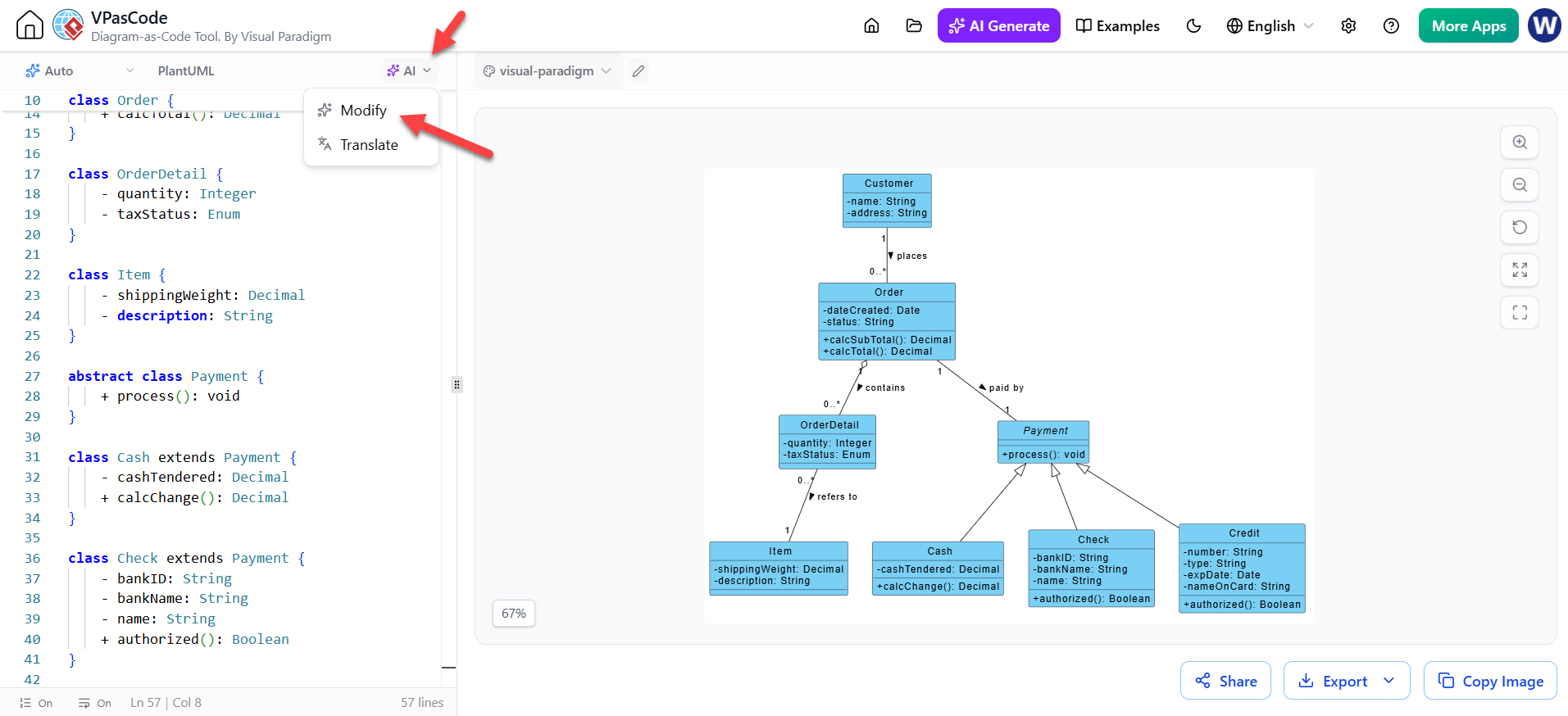
Native AI Integration: AI capabilities are embedded directly within the editor environment, eliminating context switching between external LLM chat interfaces and the diagramming canvas. – Diagram Generation when the code pane is Empty: Modify the code with AI LLM, when you want to touch up an existing diagram:
Step-by-Step Guide: Refining a Class Diagram with VPasCode Embedded AI
Refining a Class Diagram quickly and conveniently within VPasCode without external tools can be accomplished in a few simple steps using the built-in AI feature.
The Starting Point
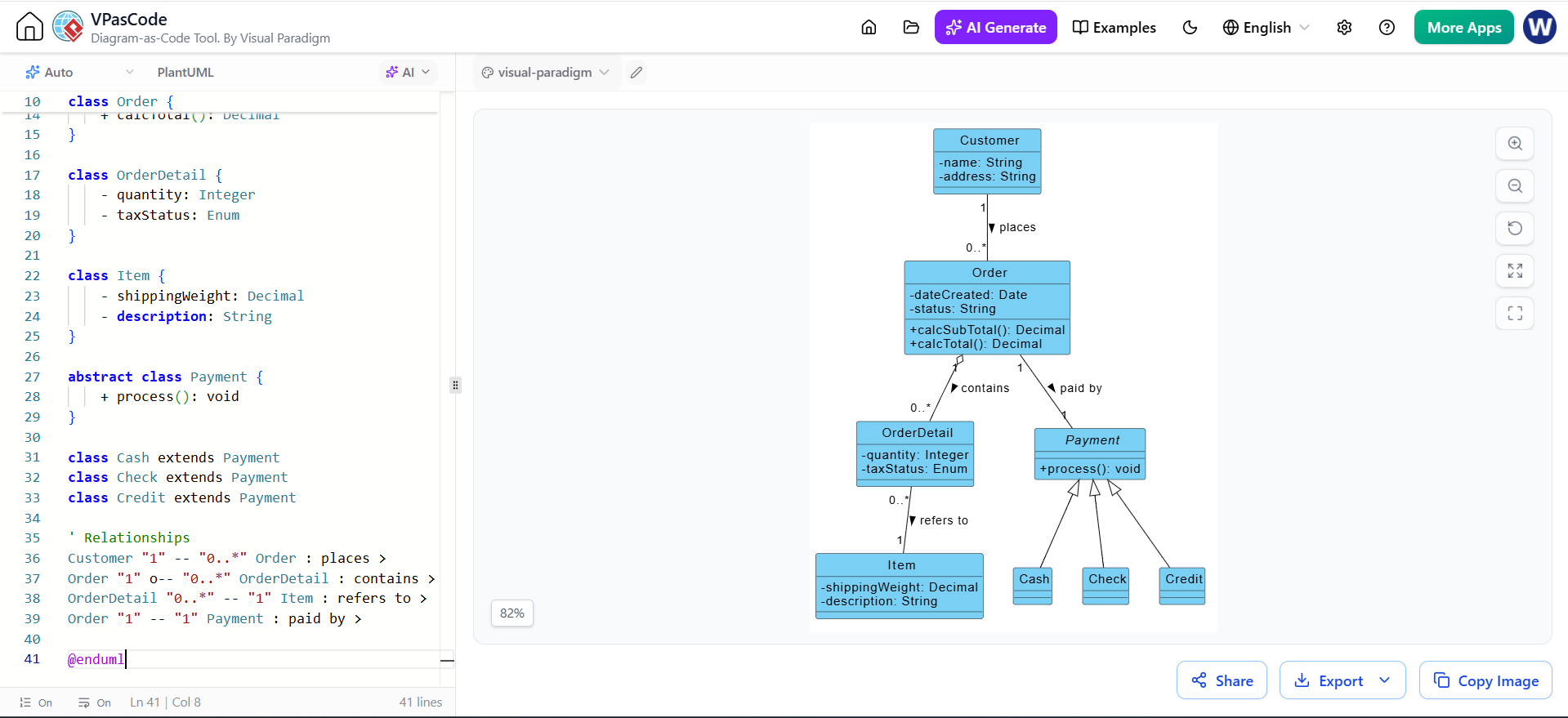
Imagine you have a basic e-commerce class diagram defined in PlantUML. You have a Payment class with three children: Cash, Check, and Credit. Currently, these child classes are empty shells, inheriting only from the parent.
(Note: In the actual interface, this corresponds to the first image provided, showing the code on the left and the rendered diagram on the right with empty child classes.)
Figure 1: The initial state of the Class Diagram in VPasCode. Note the Cash, Check, and Credit classes lack specific attributes.
Step 1: Open the AI Menu
To begin the refinement process, locate the AI controls within the editor interface.
Click on the AI dropdown button located at the top-left section above the code editor. This menu is your gateway to intelligent diagram manipulation.
Figure 2: Clicking the AI dropdown reveals options to Modify or Translate the diagram code.
Step 2: Select the Modify Option
The AI menu offers different capabilities depending on your needs. For structural changes, you will use the Modify function.
From the dropdown menu, click on the Modify option with the AI icon next to it. This tells the system you intend to alter the existing logic and structure of the diagram rather than generating something from scratch.
Step 3: Describe the Desired Changes
This is the most critical step where natural language replaces manual coding. You do not need to know the exact PlantUML syntax for the new attributes; you simply describe what you want.
In the AI Modify dialog box that appears, enter a natural language description of how you want to refine or change your diagram.
Example Prompt: “Add some attributes to the children Classes of the Payment Class in the Class Diagram”
Click the AI Modify button to submit your request.
Figure 3: The AI Modify dialog box. The user enters a natural language prompt (1) and triggers the process (2).
Step 4: View the Refined Diagram
Once you submit the prompt, the VPasCode engine goes to work. It analyzes the request, identifies the target classes (Cash, Check, Credit), and injects relevant attributes and methods based on standard domain knowledge.
The AI will automatically process your description, update the code, and reflect the newly added classes, attributes, or methods directly in your visual Class Diagram.
Result: As seen below, the Cash class now has cashTendered, the Check class has bankID and bankName, and the Credit class includes number and expDate. The code on the left has been updated to match the visual on the right.
Figure 4: The refined diagram. The AI has successfully populated the child classes with relevant attributes and methods, updating both the code and the visual representation.