


Welcome to this comprehensive tutorial on Business Process Model and Notation (BPMN) modeling. Whether you are a business analyst streamlining workflows or a software architect designing complex systems, Visual Paradigm provides a robust environment for bringing your processes to life. This guide focuses on the efficiency of the Resource Catalog, a core feature that accelerates the diagramming workflow.
Introduction to BPMN in Visual Paradigm
Visual Paradigm is a powerful modeling software designed to support various industry standards, including UML, SysML, SoaML, and BPMN. BPMN is the international standard for business process management, providing a notation that is understandable by all business stakeholders, from analysts to developers.
At the heart of BPMN modeling is the ability to visualize the flow of activities, events, and gateways. Visual Paradigm enhances this by offering a specialized Resource Catalog. This feature allows users to create new shapes quickly and accurately through drag-and-drop functionality, eliminating the need to navigate deep menu structures for every single element.
Understanding the Resource Catalog
The Resource Catalog acts as your palette for the BPMN canvas. Instead of searching through toolbars, you access a curated list of shapes relevant to the context you are working in. In the context of BPMN, this ensures that you are always using the correct notation—whether it is an Event, Activity, or Gateway.
The ‘Task’ Element
Let us focus on a fundamental building block of any process: the Task. A Task represents a unit of work performed by a participant in a process. In Visual Paradigm, the Resource Catalog simplifies the addition of this element.
Step-by-Step: Adding a Task via Drag-and-Drop
Follow these steps to effectively utilize the Resource Catalog to model a process flow:
- Identify the Context: Open your BPMN diagram. If you are starting a new sequence, you might see an incoming flow line, typically represented by a solid arrow connecting to a start event (the green circle).
- Access the Palette: Locate the Resource Catalog on your screen. This area displays the available shapes for the current context.
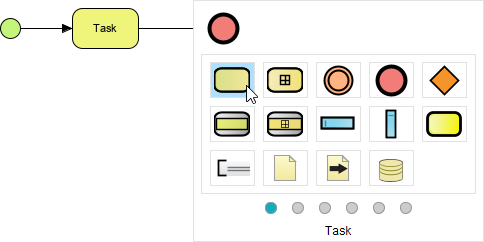
- Locate the Shape: Look for the Task shape. In the catalog, this is often represented by a rounded rectangle (yellow or white depending on the theme). In the provided example, the cursor is shown hovering over the Task shape.
- Drag and Drop: Click and hold the Task shape in the catalog. Drag it onto the canvas and drop it at the end of your existing flow line. Visual Paradigm will automatically align the shape and connect the flow.
As demonstrated in the diagram below, the process flows from a Start Event (green circle) through a sequence flow to the Task (rounded rectangle). The Resource Catalog highlights the specific shape being selected, ensuring accuracy.
Advanced Features of the BPMN Tool
Visual Paradigm is not just about drawing boxes; it is about creating semantically correct models. The BPMN Tool within the Resource Catalog includes a wide variety of shapes:
- Events: Circles that represent the start, intermediate, or end of a process (e.g., Start, End, Timer).
- Activities: Rounded rectangles representing work, including Tasks, Sub-processes, and Call Activities.
- Gateways: Diamonds and other shapes that control the divergence and convergence of paths (e.g., Exclusive Gateway, Parallel Gateway).
- Artifacts: Annotations, Data Objects, and Groupings that add context to your model.
By keeping these shapes organized in the Resource Catalog, Visual Paradigm ensures that your diagrams remain clean and consistent with the BPMN 2.0 specification.
Conclusion
Mastering the Resource Catalog in Visual Paradigm is the first step toward efficient BPMN modeling. By utilizing drag-and-drop functionality, you can focus on the logic of your business processes rather than the mechanics of drawing. Whether you are defining a simple Task or a complex multi-lane process, the tooling ensures your diagrams are professional, accurate, and ready for execution.