


In the realm of software architecture and business process modeling, clarity is king. One of the most effective ways to communicate logic is through flowcharts, specifically those that illustrate decision points. Visual Paradigm’s VPasCode tool allows developers and analysts to generate these diagrams using code, a method known as “Diagram as Code.” This approach offers version control, rapid iteration, and precision that manual drawing tools often lack.
This tutorial will guide you through the anatomy of a decision-based flowchart, analyzing a specific example involving a payment approval process. We will break down the Mermaid syntax used in the VPasCode editor to understand how branching logic is constructed.
Understanding the Syntax: The Flowchart Structure
The foundation of any Mermaid flowchart begins with the declaration of the graph type and direction. In the example provided, the code starts with:
flowchart TD
flowchart: This keyword tells the rendering engine that we are creating a flowchart diagram.
TD: This stands for “Top-Down.” It instructs the diagram to render from the top of the page to the bottom. Other common directions include “LR” (Left-Right) and “BT” (Bottom-Up).
Node Identification and Shapes
Nodes in a flowchart represent steps, actions, or decisions. They are defined by a unique ID and a label enclosed in specific brackets that determine their shape.
A{Payment approved?}
- A: This is the node ID. It acts as a reference point for connecting arrows. IDs must be unique within the graph.
- {…}: The curly braces indicate a Decision Node. In standard flowcharting, this is represented by a diamond shape. It signifies a point where the flow of control must branch based on a condition.
- Payment approved?: This is the text label displayed inside the decision diamond.
Defining Branches and Labels
The most critical part of a decision flowchart is defining the paths that lead away from the decision node. In Mermaid, this is done using the arrow syntax --> combined with a label.
The “Yes” Path
When the condition is met, the flow moves to the next step:
A -- Yes --> B[Confirm order]
- — Yes –>: This defines a directed edge from node
Ato nodeB. The text “Yes” is placed on the arrow line as the label, explaining why this specific path is taken. - B: The ID for the destination node.
- […]: Square brackets indicate a standard Process Node (a rectangle), representing an action to be taken.
The “No” Path
When the condition is not met, a different path is taken:
A -- No --> C[Show payment error]
- — No –>: This creates the second branch from node
Ato nodeC, labeled “No”. - C: The ID for the error handling node.
- Show payment error: The text describing the outcome of a failed payment.
Putting It All Together
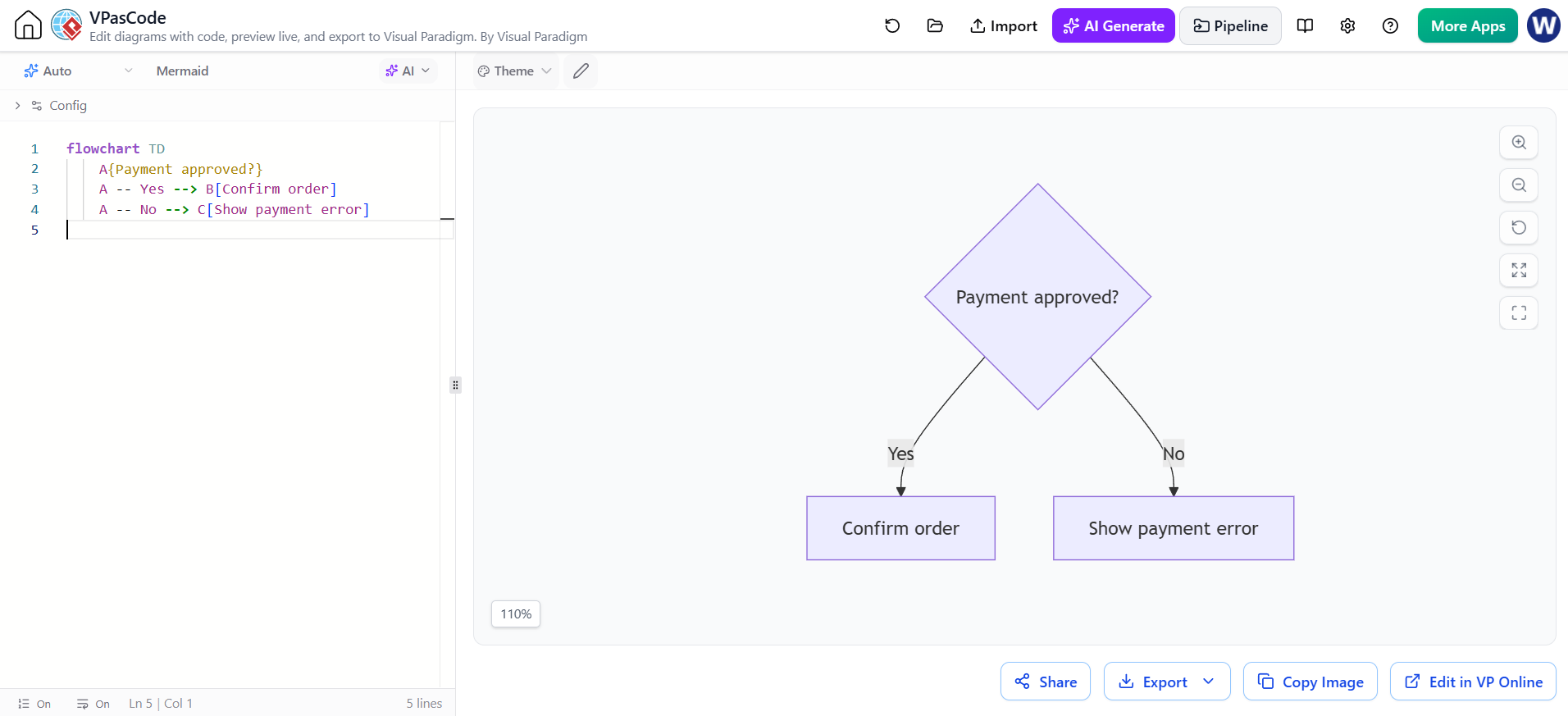
By combining these elements, we create a complete logical structure that can be rendered instantly. The VPasCode editor parses this text and renders the visual representation on the right side of the screen.
flowchart TD
    A{Payment approved?}
    A -- Yes --> B[Confirm order]
    A -- No --> C[Show payment error]
Note: In the actual output, the labels “Yes” and “No” appear on the connecting lines, guiding the user visually through the decision tree.
Why Use Code for Diagrams?
While drag-and-drop tools are intuitive, the code-based approach offers significant advantages for technical teams:
- Version Control: You can store your diagrams in Git alongside your source code. This allows you to track changes, view diffs, and revert to previous versions of your architecture.
- Consistency: Code enforces strict syntax rules, preventing the messy layouts and overlapping elements often found in manual diagramming.
- Speed: Writing a few lines of code is often faster than clicking through menus to set shapes, colors, and alignment.
By mastering the VPasCode editor, you ensure that your documentation is not just a static image, but a living part of your development workflow.