


Introduction
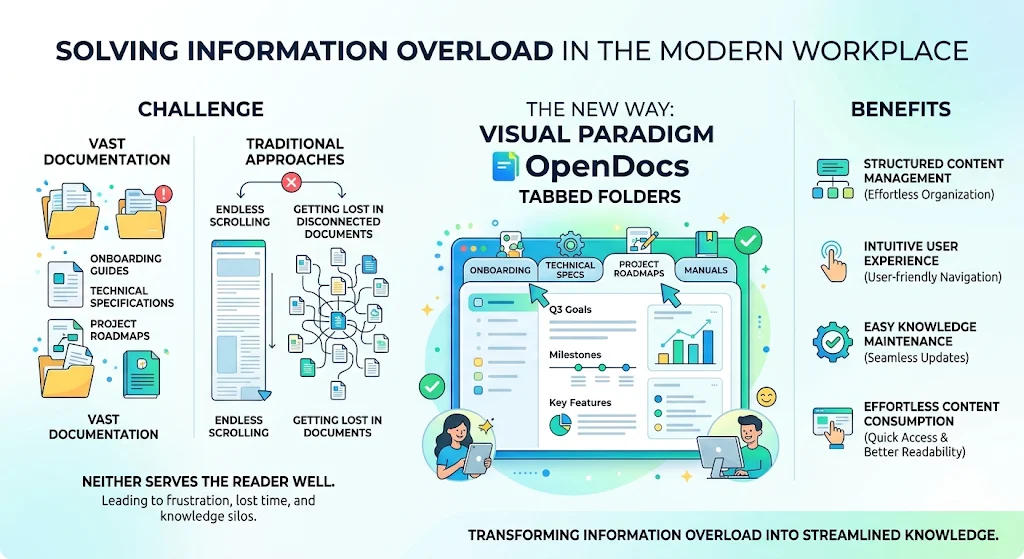
In the modern workplace, information overload is a significant challenge. Teams accumulate vast amounts of documentation, from onboarding guides and technical specifications to project roadmaps and troubleshooting manuals. The traditional approach to organizing this content often leads to two extremes: endless scrolling through monolithic pages or getting lost in a labyrinth of disconnected documents. Neither option serves the reader well.
Visual Paradigm OpenDocs addresses this pain point with a powerful new feature: Tabbed Folders. This innovation bridges the gap between structured content management and intuitive user experience. By allowing authors to organize related pages into an interactive tabbed view, OpenDocs ensures that knowledge is not only easy to maintain but also effortless to consume.
This guide explores the concept of Tabbed Folders, demonstrates how to implement them effectively, and provides practical examples to help you transform your documentation strategy. Whether you are a product manager, technical writer, or team lead, mastering this tool will enhance how your team shares and accesses critical information.
Key Concepts: Understanding Tabbed Folders
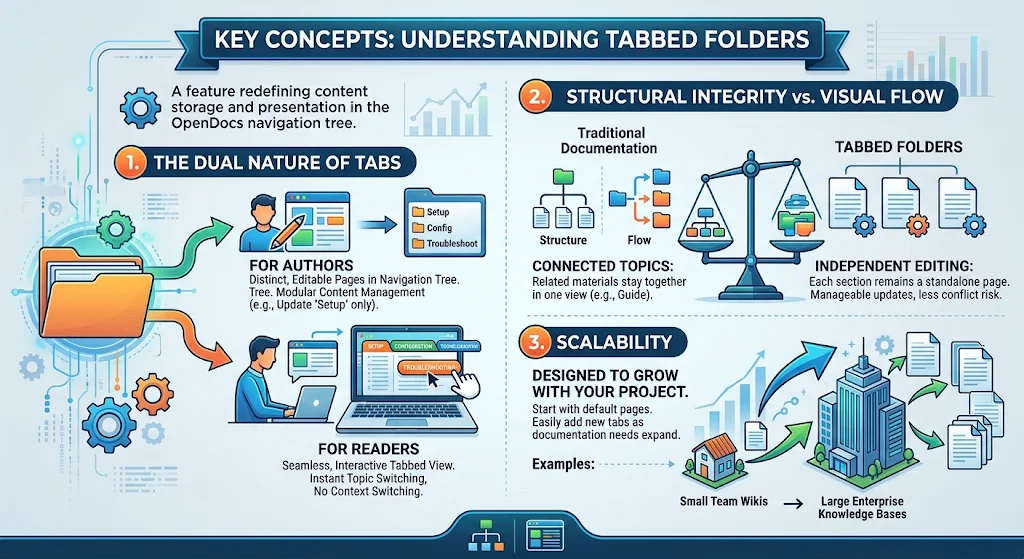
Before diving into the “how-to,” it is essential to understand the underlying logic of Tabbed Folders. This feature redefines the relationship between content storage and content presentation.
1. The Dual Nature of Tabs
A Tabbed Folder is a special container within the OpenDocs navigation tree. It functions like a standard folder by holding individual pages, but it presents those pages differently to the end-user.
-
For Authors: Each tab corresponds to a distinct, editable page in the page tree. This means you can update specific sections without affecting others, maintaining modular content management.
-
For Readers: The content appears as a seamless, interactive tabbed interface. Users can switch between topics instantly without navigating away from the current context.
2. Structural Integrity vs. Visual Flow
Traditional documentation often forces a choice between structure and flow. Splitting content into many pages improves structure but breaks flow; keeping it on one page improves flow but harms structure. Tabbed Folders offer a middle ground:
-
Connected Topics: Related materials (e.g., “Setup,” “Configuration,” and “Troubleshooting”) stay together in one view.
-
Independent Editing: Each section remains a standalone page, making updates manageable and reducing the risk of editing conflicts.
3. Scalability
Tabbed Folders are designed to grow with your project. They start with a default set of pages but allow you to add new tabs as your documentation needs expand. This flexibility makes them suitable for everything from small team wikis to large-scale enterprise knowledge bases.
Step-by-Step Guide: Creating and Managing Tabbed Content
Implementing Tabbed Folders in OpenDocs is straightforward. Follow these steps to create your first tabbed view.
Step 1: Initiate the Tabbed Folder
Navigate to the OpenDocs page tree. You can create a Tabbed Folder at the project root or within an existing folder to nest your content logically.
-
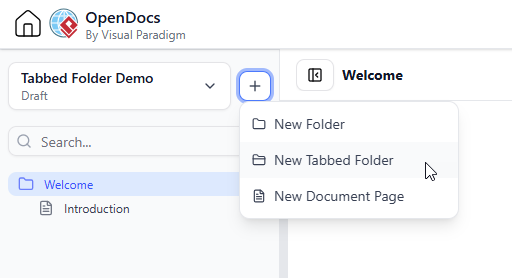
Click the + button beside the project name or the desired parent folder.
-
Select New Tabbed Folder from the popup menu.
Step 2: Name Your Folder
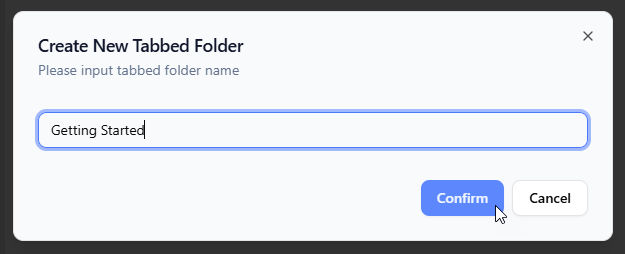
Give your Tabbed Folder a descriptive name that reflects the collective topic of its contents. For example, “Onboarding Guide” or “API Reference.” Click Confirm to create the folder.
Step 3: Explore the Default Structure
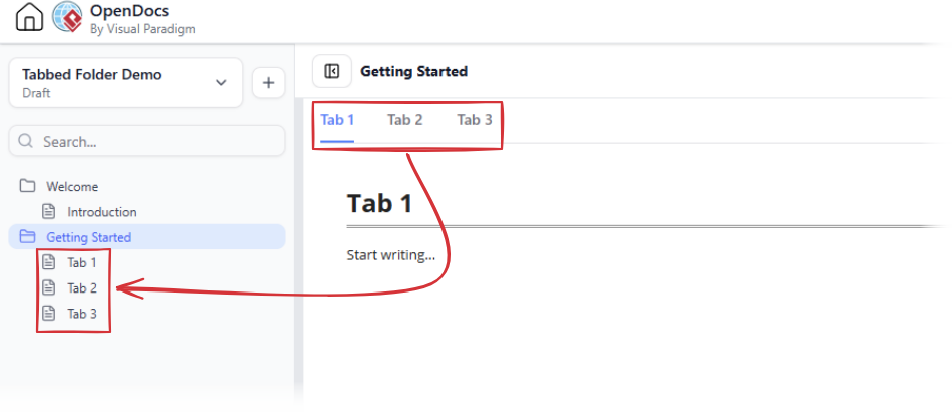
Upon creation, OpenDocs automatically generates three default pages within the folder. These pages immediately appear as tabs in the content view. This default structure provides a quick starting point for your documentation.
Step 4: Edit and Populate Content
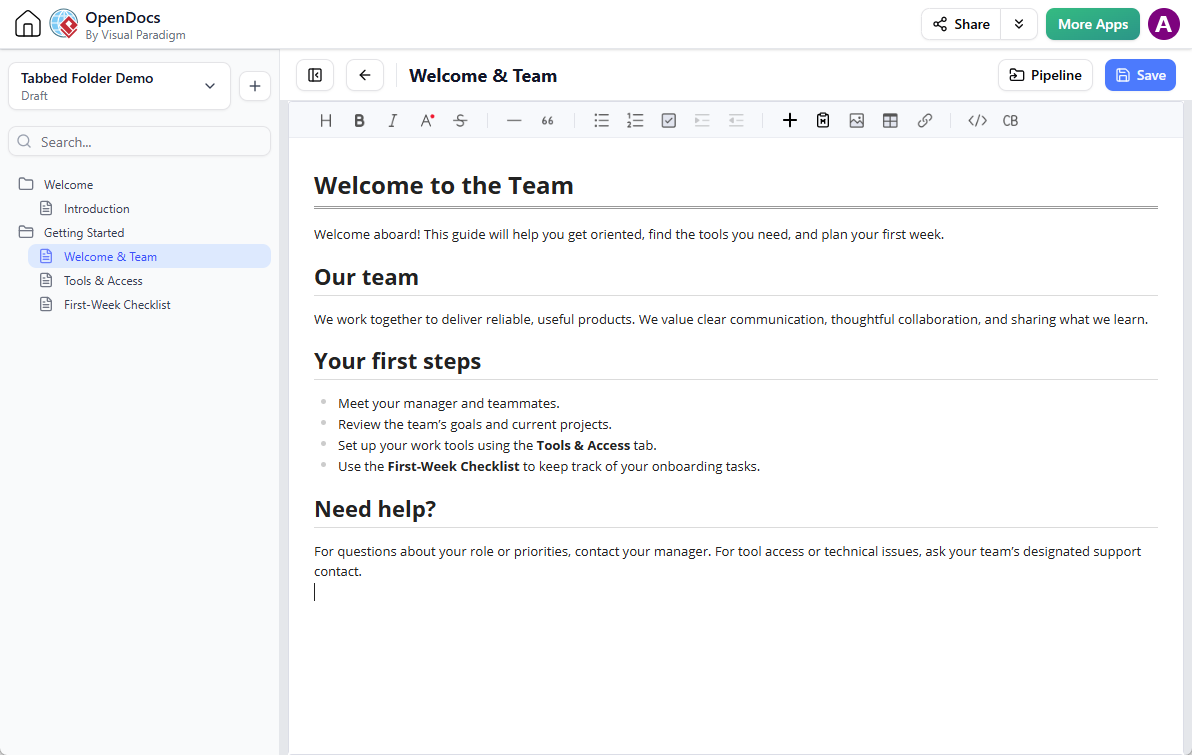
Open any page under the Tabbed Folder in the editor. Add your text, images, or diagrams. When you save the page, the changes are instantly reflected in the corresponding tab of the tabbed view. This direct link between the page tree and the tabbed interface ensures that your content is always up-to-date.
Step 5: Expand as Needed
If three tabs are not enough, simply add more pages under the Tabbed Folder. Each new page will automatically become a new tab, allowing your documentation to scale seamlessly.
Practical Examples: Ideas for Using Tabbed Folders
Tabbed Folders are versatile and can be applied to various documentation scenarios. Here are some practical examples to inspire your implementation.
Example 1: Team Onboarding Hub
Onboarding new team members requires presenting a lot of information clearly. A Tabbed Folder can organize this process into digestible sections.
-
Tab 1: Getting Started – Welcome message, team introduction, and first-day checklist.
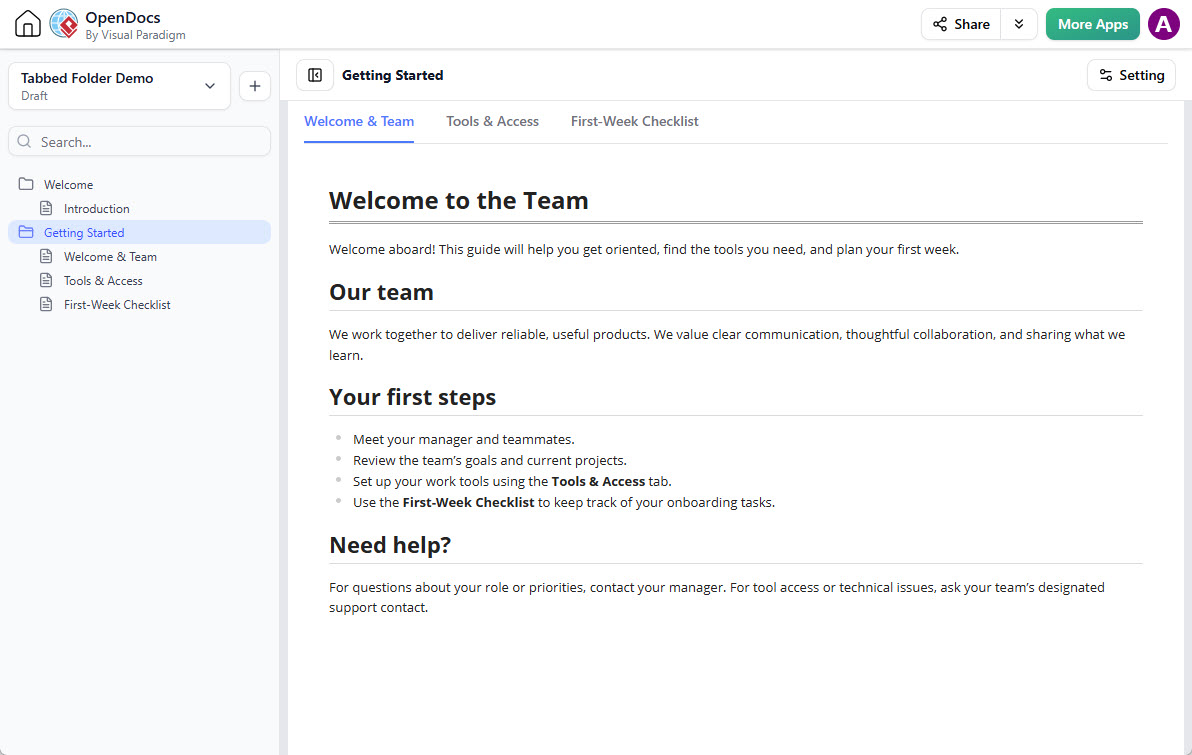
OpenDocs ‘Getting Started’ tab with a welcome message, team introduction, first steps, and help guidance. -
Tab 2: Tools & Access – List of essential software, access request procedures, and security best practices.
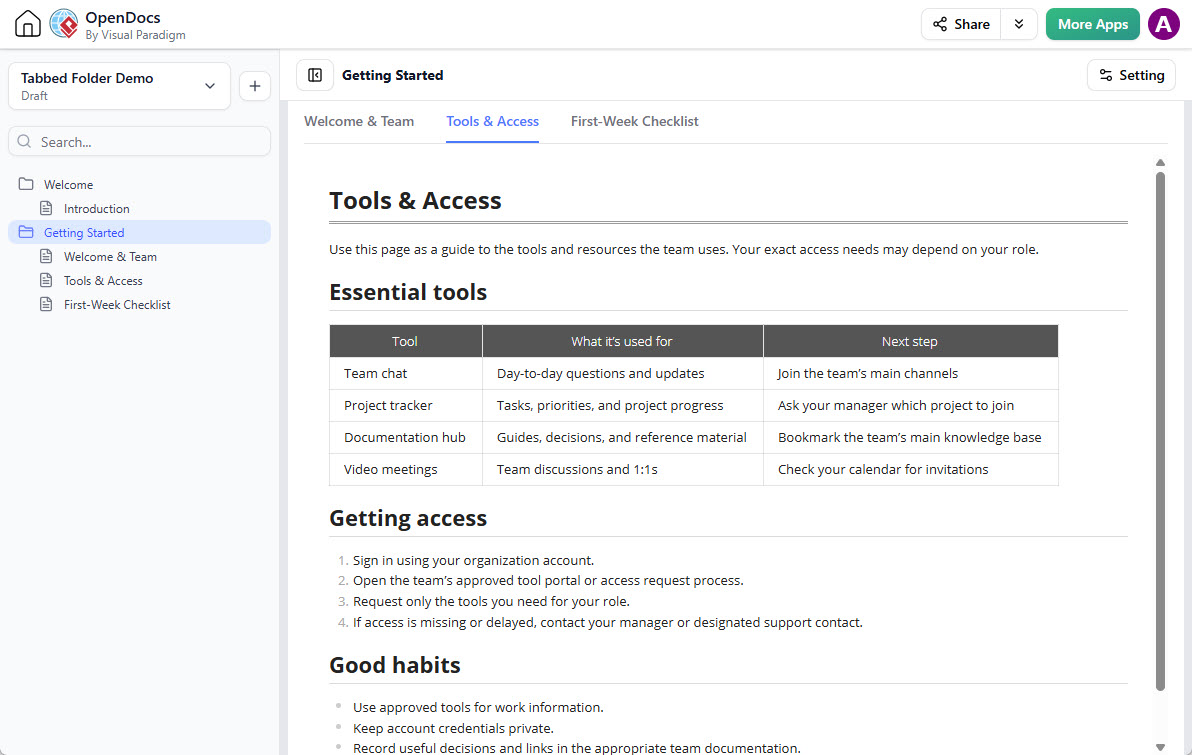
OpenDocs ‘Tools & Access’ tab listing essential team tools, access steps, and security habits. -
Tab 3: First-Week Checklist – Day-by-day tasks and milestones for the first week.
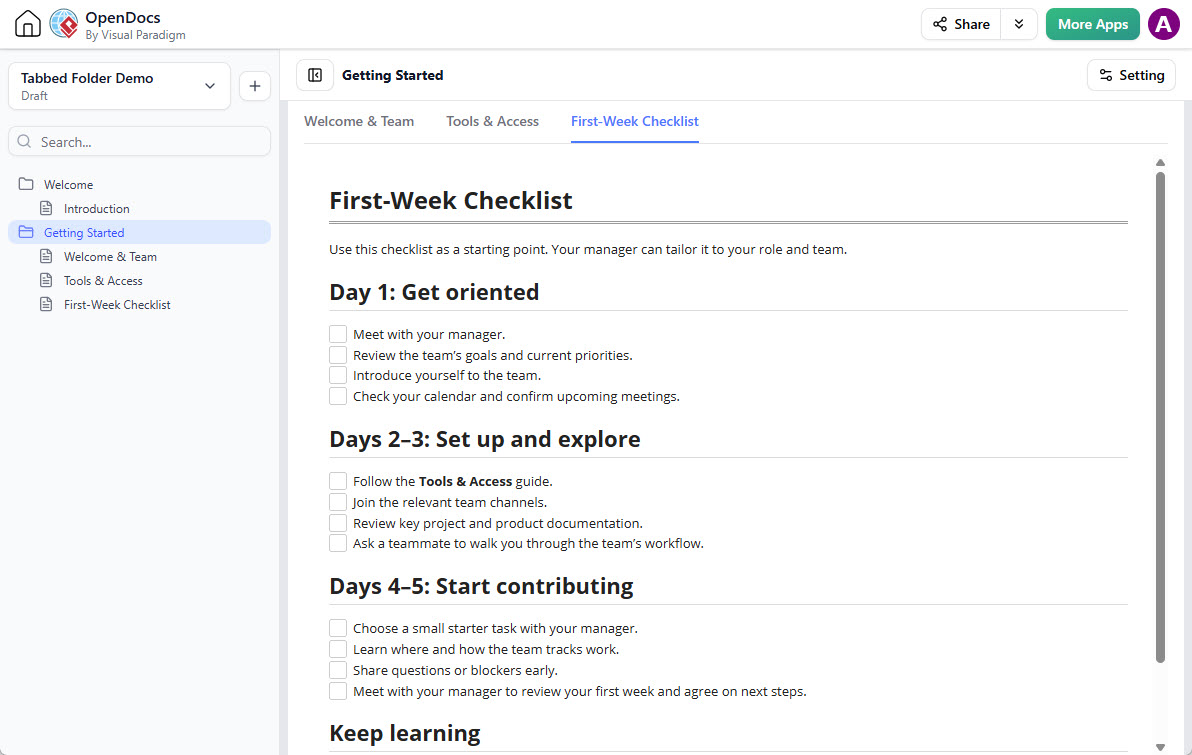
OpenDocs ‘First-Week Checklist’ tab with onboarding tasks organized by day.
Example 2: Product Documentation
For product teams, Tabbed Folders can separate different aspects of a feature or product line.
-
Overview: High-level description and value proposition.
-
User Guide: Step-by-step instructions for end-users.
-
Technical Specs: API endpoints, data models, and integration details.
-
FAQs: Common questions and troubleshooting tips.
Example 3: Project Wiki
Keep all project-related information in one place.
-
Requirements: User stories and acceptance criteria.
-
Design: Wireframes, mockups, and architecture diagrams.
-
Implementation: Code snippets, deployment guides, and release notes.
Why This Enhancement Matters
The introduction of Tabbed Folders is more than just a visual upgrade; it represents a shift towards more user-centric knowledge management.
-
Improved Scannability: Tabs provide clear entry points, allowing readers to jump directly to the information they need without wading through irrelevant content.
-
Contextual Cohesion: By keeping related topics together, readers can easily compare and contrast information, leading to better understanding and fewer errors.
-
Maintainable Authoring: Since each tab is a separate page, multiple team members can work on different sections simultaneously without conflict. Updates are isolated, reducing the risk of accidental changes to unrelated content.
-
Seamless Integration with Visuals: OpenDocs supports integrated diagramming. Tabbed Folders allow you to pair written explanations with visual aids like workflows and system diagrams, creating a richer learning experience.
You can explore a live example of a Tabbed Folder here:
https://ai-toolbox.visual-paradigm.com/app/opendocs/?share=4f2819f2-397c-49b1-991c-52f3255a2f8d#/getting-started
Conclusion
Visual Paradigm OpenDocs’ Tabbed Folders offer a sophisticated solution to the common challenges of documentation organization. By decoupling content storage from content presentation, this feature empowers teams to create knowledge bases that are both easy to manage and intuitive to navigate.
Whether you are building a project wiki, a technical documentation hub, or a training resource, Tabbed Folders provide the structure needed to keep information accessible and engaging. As your documentation grows, this tool ensures that clarity and usability remain at the forefront of your knowledge management strategy.
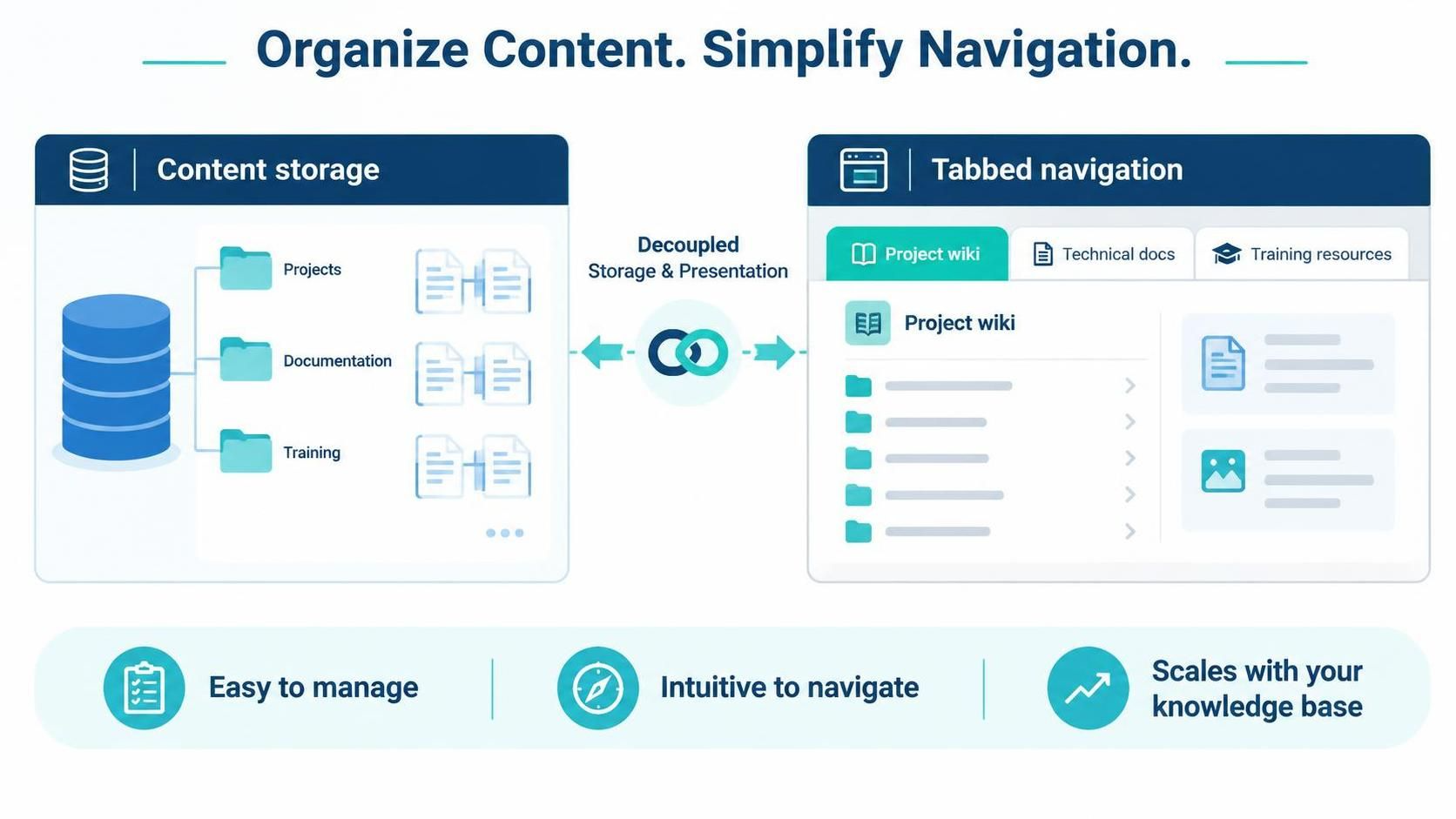
Start organizing your content today by exploring the OpenDocs feature page and experiencing the power of tabbed navigation firsthand.