


Visual Paradigm QueryBase is a web-based application for exploring and extracting data from Visual Paradigm projects stored in a Visual Paradigm cloud workspace. It lets you work with project content through a browser, without needing the desktop client. The article describes three main tools: Project Explorer, Hierarchical Queries, and Model Queries.
One important clarification from your infographic correction: QueryBase’s query is built automatically by the app’s query graph—not generated by AI. The infographic’s simple “ask a question” flow is a helpful concept, but the article describes constructing queries with QueryBase’s interface; it doesn’t claim that free-text questions are automatically interpreted.
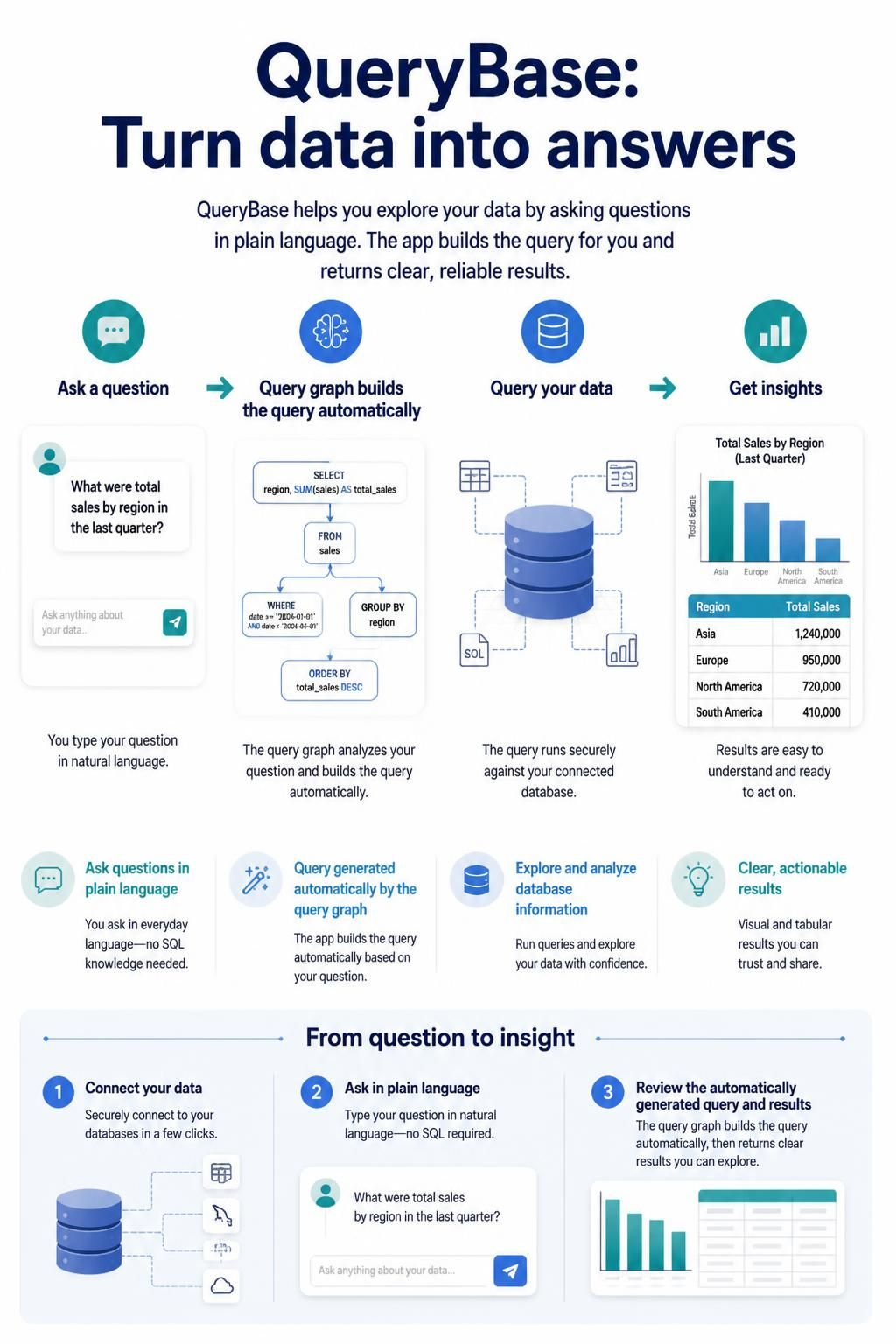
What you can explore
QueryBase can access data in a Visual Paradigm .vpp project, including diagrams, model elements, specifications, and properties. The article says support for other data types created and managed in Visual Paradigm Online is planned, so the available data scope may expand.
Its three tools serve different purposes:
-
Project Explorer is for browsing. Navigate through projects, diagrams, shapes, and model elements, use the breadcrumb trail to move around, and search for an element to jump to it.
-
Hierarchical Queries are for extracting structured data. Set conditions for projects, diagrams, and diagram elements; choose which properties to include; then retrieve results in JSON organized as
project > diagram > diagram element > properties. -
Model Queries are for following relationships through a model. Build a chain of queries to locate connected elements—for example, find an actor, find its relationships, and then find the use cases connected through those relationships. Results can be exported as JSON.
A typical workflow
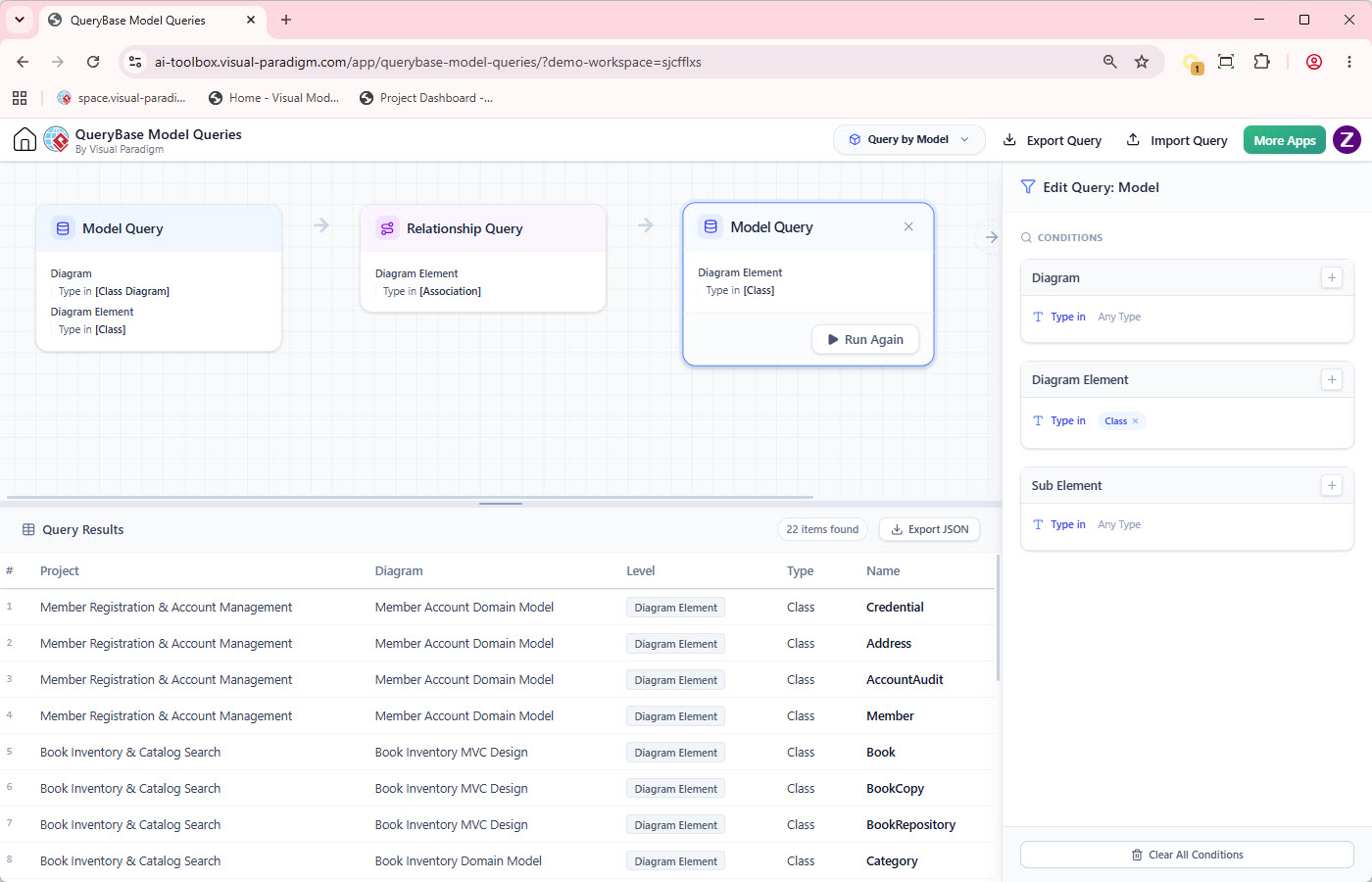
-
Open QueryBase and select a project. Work with project data available in your Visual Paradigm cloud workspace. You don’t need to open the desktop client just to browse the project through QueryBase.
-
Decide what you need to learn or export. For a quick look at an element, use Project Explorer. For a filtered, structured snapshot, use Hierarchical Queries. For data linked across model relationships, use Model Queries.
-
Build the query in the app. Set the relevant project, diagram, element, or relationship criteria using the query interface. As you noted, the app’s query graph generates the query automatically; this is not an AI-generated query.
-
Run it and inspect the result. Check that the returned projects, diagrams, elements, and properties match the question you intended to answer.
-
Export or use the output. Hierarchical Queries and Model Queries can produce JSON for reporting, analysis, scripts, or other tools. Hierarchical Query results use a nested project–diagram–element–properties structure.
Choosing the right tool
| Your goal | Use | What it helps you do |
|---|---|---|
| Find a particular diagram or model element | Project Explorer | Browse project contents, search, and jump to the item |
| Extract selected data in a predictable structure | Hierarchical Queries | Filter project, diagram, and element data; choose properties; export JSON |
| Trace connected elements | Model Queries | Chain queries across model relationships and export the resulting data |
Example: trace use cases for an actor
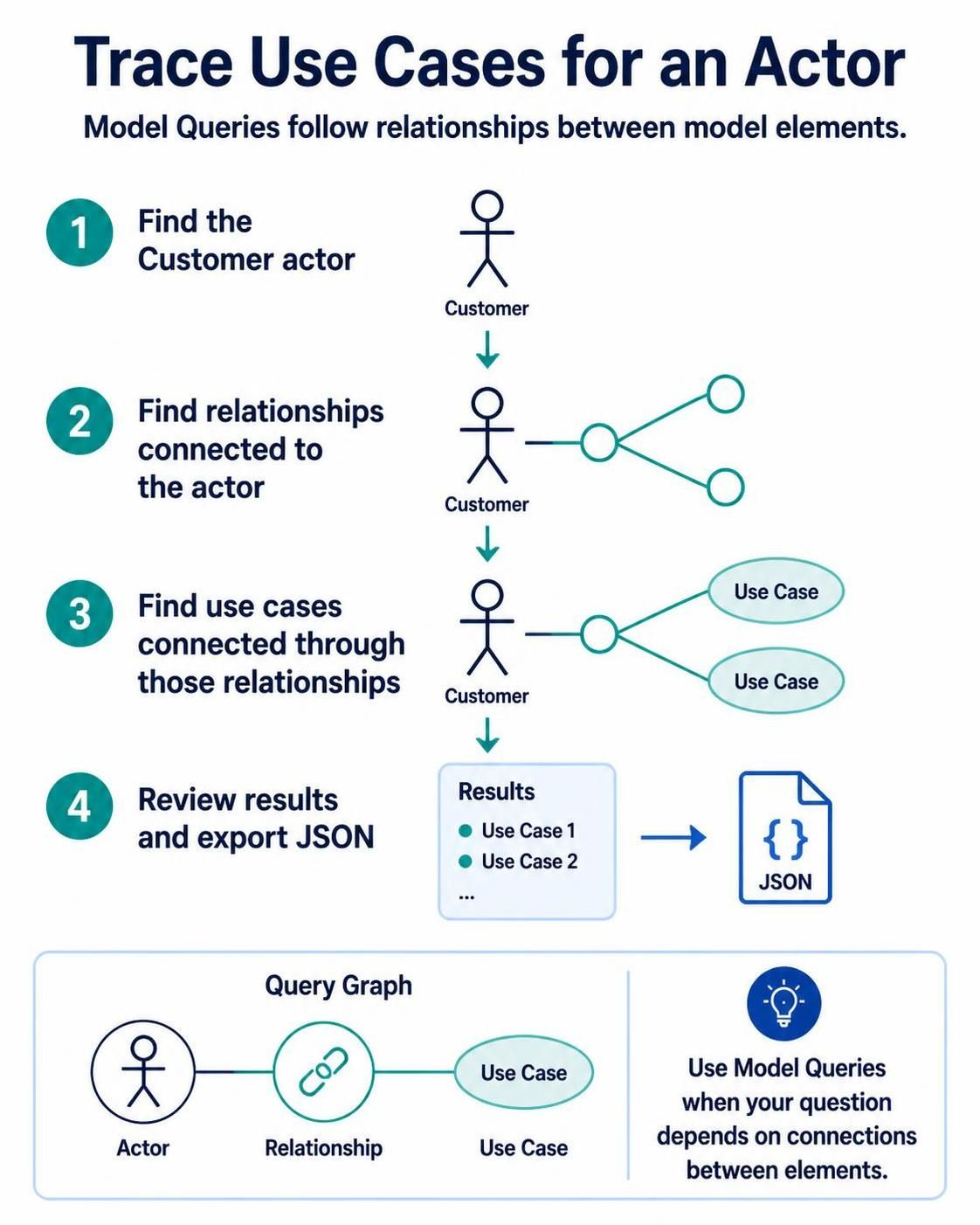
Suppose you need to list the use cases associated with the Customer actor. In Model Queries, the article’s example follows this logic:
-
Find the model element representing the Customer actor.
-
Find relationships connected to that actor.
-
Find use cases connected to those relationships.
-
Review the resulting elements and export the data as JSON.
This illustrates why Model Queries are useful when the answer depends on connections between elements, rather than just matching a property or browsing to one item.
Example: export a project snapshot
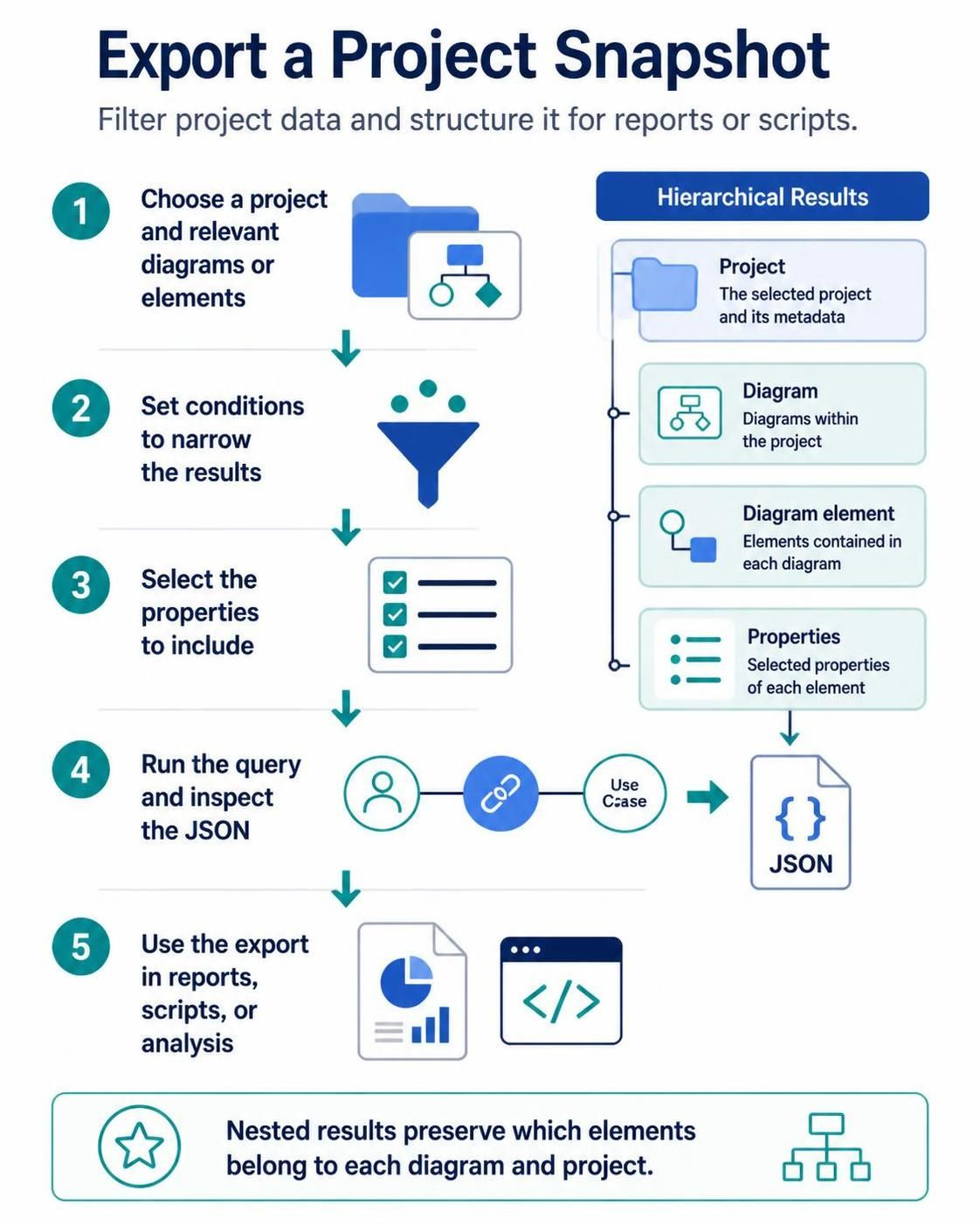
If you need a data extract for a report or a script, use Hierarchical Queries:
-
Choose the project and the relevant diagrams or diagram elements.
-
Set the conditions that narrow the results to the content you need.
-
Select the properties to include.
-
Run the query and inspect the structured JSON.
-
Save or pass the JSON to your reporting, analysis, or integration workflow.
The nested output makes it easier for downstream tools to understand which elements belong to which diagrams and projects.
Common uses
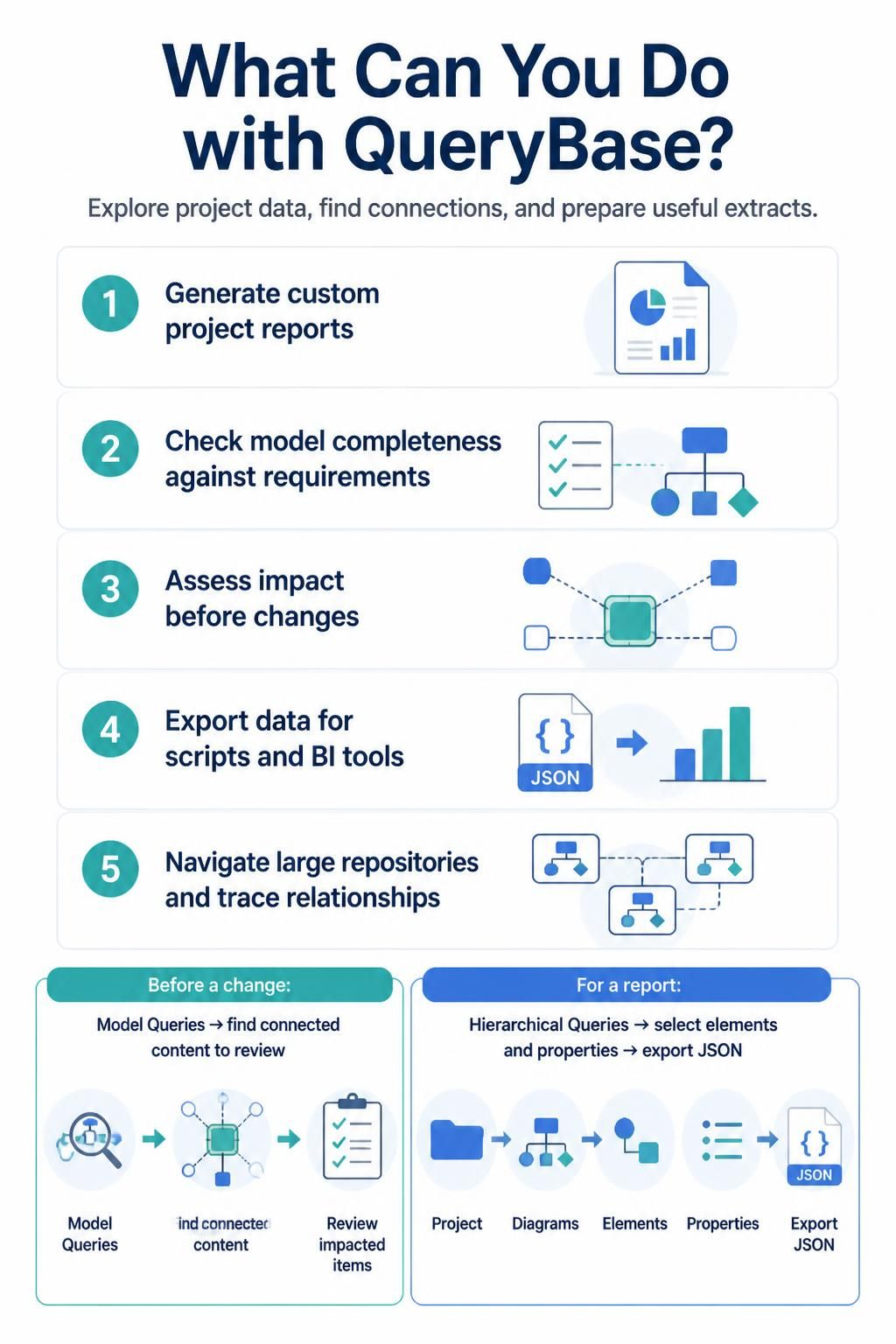
The article identifies several practical applications:
-
Generating custom project reports.
-
Checking model completeness against requirements.
-
Performing impact analysis before changes.
-
Exporting project data for scripts or business-intelligence tools.
-
Navigating large repositories and tracing relationships across model content.
For example, before changing a model element, you could use a relationship-based query to find connected content that may need review. To create a report, you could use a hierarchical query to retrieve selected elements and properties in JSON.
Tips for getting useful results
-
Start with a narrow question. Identify the project, diagram, elements, or relationship path you need before building the query.
-
Choose the tool by task. Browse with Project Explorer, filter and export with Hierarchical Queries, and trace connections with Model Queries.
-
Limit output to relevant properties. This keeps exports easier to review and reuse.
-
Check relationships, not just names. For connection-based questions, confirm the query follows the intended relationship path.
-
Validate the results before relying on them. Review a sample of returned elements against the project so that your filters and query chain match your intended scope.
Licensing and current scope
The article states that QueryBase is an independent product and is not bundled with other Visual Paradigm tools; a separate license is required. It also says QueryBase works with project data stored in .vpp projects and describes support for additional Visual Paradigm Online data types as planned.