


Welcome to Today’s Tutorial: Mastering Real-Time Collaboration
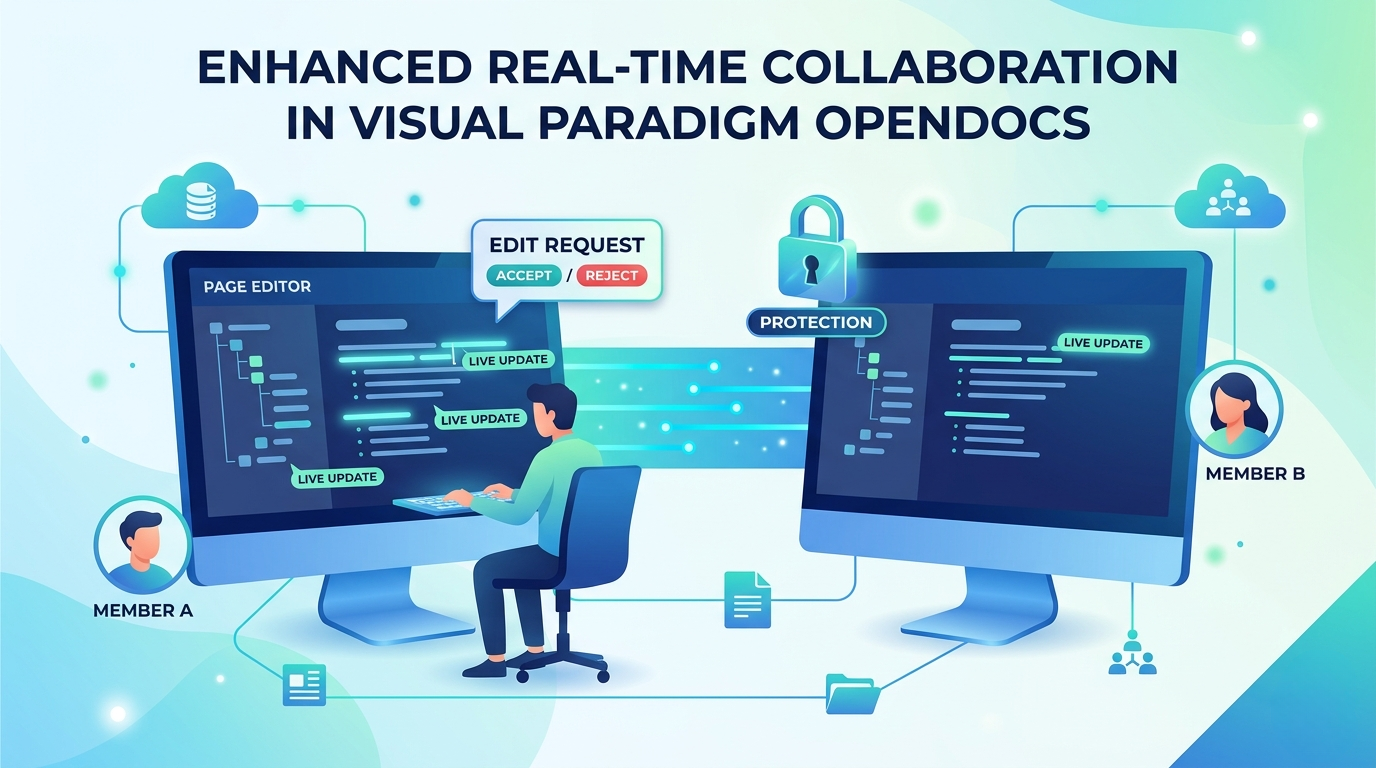
Hello everyone, and welcome to this session. Today, we are diving deep into the world of distributed software development and documentation. Specifically, we will be exploring how modern tools like Visual Paradigm OpenDocs facilitate seamless teamwork. Imagine a scenario where two developers, let’s call them Member A and Member B, are working on the same project from different locations. How do they ensure their changes don’t conflict? How do they maintain security while staying up to date? The illustration before us provides a perfect visual guide to answer these questions.
The Magic of Synchronized Workflows
Let’s start by looking at the screens in front of our team members. You will notice glowing green labels that say “LIVE UPDATE”. This is the core of real-time collaboration. In traditional workflows, you might save a file, send an email, and wait for a reply. Here, the system is dynamic. When Member A modifies a diagram or a document in the Page Editor, those changes are instantly propagated to the network. Member B doesn’t have to refresh the page; their screen updates automatically. This reduces latency and keeps the entire team on the same page, literally.
Managing Change with Edit Requests
However, speed isn’t everything; control is equally important. Look at the speech bubble hovering above Member A’s workspace. It displays an EDIT REQUEST interface with two distinct options: ACCEPT and REJECT.
- The Workflow: This mechanism suggests a permission-based or review-based system. Instead of allowing anyone to overwrite critical data instantly, a user may need to request permission to make specific changes. Alternatively, this could represent a “Pull Request” style workflow where a proposed change is sent to the team lead.
- The Decision: The green Accept button implies approval, merging the changes into the main project. The red Reject button suggests that the request was denied, perhaps due to a conflict or a lack of necessary permissions. This ensures that the integrity of the project model is maintained.
Security Through Protection
Collaboration shouldn’t come at the cost of security. Notice the prominent padlock icon labeled PROTECTION floating between the two users. This visual element represents the access control features of the platform.
In a shared environment, you often have sensitive data or critical models that should not be altered by just anyone. The protection feature allows administrators to lock specific parts of the document or the entire project. This ensures that:
- Unauthorized changes are prevented: Even if a user is online, they cannot edit locked sections.
- Version integrity is preserved: Critical architectural decisions remain stable while other parts of the system are being iterated upon.
The Centralized Ecosystem
Finally, look at the background elements. We see cloud icons with database symbols and user group symbols. These represent the cloud infrastructure that powers OpenDocs. It acts as the single source of truth.
Whether you are looking at a folder structure, a specific document, or a user group, everything is synced to this central cloud. This means that Member A and Member B aren’t just sharing files; they are interacting with a living, breathing database. The icons at the bottom representing folders and documents further emphasize that this isn’t just about drawing diagrams—it is about managing the entire suite of project assets in a unified, secure, and collaborative space.
To summarize, effective collaboration relies on three pillars: visibility (live updates), governance (edit requests), and security (protection). By understanding these components, you can effectively manage complex projects in a distributed environment.