


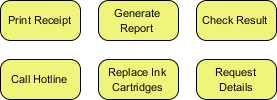
In the world of Business Process Model and Notation (BPMN), clarity is king. Whether you are mapping a customer journey or designing a backend financial workflow, understanding the fundamental building blocks of your diagrams is crucial. Today, we are going to deconstruct a simple visual diagram—like the one shown in our reference image—and explore the critical distinction between Tasks and Sub-Processes.
By the end of this tutorial, you will understand how to model atomic units of work effectively and know exactly when to expand a simple box into a complex, detailed sub-process.
What is a BPMN Task?
Looking at the image provided, we see six distinct yellow boxes: Print Receipt, Generate Report, Check Result, Call Hotline, Replace Ink Cartridges, and Request Details. In BPMN terminology, these are all Tasks.
A Task is the smallest unit of work within a process. It is an atomic action that cannot—or need not—be broken down further for the current level of abstraction. Think of a Task as a single step in a recipe. If you are writing a recipe for “How to Bake a Cake,” your steps might be “Mix Ingredients” or “Bake in Oven.” You don’t usually describe the atomic physics of mixing flour; you just treat it as a single, completed action.
- Atomic Unit: It represents a single action with a specific start and end point.
- Abstract Level: It is high-level enough to be understood by stakeholders without technical overwhelm.
- No Internal Logic: For the purpose of the current diagram, we do not care what happens inside the task.
The “Zoom” Concept: Tasks vs. Sub-Processes
The most common mistake beginners make is trying to draw every single microscopic step in a process. This leads to spaghetti diagrams that no one can read. The solution lies in knowing when to treat a complex activity as a Sub-Process versus a simple Task.
1. The Audience Dictates the Detail
The choice between a Task and a Sub-Process depends entirely on your audience’s needs. Consider the “Finance Team” scenario:
- The Customer: They only need to know that their order was processed. “Payment Processing” is a Task to them. They don’t care about the credit card validation, fraud check, or ledger update.
- The Finance Team: They need to see the internal logic. “Payment Processing” becomes a Sub-Process that expands into detailed child diagrams showing validation, authorization, and posting.
2. Visual Hierarchy
When you click on a Sub-Process in a modeling tool, you open a new window or layer that reveals the child diagram. A Task, however, remains a black box. It is a container for work, but it is not a container for other diagrams.
Tooling: Visual Paradigm BPMN Free Tool
To practice these concepts, we will use Visual Paradigm, a powerful free tool that supports BPMN 2.0 standards. Here is a step-by-step guide to recreating the diagram shown in the image and understanding how to model these elements.
Step 1: Setting up the Canvas
Launch Visual Paradigm and select “New Project.” Choose “BPMN” from the diagram types. You will see a blank white canvas ready for your modeling.
Step 2: Adding Tasks
Locate the “Tasks” palette on the left-hand toolbar. You will see a shape that looks like a rounded rectangle with a small icon (often a person or a gear) inside.
- Drag the Task shape onto your canvas.
- Double-click the shape to edit the text. Type
Print Receipt. - Repeat this process for the other items in our reference image: Generate Report, Check Result, Call Hotline, Replace Ink Cartridges, and Request Details.
Step 3: Formatting and Grouping
Once you have placed all six tasks, arrange them neatly. In Visual Paradigm, you can select multiple tasks and use the alignment tools to ensure they are perfectly spaced. This creates a clean, professional look similar to the image provided.
Analyzing the Diagram: A Deep Dive
Let’s apply our knowledge to the specific tasks shown in the image. Why are these tasks appropriate for a high-level view?
Task: Print Receipt
This is a classic atomic task. It implies a single action triggered by a system or a human. In a detailed sub-process, “Print Receipt” might expand into “Format PDF,” “Connect to Printer,” and “Feed Paper,” but for a general process map, it is a single black box.
Task: Call Hotline
This is interesting. Is “Call Hotline” a task or a sub-process? If the process is simply “User contacts support,” it is a task. However, if the process details the routing of the call to a specific department, it might be a sub-process. Usually, in high-level diagrams, it remains a Task.
Task: Replace Ink Cartridges
This represents a physical action. In BPMN, tasks can be performed by humans (User Tasks) or systems (Service Tasks). “Replace Ink Cartridges” is likely a User Task because it requires physical intervention.
Best Practices for Modeling
As you build your own diagrams using the Visual Paradigm free tool, keep these tips in mind to avoid common pitfalls:
- One Action per Box: If a task box contains two actions (e.g., “Log In and Start Session”), break it into two separate tasks. This makes error tracking easier.
- Use Clear Verbs: Always start your task labels with a verb. “Receipt Print” is weak; “Print Receipt” is strong.
- Know When to Hide: If a task takes up 50% of your page when expanded, it is time to make it a Sub-Process. This keeps your main diagram clean and readable.
Conclusion
Understanding the difference between a Task and a Sub-Process is the key to effective business process modeling. By treating simple actions like “Generate Report” as atomic Tasks, you keep your diagrams high-level and digestible. By reserving Sub-Processes for complex logic, you provide the necessary detail only where it is needed. Now, open Visual Paradigm and start modeling your own processes!
Related posts:
 Mastering Data Association in BPMN Diagrams: A Visual Guide
 Mastering BPMN 2.0 Markers: The Hidden Modifiers That Control Process Execution
 Mastering BPMN: A Guide to Avoiding Common Modeling Pitfalls
 Mastering BPMN Basics: A Step-by-Step Guide to Process Modeling with Start Events, Gateways, and Tasks