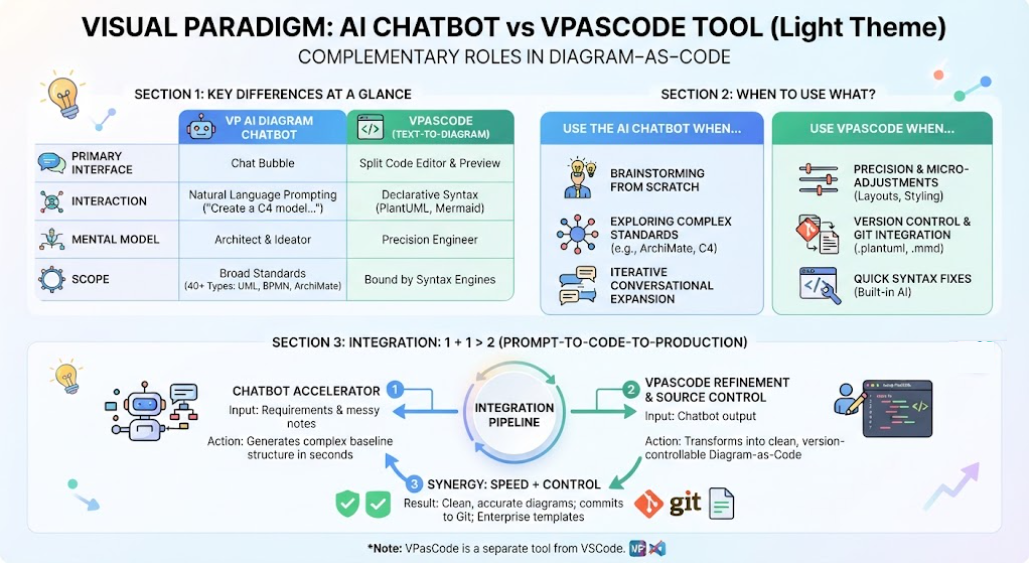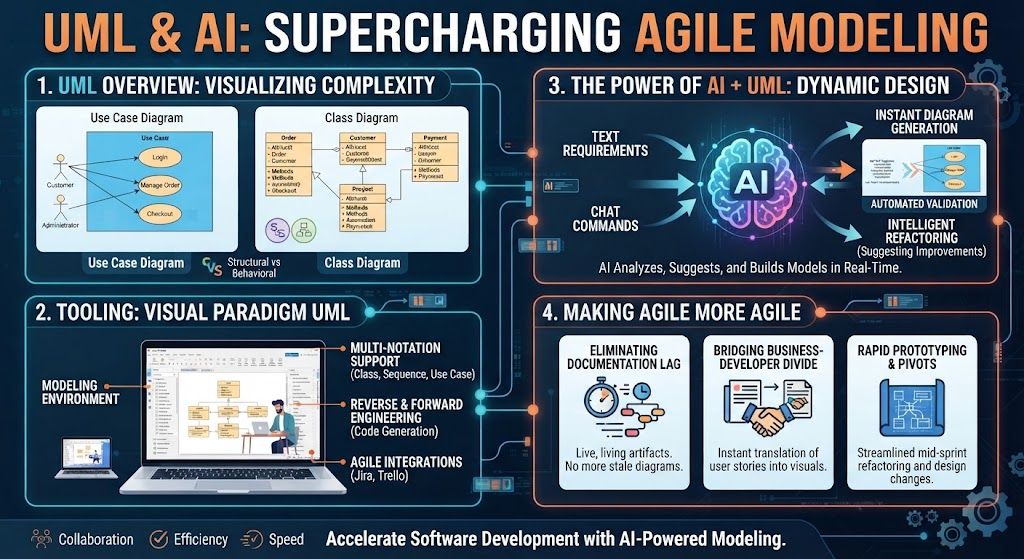
In the modern era of software engineering and business analysis, the gap between rapid ideation and formal documentation is often a significant bottleneck. Traditionally, generating a diagram required manual drawing, exporting it as an image, and then manually uploading it to a documentation site. This workflow is fragmented and prone to version control errors.
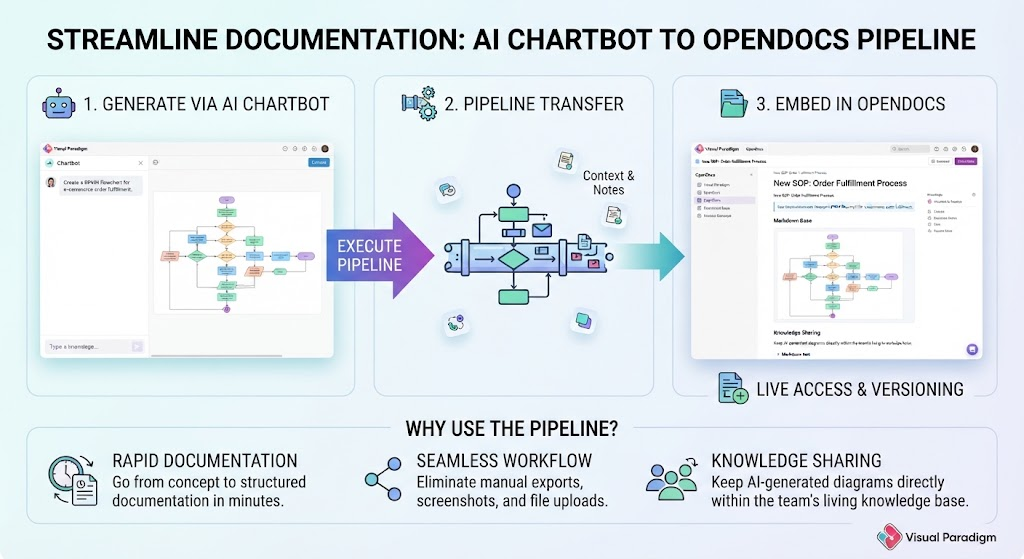
Visual Paradigm has introduced a streamlined solution: the AI Chatbot to OpenDocs Pipeline. This architecture bridges the gap between conversational AI generation and structured, professional knowledge management. This tutorial breaks down the system architecture, explains the workflow, and demonstrates how to leverage this pipeline for efficient documentation.
1. System Architecture Overview
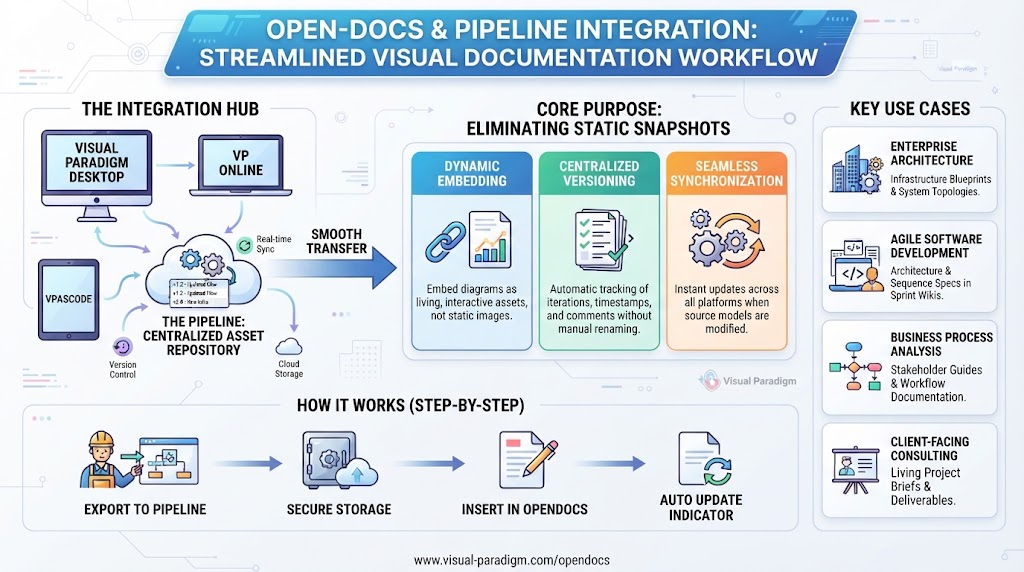
The pipeline functions as a three-stage data flow system designed to automate the movement of visual artifacts. It consists of three primary components:
- Input: The AI Chatbot – The generation engine where diagrams are created using natural language prompts.
- Transport: The Pipeline – The middleware that transfers data, allowing for the inclusion of context and notes without manual file handling.
- Output: OpenDocs – The destination, a Markdown-based knowledge base where the diagrams are embedded and published.
2. Step-by-Step Workflow Implementation
To effectively utilize this system, follow this structured workflow. This process transforms a raw text prompt into a polished, living document.
Step 1: Generate via AI Chatbot
The process begins within the Visual Paradigm workspace. Instead of drawing shapes, you interact with the AI Chatbot using natural language. This allows for rapid iteration.
- Action: Launch the AI Chatbot and issue a prompt to generate or refine a diagram.
- Supported Models: This includes Flowcharts, UML Class Diagrams, Sequence Diagrams, Mind Maps, and BPMN models.
- Iterative Refinement: If the initial result is not perfect, use follow-up prompts to adjust logic or add elements (e.g., “Add error handling states to this sequence diagram”).
Step 2: Execute the Pipeline Export
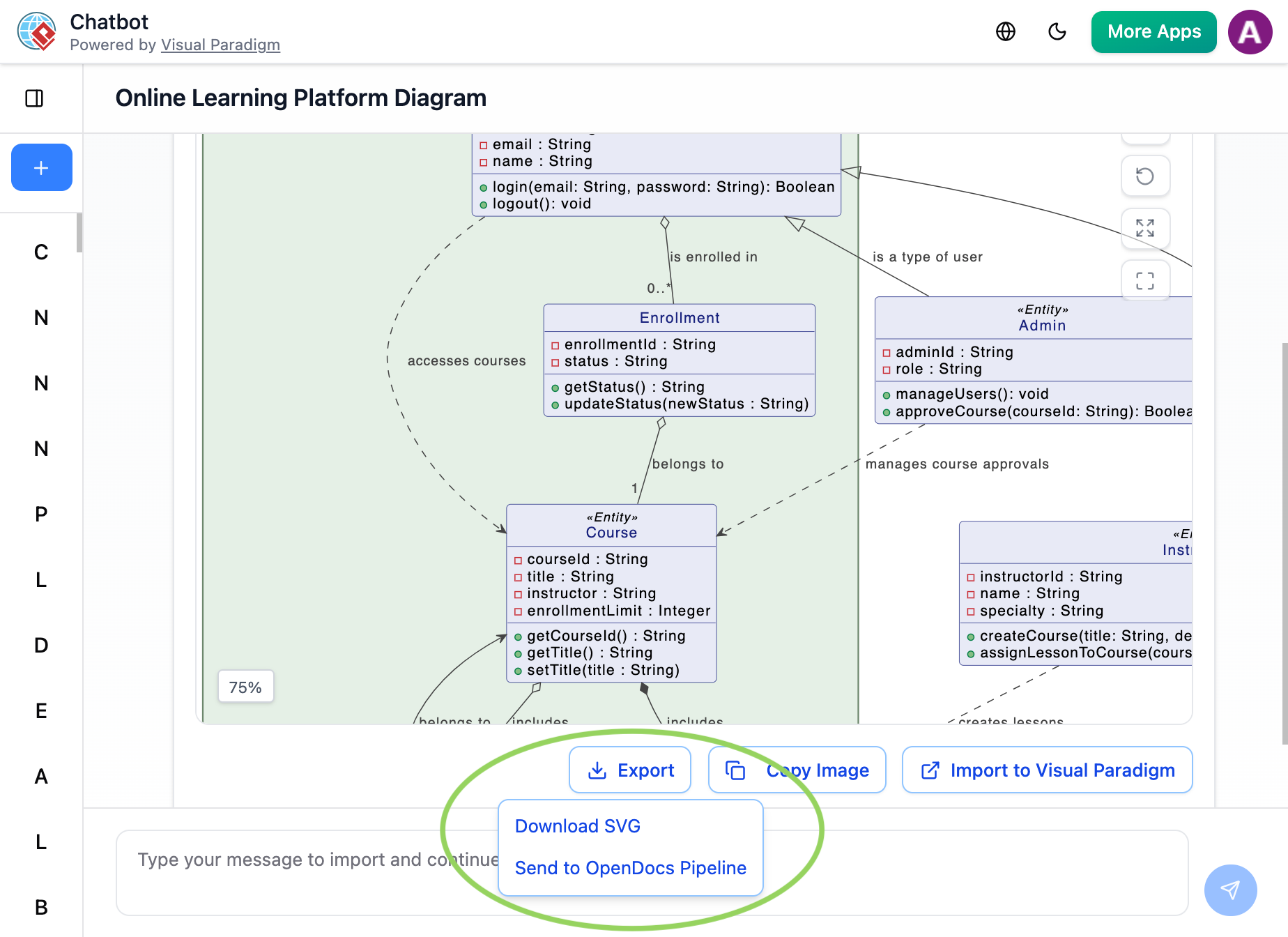
Once the diagram meets your requirements, you do not simply save the file. You utilize the specific Pipeline Export feature.
- Selection: Open the export menu and select Send to OpenDocs Pipeline.
- Context Injection: Unlike a standard file export, this step allows you to include optional notes or context comments. This metadata travels with the diagram, ensuring the recipient understands the “why” behind the visual.
Step 3: Embed in OpenDocs
The final stage involves placing the diagram into your organization’s knowledge base, Visual Paradigm’s OpenDocs.
- Navigate: Open the target document within OpenDocs.
- Insert: Click Insert, select Pipeline, and choose the transferred diagram from the list.
- Result: The diagram is embedded instantly. Because OpenDocs is Markdown-based, you can write supporting explanation blocks directly below the diagram, creating a cohesive technical spec page.
3. Real-World Use Cases
This architecture is versatile and applicable across various disciplines. Below are three primary scenarios where this pipeline excels.
Scenario A: Software Architecture & API Design
The Challenge: Backend engineers need to document complex microservice workflows, such as OAuth2 authorization, but manual diagramming is slow.
The Pipeline Solution: An engineer prompts the chatbot to “Generate a sequence diagram detailing an OAuth2 authorization code grant flow.” After refining the diagram to include error handling, they route it through the pipeline. The result is a technical spec page where the diagram sits alongside Markdown explanations, ensuring the engineering team has immediate access to accurate architecture.
Scenario B: Business Process Management (BPMN)
The Challenge: Business Analysts need to map standard operating procedures (SOPs) for company-wide adoption, such as e-commerce refund procedures.
The Pipeline Solution: An analyst prompts the chatbot to “Create a process flowchart for handling customer product returns.” Once the logic is verified, the diagram is sent to OpenDocs. This ensures that all stakeholders reference the exact same process map, eliminating confusion caused by outdated screenshots.
Scenario C: Product Management Strategy
The Challenge: Product Managers need visual frameworks for executive briefings, such as roadmaps or SWOT analyses.
The Pipeline Solution: The PM uses the chatbot to draft a quick feature prioritization matrix or SWOT analysis. These visual artifacts are pushed straight into OpenDocs, compiling a neat, organized hierarchy of folders for the upcoming product cycle.
4. Best Practices: Managing Revisions
A critical aspect of this workflow is understanding version control. Because diagrams exported directly from the AI chatbot do not inherently track live modeling history in the same way a local file might, you must follow a specific revision strategy.
- Regenerate: If a massive structural change is required down the road, do not try to edit the embedded image. Instead, go back to the AI Chatbot.
- Adjust: Re-adjust the diagram in the chatbot environment.
- Swap: Push the new version through the pipeline again and replace the old version in OpenDocs.
By adhering to this pipeline, teams can transition from ad-hoc AI brainstorming to formal, structured team knowledge bases with unprecedented speed and accuracy.