Introduction
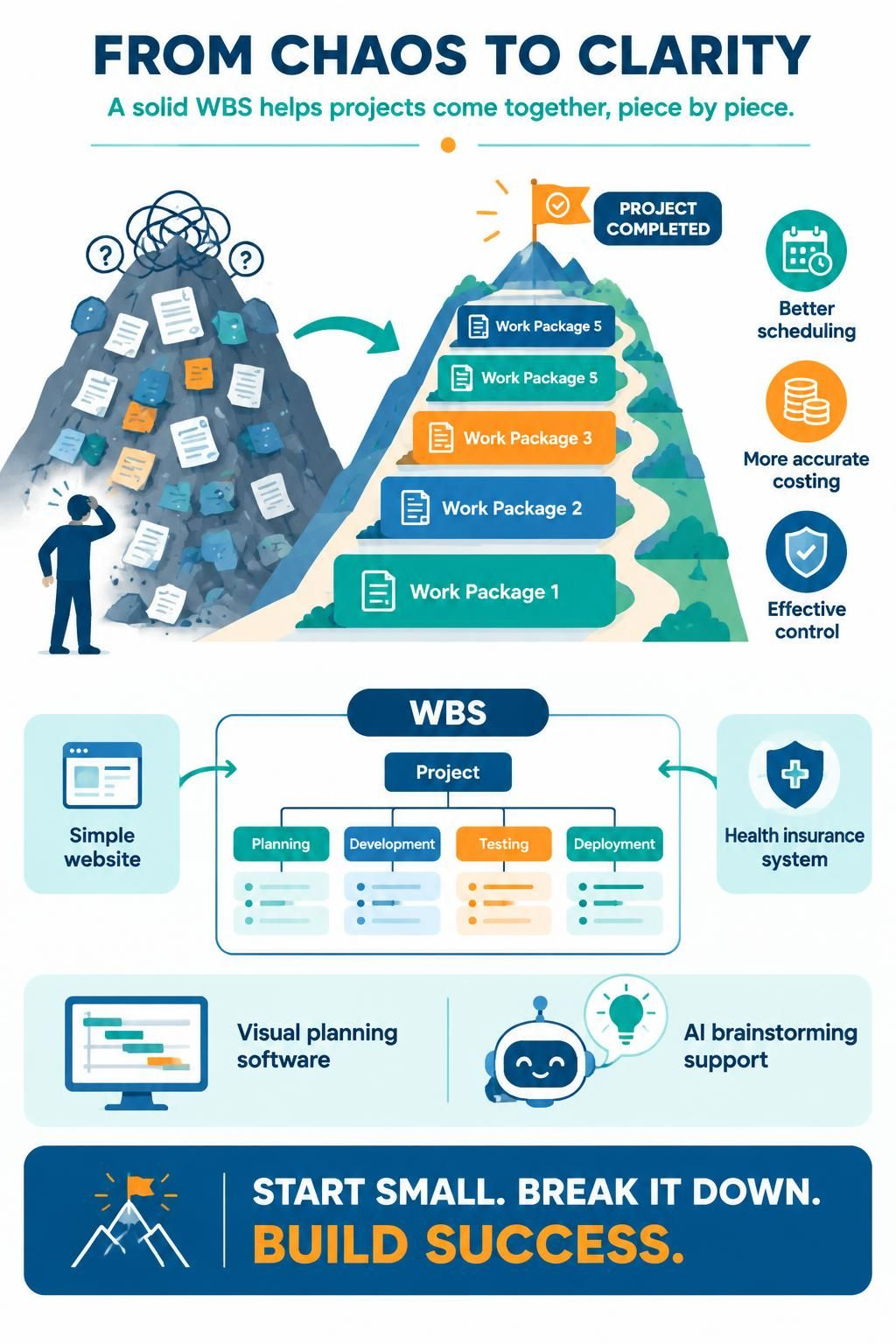
Starting a new project can feel like staring at a mountain. You know you need to climb it, but where do you even begin? This is where the Work Breakdown Structure (WBS) becomes your most valuable tool.
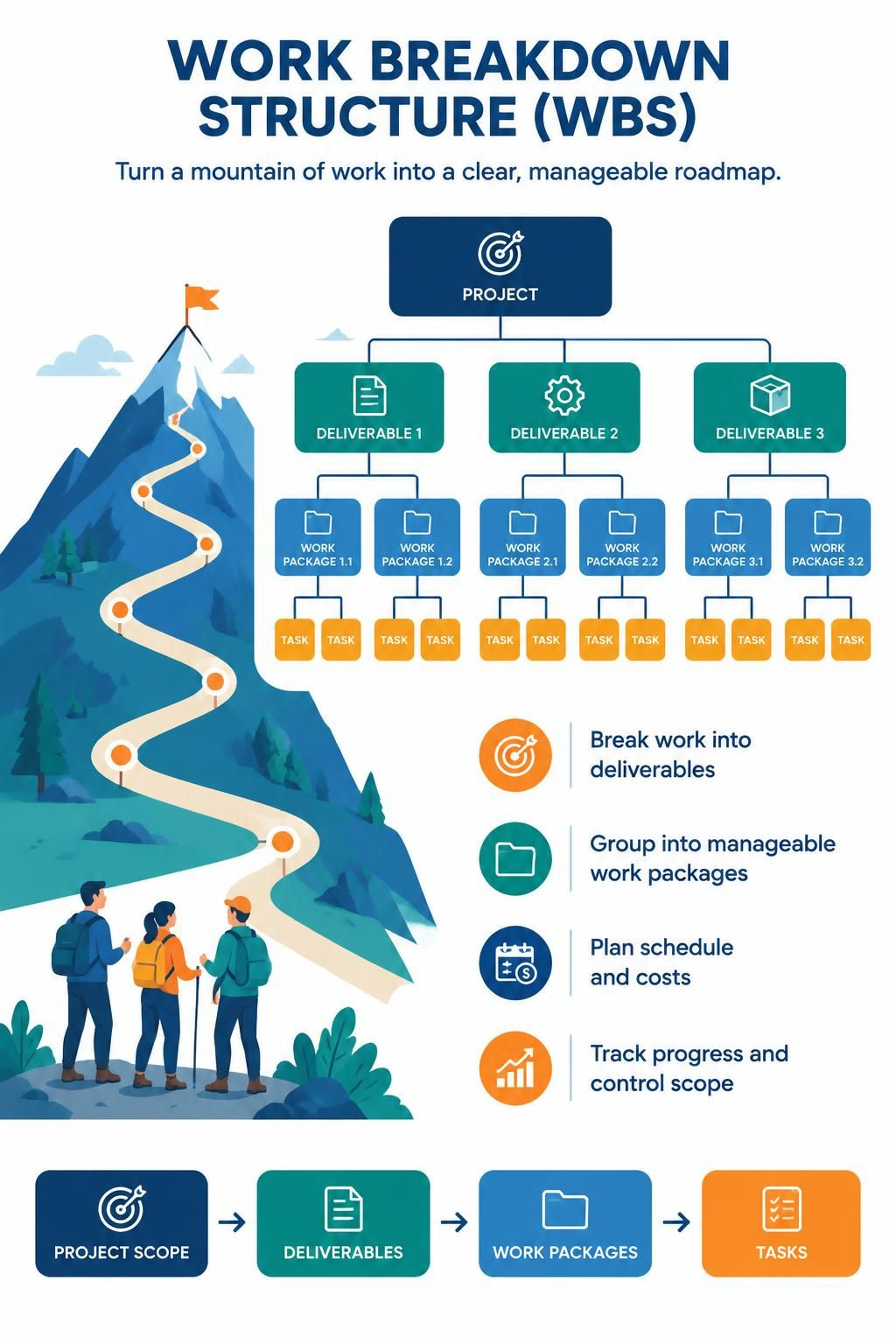
A WBS is not just a chart; it is the backbone of successful project management. It decomposes all the work necessary to complete a project into manageable chunks, arranged in a hierarchy. By breaking down complex deliverables into smaller, logical groups, you create a clear roadmap for scheduling, cost estimation, and control.
In this guide, we will walk you through the fundamentals of creating a WBS, explore key concepts with real-world examples, and demonstrate how to build one using Visual Paradigm. We will also look at how modern AI tools—like AI Chatbots and embedded AI features—can accelerate this process, making project planning faster and more intuitive than ever before.
Key Concepts: Understanding the WBS
Before diving into the software, let’s clarify the core terminology.
1. The Hierarchy
A WBS is structured like an organizational chart.
-
Level 1: The final project deliverable or scope.
-
Level 2: Major phases or primary deliverables.
-
Level 3+: Sub-deliverables broken down further.
-
Work Packages: The lowest level of the WBS. These are small enough to be scheduled, cost-estimated, monitored, and controlled.
2. Deliverable-Oriented vs. Activity-Oriented
-
Deliverable-Oriented: Focuses on what is being produced (e.g., “User Login Module”). This is generally preferred as it aligns with scope verification.
-
Activity-Oriented: Focuses on actions taken (e.g., “Code Login Page”). While useful for scheduling, it can sometimes blur the line between scope and schedule.
3. The 100% Rule
The WBS must include 100% of the work defined by the project scope. If it’s not in the WBS, it’s not in the project. Conversely, everything in the WBS must be required for the project.
Example: Building a Mobile App
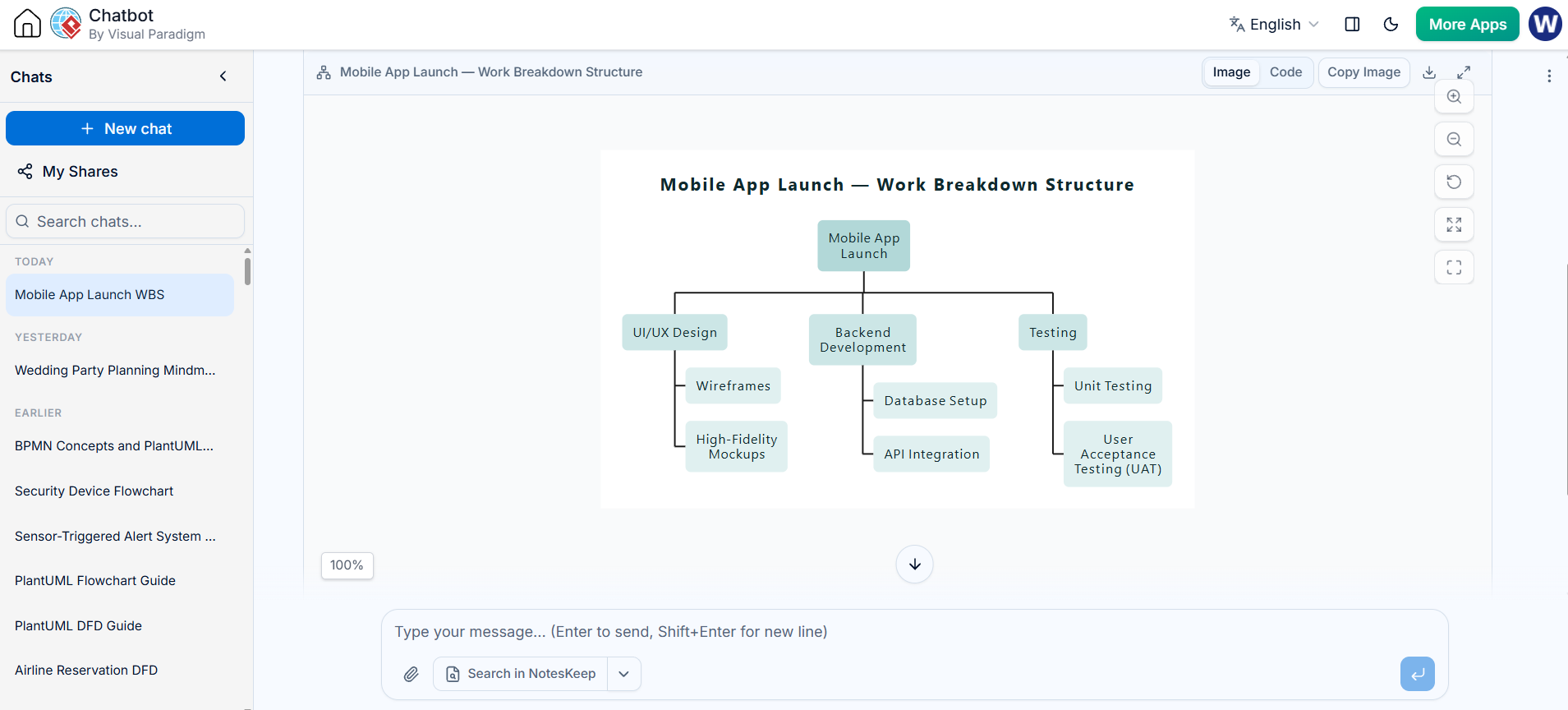
Generate the WBS using VP AI Chatbot:
-
Level 1: Mobile App Launch
-
Level 2: UI/UX Design
-
Level 3: Wireframes
-
Level 3: High-Fidelity Mockups
-
-
Level 2: Backend Development
-
Level 3: Database Setup
-
Level 3: API Integration
-
-
Level 2: Testing
-
Level 3: Unit Testing
-
Level 3: User Acceptance Testing (UAT)
-
-
Send to the VPasCode to obtain the editable PlantUML code in the editor:
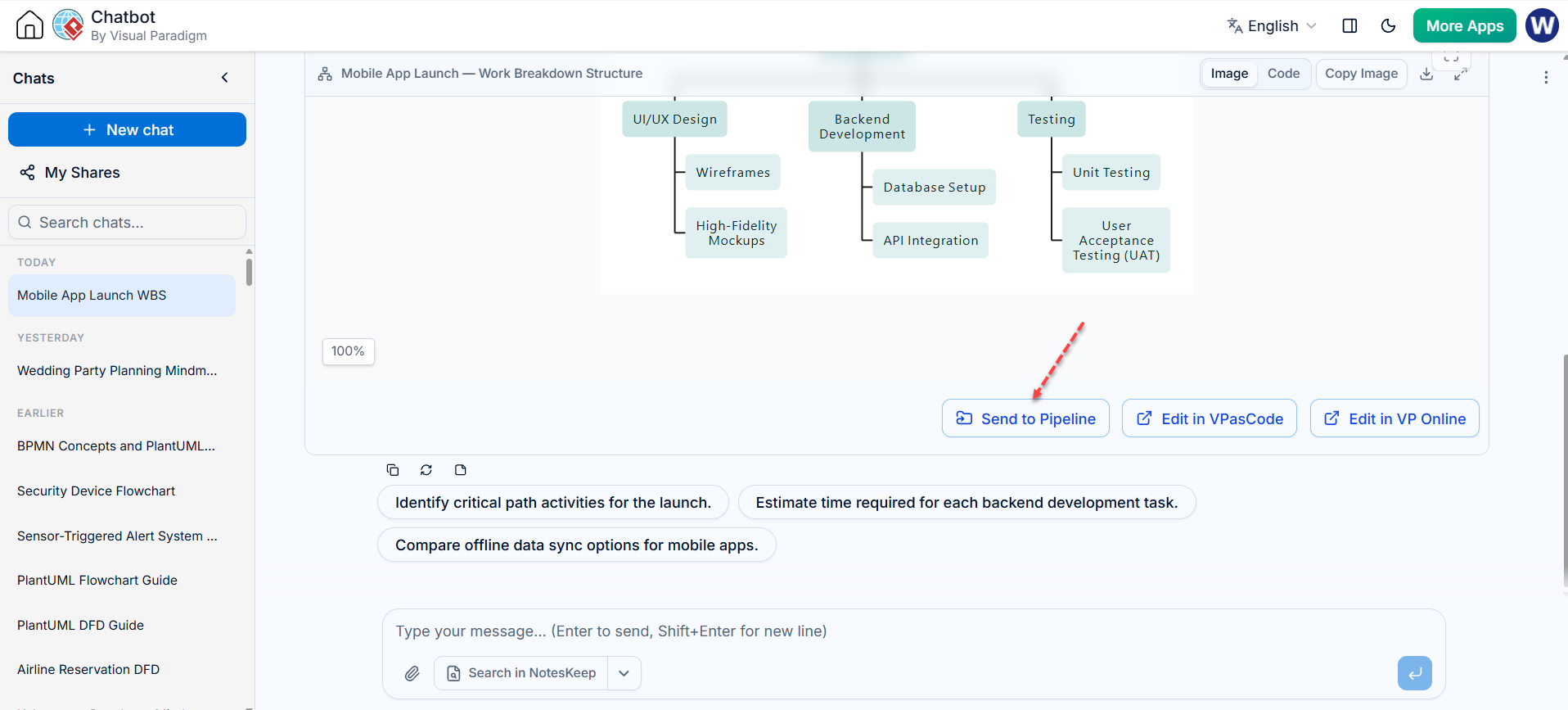
Also render the PlantUML (Diagram as Code) to WBS by the VPasCode tool:
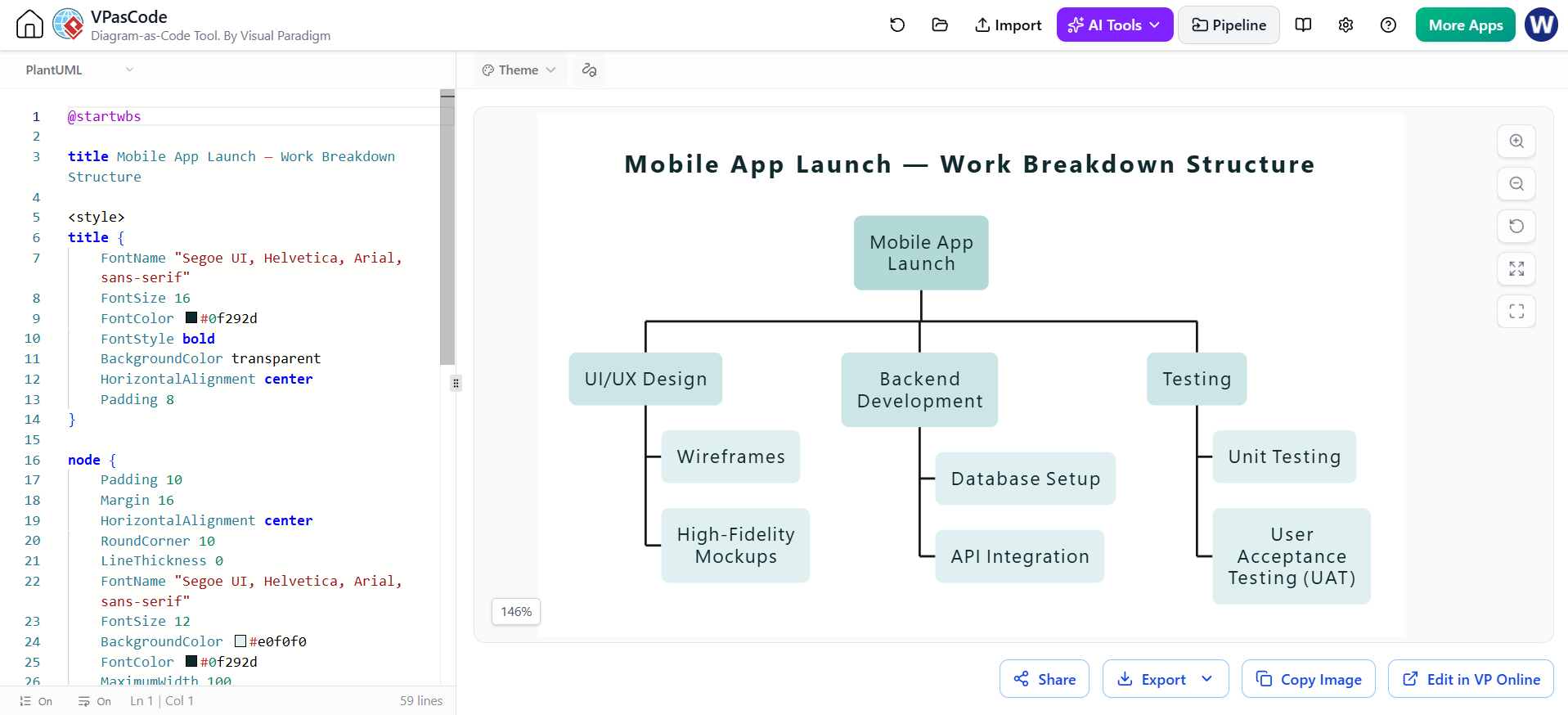
The Generate PlantUML Code:
@startwbs

title Mobile App Launch — Work Breakdown Structure

<style>
title {
    FontName "Segoe UI, Helvetica, Arial, sans-serif"
    FontSize 16
    FontColor #0f292d
    FontStyle bold
    BackgroundColor transparent
    HorizontalAlignment center
    Padding 8
}

node {
    Padding 10
    Margin 16
    HorizontalAlignment center
    RoundCorner 10
    LineThickness 0
    FontName "Segoe UI, Helvetica, Arial, sans-serif"
    FontSize 12
    BackgroundColor #e0f0f0
    FontColor #0f292d
    MaximumWidth 100
}

:depth(0) {
    BackgroundColor #b2d8d8
    FontColor #0f292d
}
:depth(1) {
    BackgroundColor #cce6e6
}
:depth(2) {
    BackgroundColor #e0f0f0
}
:depth(3) {
    BackgroundColor #f2f9f9
}
arrow {
    LineColor #52787c
    LineThickness 0.8
}
</style>

* Mobile App Launch
** UI/UX Design
*** Wireframes
*** High-Fidelity Mockups
** Backend Development
*** Database Setup
*** API Integration
** Testing
*** Unit Testing
*** User Acceptance Testing (UAT)
@endwbsSteps to Develop a Work Breakdown Structure
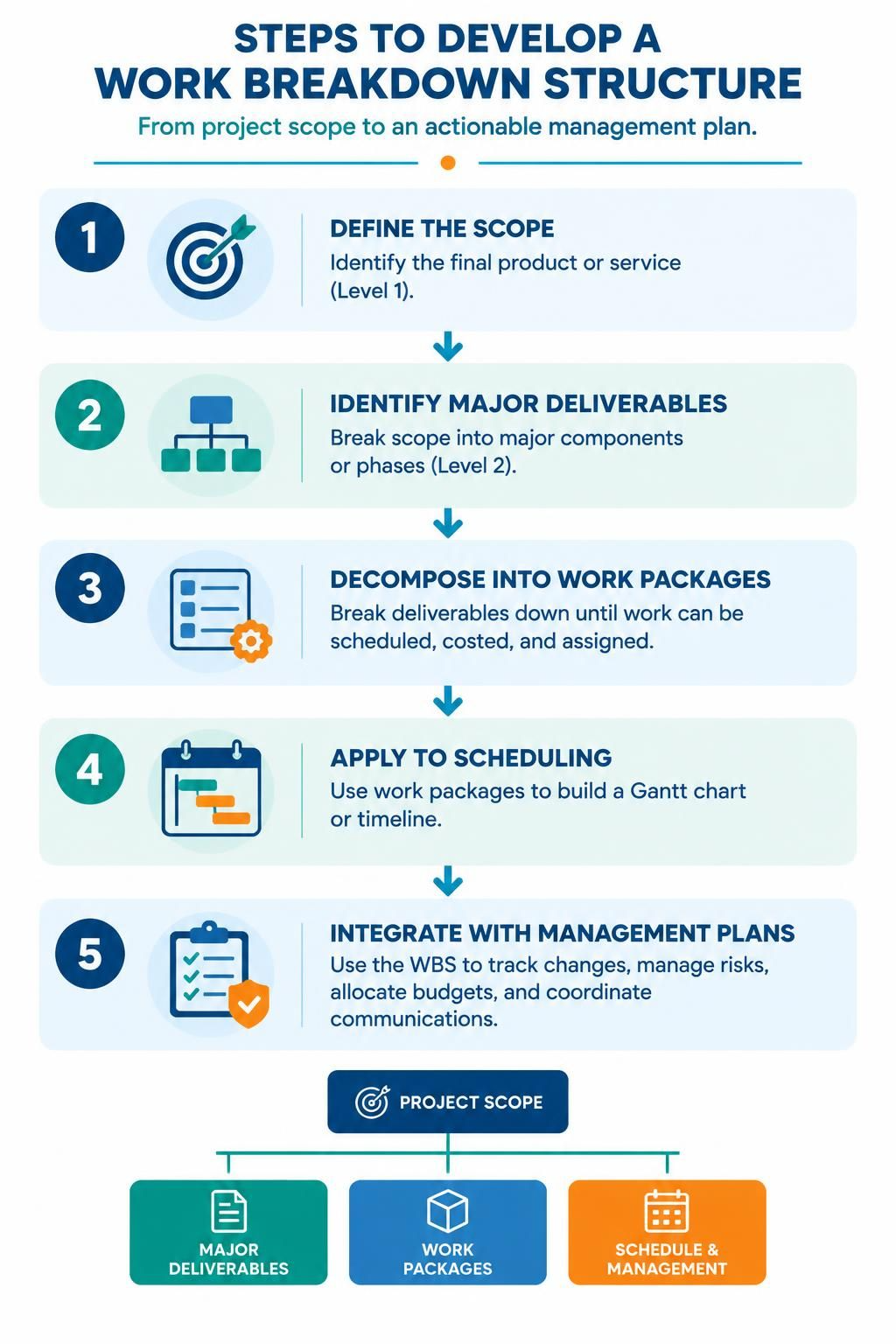
Creating a WBS follows a logical progression. Here are the major steps:
-
Define the Scope: Start with the big picture. What is the final product or service? This goes at Level 1.
-
Identify Major Deliverables: Break the scope into major components or phases (Level 2). These often align with project management deliverables.
-
Decompose into Work Packages: Keep breaking down each deliverable until you reach a level where tasks can be easily scheduled, costed, and assigned. This is your “work package” level.
-
Apply to Scheduling: Use these work packages to build your Gantt chart or timeline.
-
Integrate with Management Plans: Use the WBS structure to track changes, manage risks, allocate budgets, and handle communications.
Tutorial: Creating a WBS in Visual Paradigm
Visual Paradigm offers a robust interface for creating hierarchical diagrams. Below is a step-by-step guide to building your first WBS.
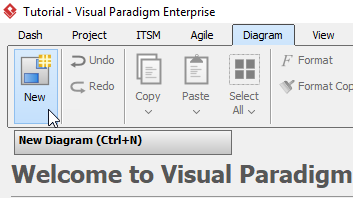
Step 1: Start a New Diagram
Click Diagram > New from the toolbar.
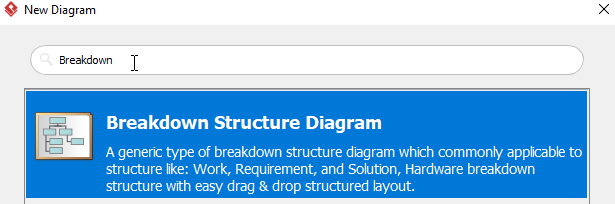
Step 2: Select Diagram Type
In the New Diagram window, select Breakdown Structure Diagram, then click Next.
Step 3: Name Your Project
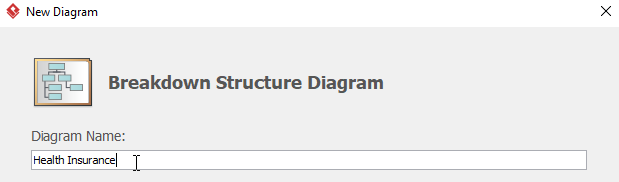
Name the diagram. For this tutorial, we will name it Health Insurance. Press OK.
Step 4: Initial View
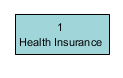
You will see a diagram with only one element called Health Insurance. This represents your Level 1 scope.
Step 5: Add Subordinates
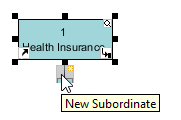
Move the cursor to the element Health Insurance, then click the resource icon New Subordinate. This creates the next level of your hierarchy.
Step 6: Rename and Add Coworkers
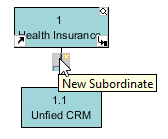
Double-click the element with ID 1.1 and rename it to Unified CRM.
You can add parallel elements (coworkers) to represent other major deliverables at the same level. You have two options:
-
Repeat Step 5 (clicking New Subordinate on the parent).
-
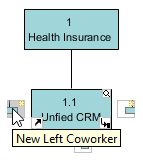
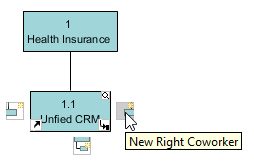
Move the cursor to the element Unified CRM, then click the resource icon New Left Coworker or New Right Coworker.
Step 7: Expand the Branch
Repeat Step 6 to add more coworkers (parallel deliverables) for Unified CRM.
Step 8: Drill Down Further
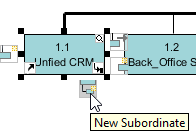
To create a subordinate of element Unified CRM, move the cursor to that element, then click the resource icon New Subordinate. Rename this new subordinate to CRM System Integration.
Step 9: Add Parallel Tasks at Lower Levels
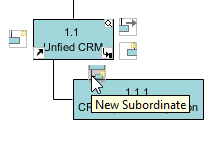
To add a coworker for CRM System Integration, you again have two methods:
-
Repeat Step 8.
-
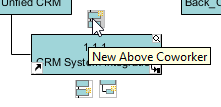
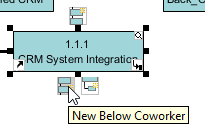
Move the cursor to element CRM System Integration, then click the resource icon Create Above Coworker or Create Below Coworker.
Step 10: Complete the Structure
Repeat Steps 8 and 9 for other elements and their subordinates until your entire scope is decomposed into work packages.
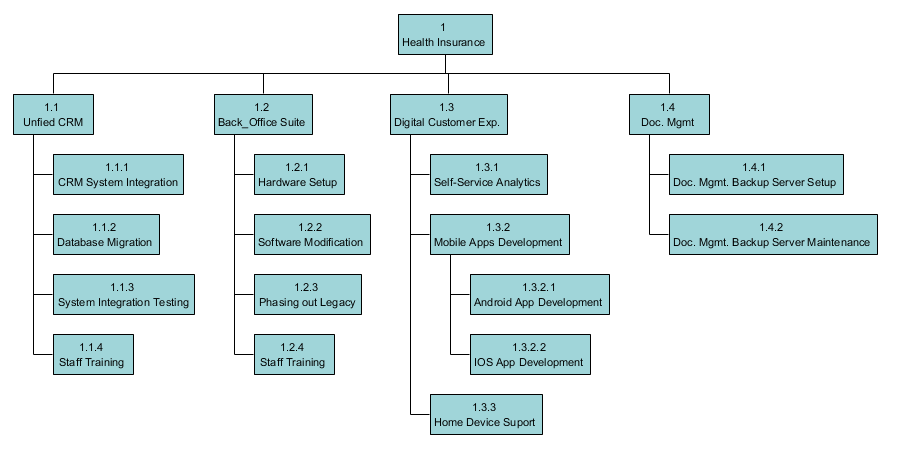
Step 11: Final Result
You will get something similar to this when you finish your diagram:
Leveraging AI for WBS Creation
While manual creation is great for learning, modern project managers can leverage AI to speed up the initial drafting phase. Here is how you can integrate AI into your WBS workflow:
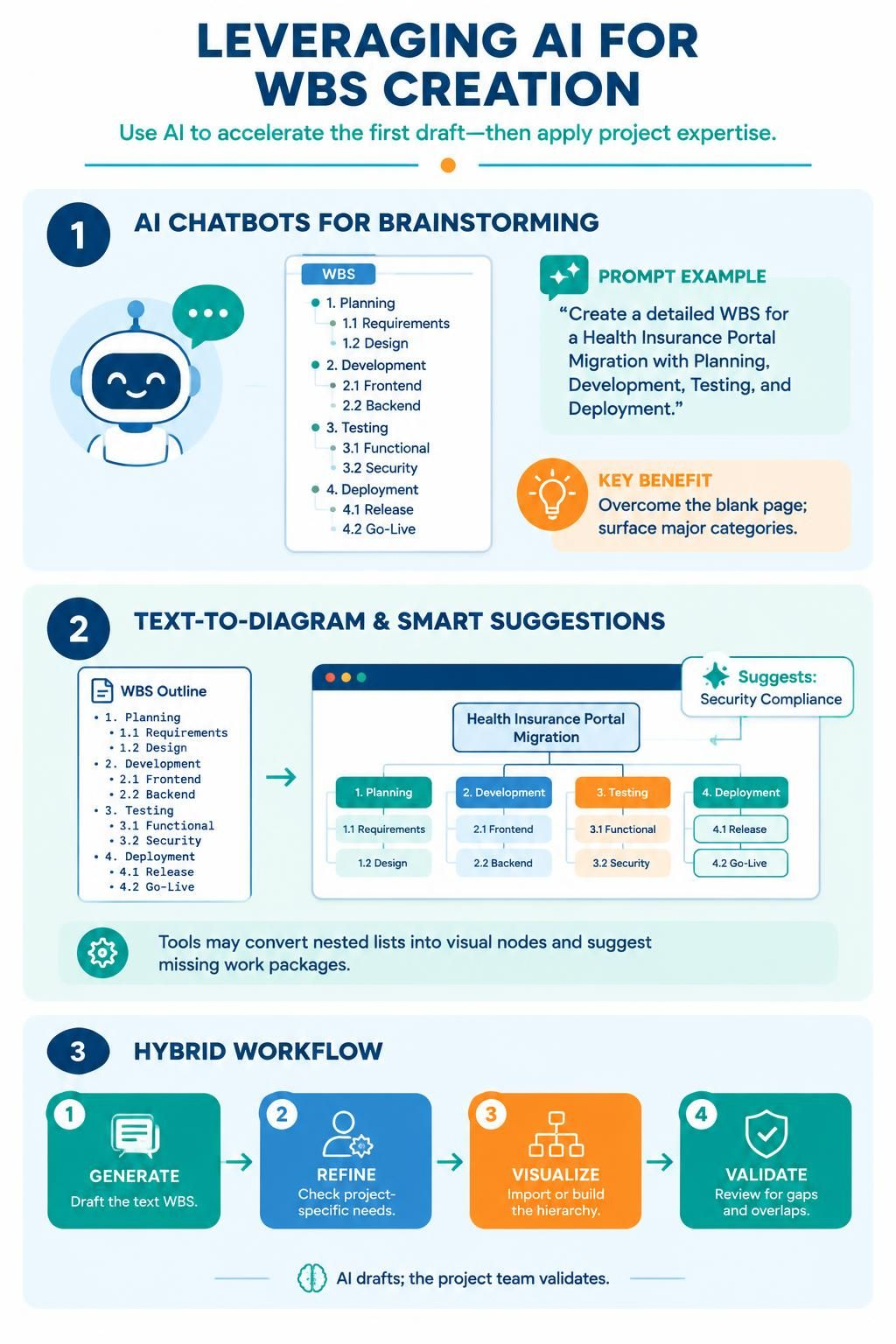
Use tools like VP AI Chatbot, ChatGPT, Claude, or Qwen to generate the initial hierarchy.
-
Prompt Example: “Act as a Senior Project Manager. Create a detailed Work Breakdown Structure for a ‘Health Insurance Portal Migration’ project. Include levels for Planning, Development, Testing, and Deployment. Output the result as a nested list.”
-
Benefit: Gets you past the “blank page” syndrome and ensures you don’t miss major categories.
2. VPasCode and Embedded AI
Visual Paradigm and similar tools are increasingly integrating AI assistants.
-
Text-to-Diagram: Some AI-enhanced tools allow you to paste the nested list generated by a chatbot directly into the editor, which then auto-generates the visual WBS nodes.
-
Smart Suggestions: Embedded AI can analyze your existing WBS and suggest missing work packages based on industry standards (e.g., reminding you to add “Security Compliance” to a healthcare project).
3. Hybrid Workflow
-
Generate: Use an AI Chatbot to draft the text-based WBS.
-
Refine: Review the output for project-specific nuances.
-
Visualize: Import or manually build the structure in Visual Paradigm using the steps above.
-
Validate: Use the visual hierarchy to check for gaps or overlaps.
Conclusion
A Work Breakdown Structure is more than just a diagram; it is a strategic tool that brings clarity to chaos. By decomposing your project into manageable work packages, you enable better scheduling, accurate costing, and effective control.
Whether you are building a simple website or a complex health insurance system, starting with a solid WBS sets the stage for success. With tools like Visual Paradigm making the visualization easy, and AI assistants helping to brainstorm the content, there has never been a better time to master this essential project management skill. Start small, break it down, and watch your project come together piece by piece.