Understanding Repetitive Workflows with BPMN
In the world of business process modeling, efficiency is paramount. Often, employees or systems need to perform a specific task repeatedly until a condition is met. To model this behavior without drawing endless arrows, Business Process Model and Notation (BPMN) utilizes specific visual tools known as markers. One of the most powerful of these is the Loop Marker. Let us explore how this marker functions through a practical, real-world example: an employee checking their email inbox.
Visualizing the “Check Mail” Process
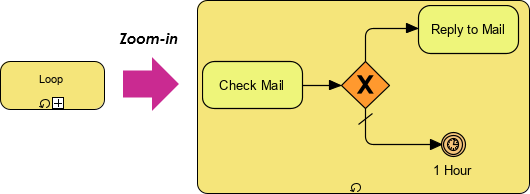
Imagine a workflow designed to keep an inbox tidy. The process begins with a task labeled “Check Mail.” In a standard diagram, you might see a loop marker—a small clock icon with a plus sign—attached to the task or a group of tasks. This indicates that the enclosed activities are part of a cycle. When we zoom in on the logic behind this cycle, we see a more detailed flow.
The process starts at the “Check Mail” task. Once the check is complete, the flow moves to a decision point, represented by a diamond shape with an “X” inside. In BPMN terminology, this is an Exclusive Gateway. It acts as a traffic controller, directing the flow down one path or another based on a specific condition.
The Logic of the Loop Marker
The core of this tutorial lies in understanding how the gateway manages the loop. When the employee checks the inbox, two outcomes are possible:
- Condition Met (Mail Exists): If the check reveals new mail, the flow follows the upper path to a task labeled “Reply to Mail.” Once the reply is sent, the arrow loops back to the beginning of the decision diamond. This ensures the employee checks the inbox again immediately to see if there is more mail.
- Condition Not Met (No Mail): If the inbox is empty, the flow follows the lower path to an end event. This signifies that the current cycle of checking is complete.
The loop marker essentially wraps this entire sequence. It tells the process engine that the “Check Mail” and “Reply to Mail” sequence is intended to repeat. This is distinct from a simple loop; it specifically models a cyclical behavior where the system returns to the start state immediately after an action is taken.
Optimizing Throughput in Business Processes
Why is this level of detail important for process modeling? The answer lies in throughput and efficiency. By modeling the return to the “Check Mail” state immediately after replying, the process avoids artificial delays. There is no “wait state” introduced if new mail arrives during the reply phase. The system is designed for continuous processing.
In the context of the example, the employee checks the inbox every hour. The loop ensures that if mail is found, it is handled as quickly as possible without forcing the employee to wait for the next hour to begin the check again. The “1 Hour” label near the end event suggests the duration of the overall cycle or the interval between checks, reinforcing that the loop is active only while work is present.
Key Takeaways for Process Designers
When designing your own BPMN diagrams, remember that markers like the Loop are not just decorative; they carry semantic meaning. They allow you to create compact, readable diagrams that accurately reflect real-world behaviors. By using an Exclusive Gateway within a Loop Marker, you can effectively model scenarios where a task must be repeated until a specific condition is no longer true, ensuring your processes are both logical and optimized for speed.