In the realm of modern software engineering, the friction between “coding the logic” and “documenting the process” is a persistent bottleneck. Developers often write requirements or track tasks in raw text files, only to manually recreate them in diagramming tools later. This leads to “diagram rot,” where visuals no longer reflect the current state of the project.
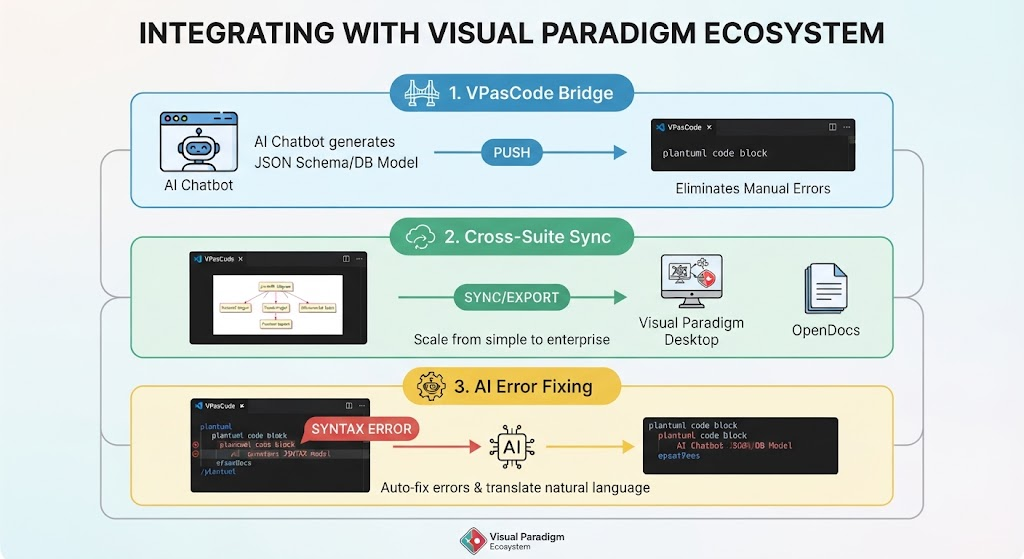
Visual Paradigm has addressed this fragmentation through its integration of VPasCode and OpenDocs. This tutorial explores the architecture of this workflow, demonstrating how to leverage the power of Mermaid.js syntax within a code editor to drive a dynamic, collaborative Kanban board in your organization’s knowledge base.
The Architecture: From Text to Visualization
The core innovation here is the shift from “drawing” diagrams to “programming” them. Instead of dragging and dropping boxes on a canvas, the system architecture relies on a text-based definition of the diagram. This approach offers several distinct advantages:
- Version Control: Since the diagram is text, it can be stored in Git alongside your source code, allowing for precise diffs and history tracking.
- Workflow Integration: Developers can use their existing IDEs (like VS Code or Visual Paradigm’s native editor) to update documentation without switching contexts.
- Automation: The “Send to OpenDocs Pipeline” feature acts as a bridge, parsing the text and rendering it into a rich, interactive web artifact.
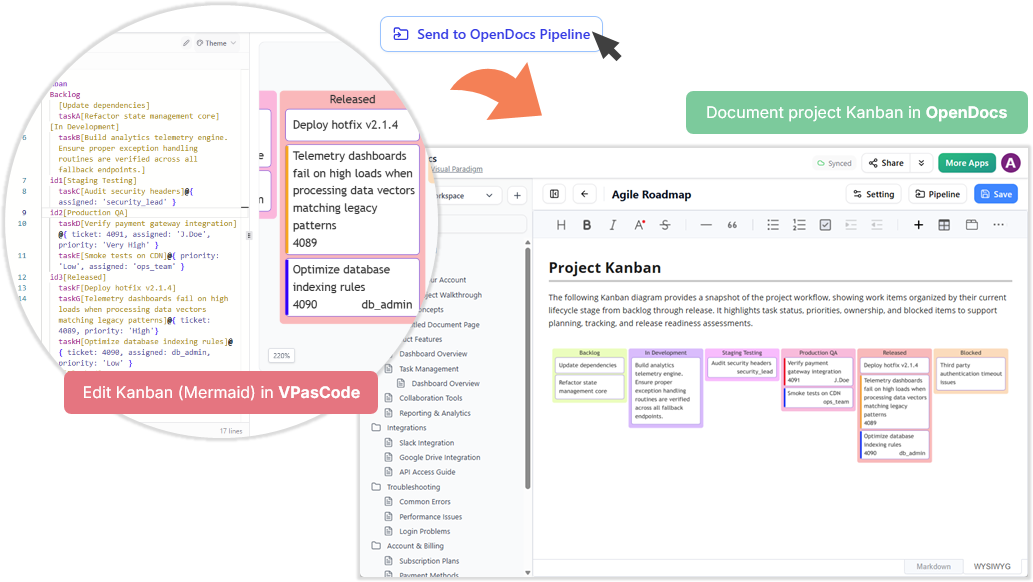
The workflow depicted in the interface involves three distinct stages: Authoring, Parsing, and Publishing.
1. Authoring: The VPasCode Editor
The process begins in the VPasCode editor. As shown in the interface, this environment functions as a specialized markdown editor that supports Mermaid.js syntax. The screenshot reveals a “Backlog” list where tasks are defined using a specific format. This isn’t just free-form text; it is structured data.
Observe the structure of the items in the editor. They utilize a standard list format with embedded metadata:
[Update dependencies]
taskA[refactor state management core]
taskB[Build analytics telemetry engine]
taskC[Verify proper exception handling]
taskD[Audit security headers]
Notice how the text within the brackets or square brackets often corresponds to the label in the visual diagram. This “code-as-documentation” philosophy ensures that the text you write is the exact source of truth for the visual output.
2. The Modeling Concept: Mermaid.js Kanban
Behind the scenes, the system is interpreting these lines as a Kanban Flowchart. Mermaid.js is a JavaScript-based diagramming and charting tool that renders Markdown-inspired text definitions into diagrams. Visual Paradigm’s implementation extends this standard by allowing for custom styling and workflow logic.
The “Kanban” concept in this architecture represents a Work-in-Progress (WIP) management tool. It visualizes the lifecycle of a task. In the provided screenshot, we see columns representing the stages:
- Backlog: Tasks that have been identified but not yet started.
- In Development: Active work in progress.
- Staging/Testing: Quality assurance phases.
- Production QA: Final verification before release.
- Released: Deployed to production.
The visual mapping is direct. A line of code like taskA corresponds to a card in the “Backlog” column. The system parses the indentation and the labels to determine the initial state of the workflow.
3. Publishing: The OpenDocs Pipeline
Once the diagram is defined in the editor, the final step is dissemination. The interface highlights a button labeled Send to OpenDocs Pipeline. This is the critical “bridge” component.
When you trigger this pipeline:
- The Mermaid.js definition is compiled into an SVG or HTML visualization.
- This visualization is embedded into a Markdown document within OpenDocs.
- The document becomes part of the “Single Source of Truth.”
The result, as seen in the right-hand pane of the screenshot, is a polished Project Kanban dashboard. It displays the tasks with rich text formatting, allowing stakeholders to see the “Snapshot of the project workflow” without needing to understand the underlying code.
Step-by-Step: Creating Your Own Synced Kanban
To replicate this workflow in your own development environment, follow these steps:
- Define the Workflow: Open your VPasCode editor. Create a new file and ensure the language mode is set to Mermaid or Markdown.
- Write the Syntax: Input your task list. Use the following structure for your columns:
kanban
  Backlog
    task1[Update dependencies]
    task2[Refactor state management]
  In Development
    task3[Build analytics engine]
    task4[Audit security headers]
  Released
    task5[Deploy hotfix v2.1.4]
- Validate the Output: Preview the diagram within the editor to ensure the nodes and columns render correctly.
- Execute the Pipeline: Click the Send to OpenDocs Pipeline button. Select your target workspace (e.g., “Project Kanban”).
- Collaborate: Open the resulting document in the web-based OpenDocs workspace. The diagram is now live, and because it is linked to the source, updates to the code can be pushed back to the visual.
Why This Matters for Engineering Teams
This architecture solves the “Documentation vs. Reality” paradox. Traditionally, a developer would write code, but the project manager would maintain the Jira board or Confluence page. If the developer forgot to update the ticket, the documentation became obsolete.
With the VPasCode + OpenDocs integration, the code IS the ticket. By defining the Kanban directly in the editor, the diagram updates automatically as the code evolves. This ensures that the “Architecture designs and written documentation” remain connected, fulfilling the promise of an “evergreen” documentation system.