


Introduction
In modern software development and enterprise architecture, diagrams are more than just static images—they are living artifacts that need to travel across tools, teams, and workflows. While visual modeling tools like Visual Paradigm Desktop excel at intuitive, drag-and-drop diagram creation, many developers and technical writers prefer working with diagram-as-code formats like PlantUML, Mermaid, or Graphviz for version control, collaboration, and automation.
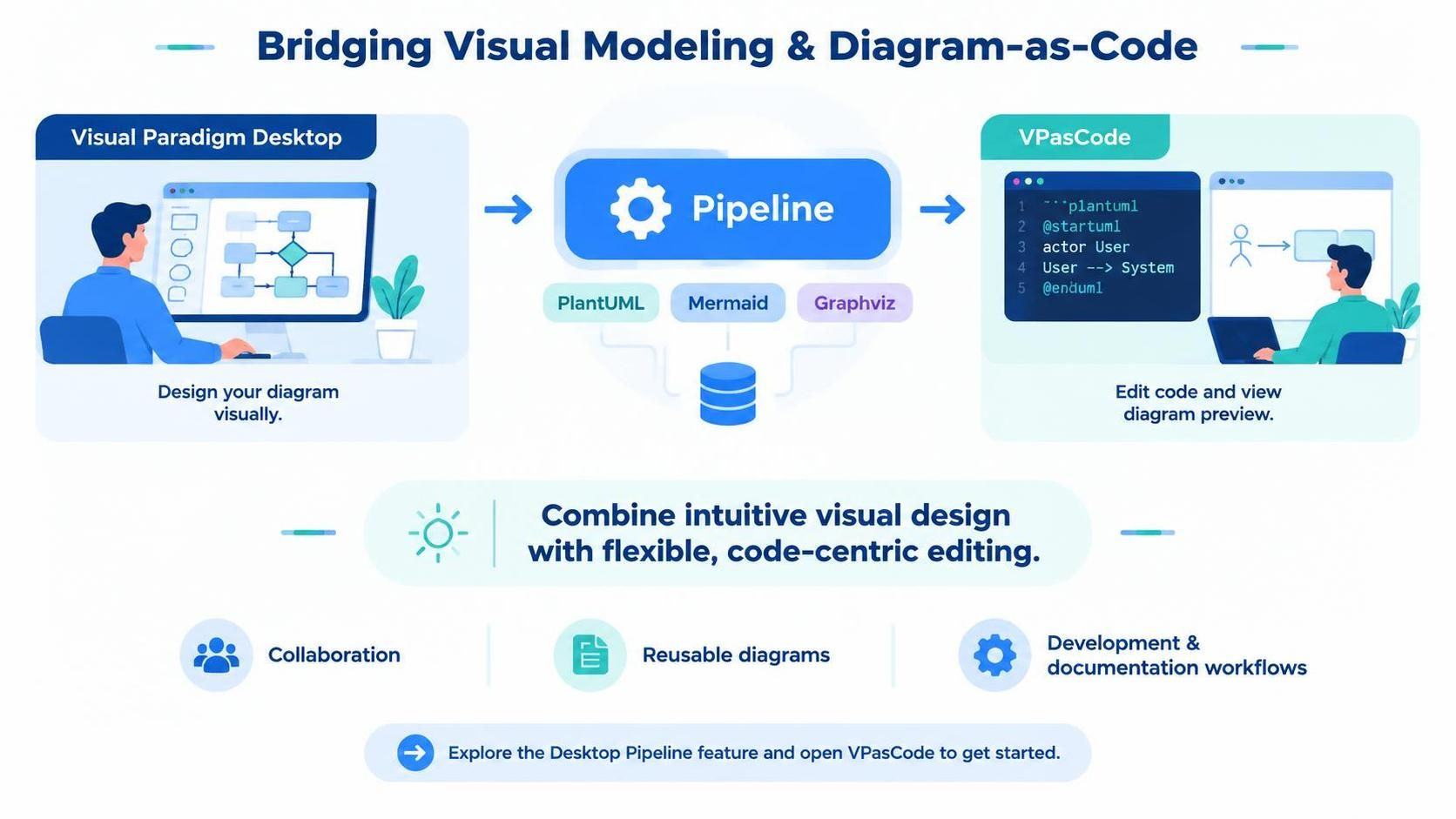
This guide explores a powerful new workflow that bridges these two worlds: sending diagrams from Visual Paradigm Desktop to the Pipeline, where they are automatically converted into code-based formats and can be retrieved and edited in VPasCode. This enhancement transforms how teams collaborate, allowing modelers to work visually while developers refine diagrams as code—all within the Visual Paradigm ecosystem.
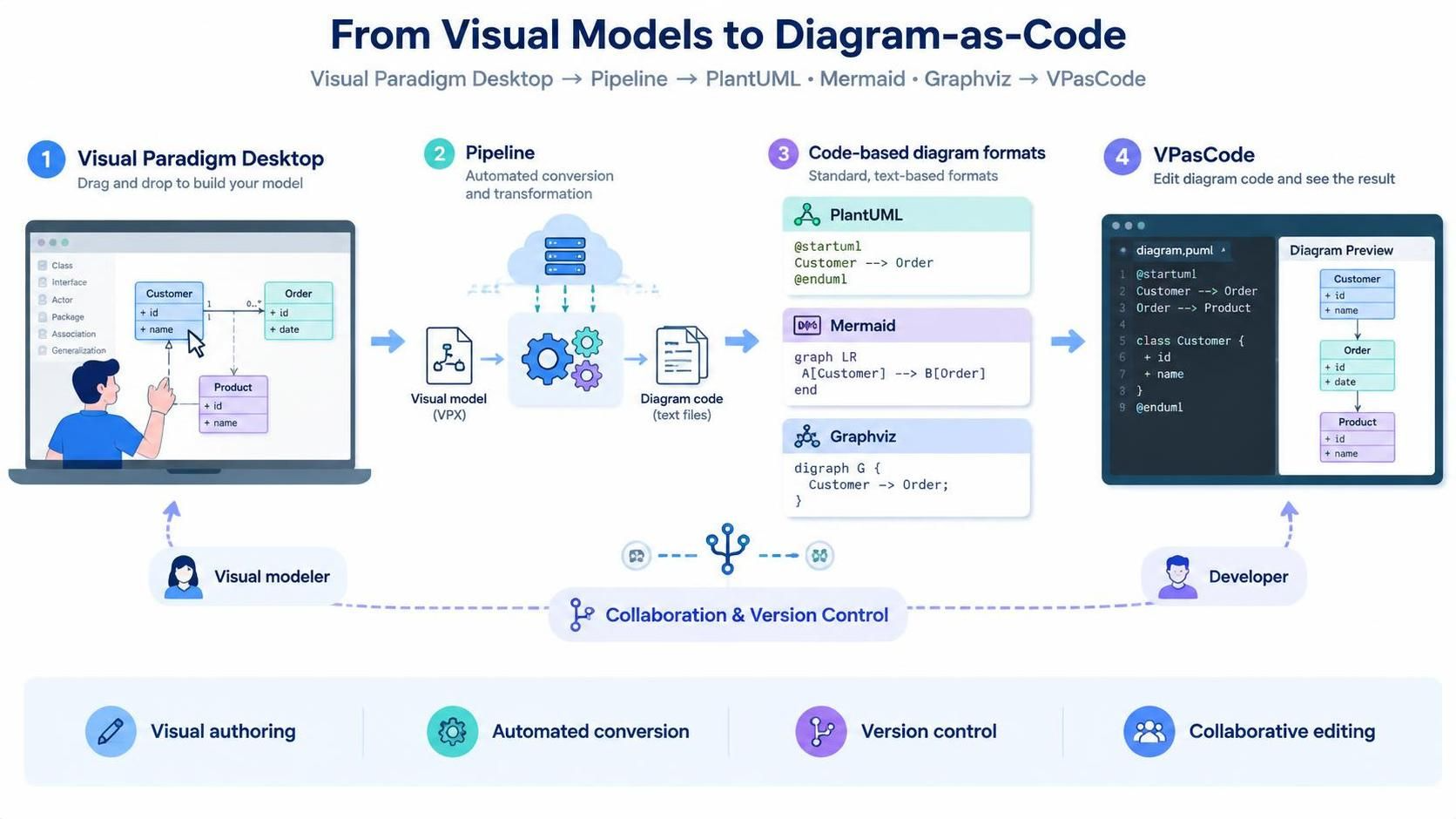
Whether you’re documenting system architecture, creating class diagrams, or building flowcharts, this pipeline enables seamless transitions between visual and textual representations, making your diagrams more reusable, editable, and integrated into your development workflow.
Key Concepts
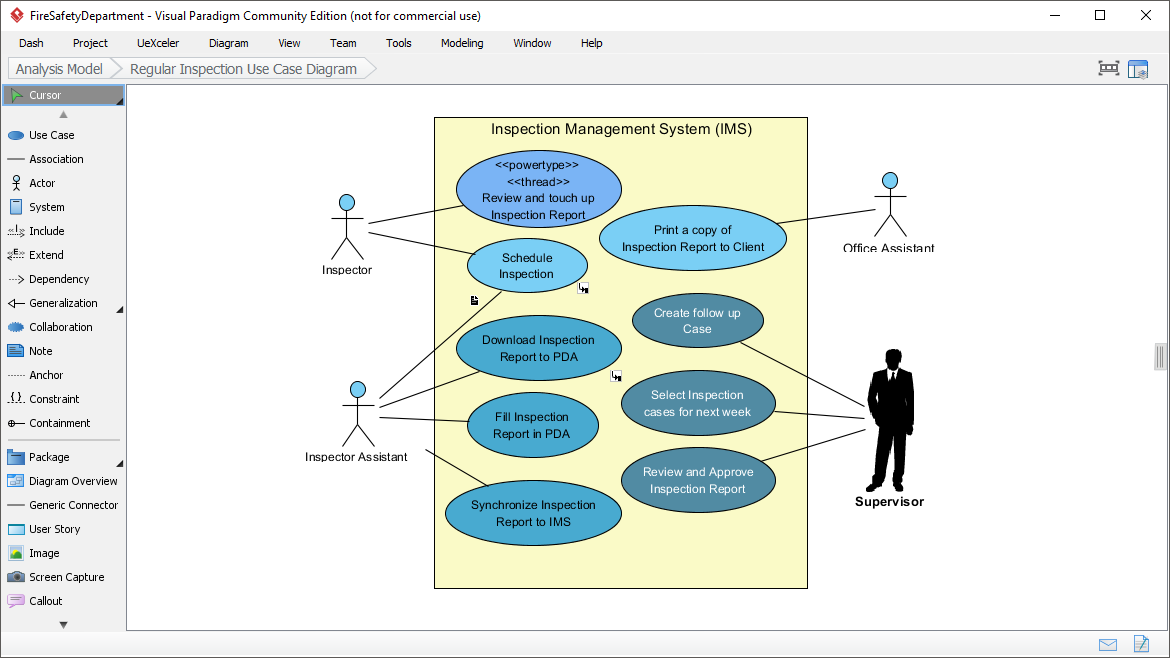
1. Visual Paradigm Desktop
A comprehensive visual modeling tool used for creating UML diagrams, ER diagrams, flowcharts, and other architectural models. It provides an intuitive interface for designing complex systems through drag-and-drop elements.
2. The Pipeline
The Pipeline is a shared repository within the Visual Paradigm ecosystem that acts as a bridge between different applications. It stores artifacts (such as diagrams) created in one tool so they can be retrieved and used in another. Think of it as a central hub for moving work between Visual Paradigm Desktop, VPasCode, OpenDocs, and other connected tools.
3. VPasCode
A web-based editor that supports diagram-as-code formats including PlantUML, Mermaid, and Graphviz. Instead of manipulating visual elements, users write and edit code that renders into diagrams. This approach is ideal for version control, code reviews, and integrating diagrams into CI/CD pipelines.
4. Diagram-as-Code Conversion
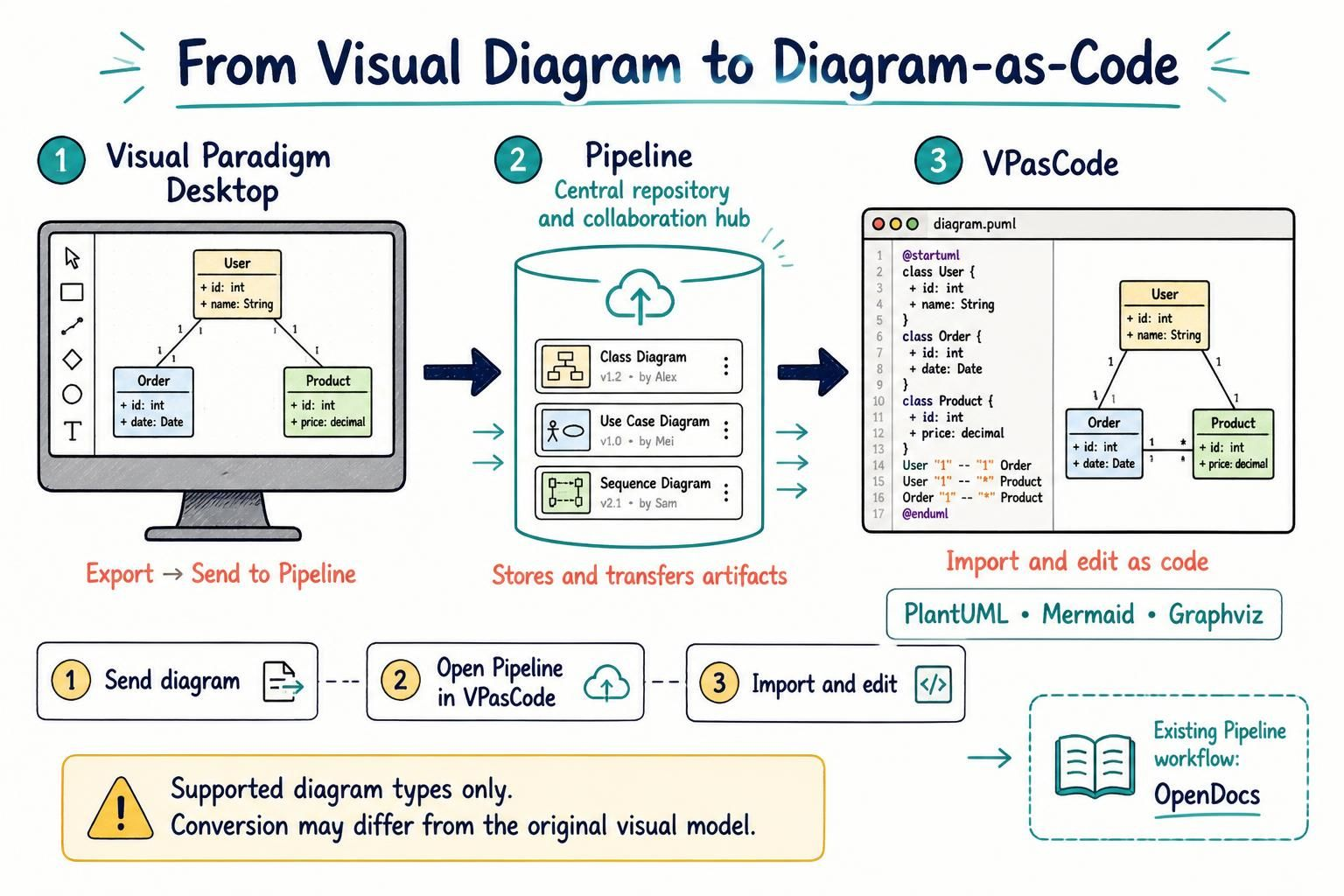
The automatic transformation of a visual diagram into its equivalent text-based representation. Not all diagram types support this conversion, and the resulting code may not perfectly replicate every visual detail due to differences in how visual models and code-based diagrams represent information.
Why Use This Workflow?
Benefits of Sending Desktop Diagrams to VPasCode
-
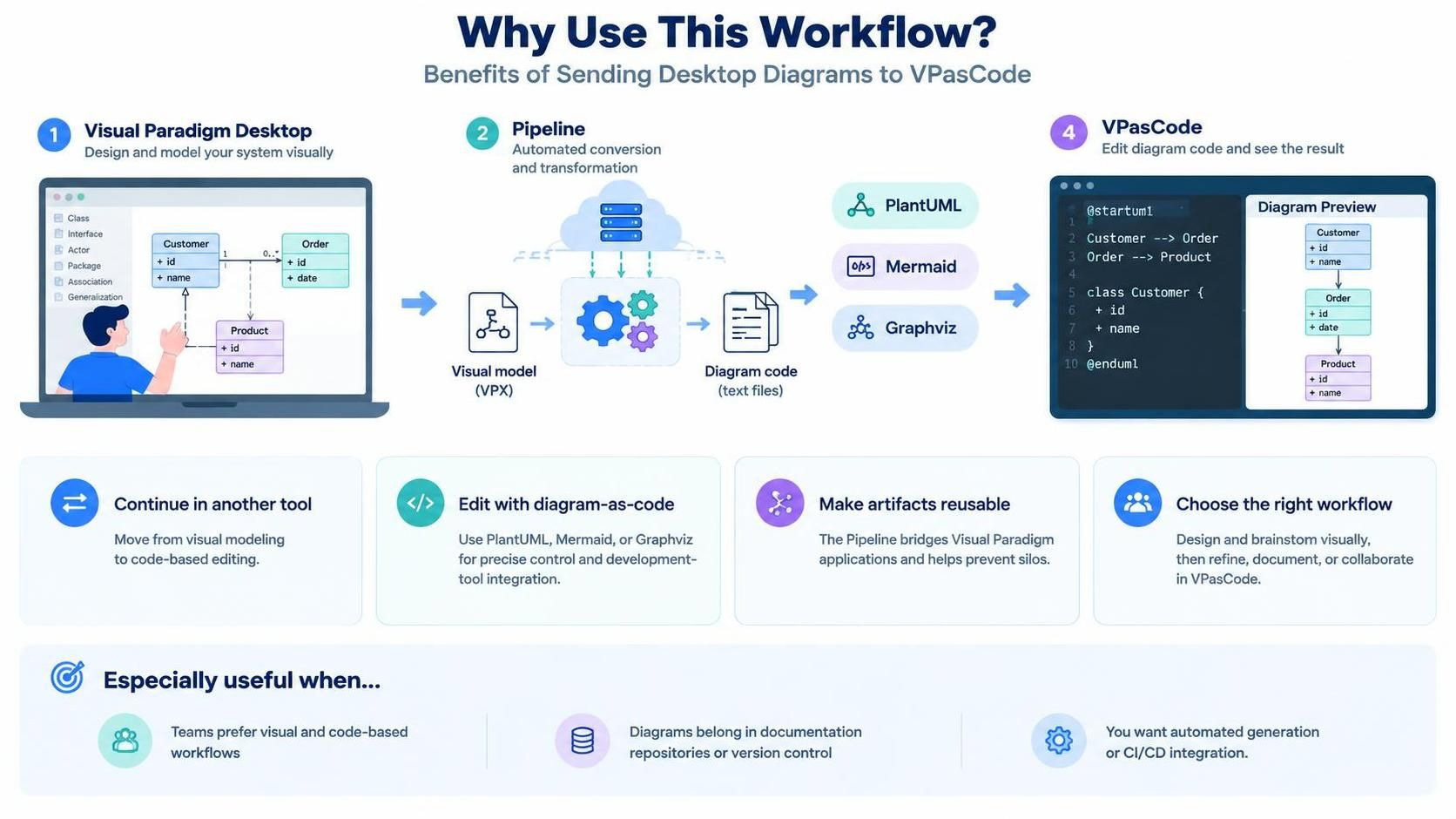
Continue Work in Another Tool: Move seamlessly from visual modeling to code-based editing.
-
Edit Using Diagram-as-Code: Leverage PlantUML, Mermaid, or Graphviz syntax for precise control and integration with development tools.
-
Make Artifacts More Reusable: The Pipeline serves as a bridge, preventing silos between different Visual Paradigm applications.
-
Choose the Right Workflow for the Task: Use Visual Paradigm Desktop for initial design and brainstorming, then switch to VPasCode for refinement, documentation, or collaboration with developers.
This workflow is particularly valuable when:
-
Different team members prefer different working styles (visual vs. code-based).
-
Diagrams need to be included in documentation repositories or version-controlled alongside code.
-
You want to automate diagram generation or integrate diagrams into CI/CD pipelines.
Step-by-Step Guide: From Visual Paradigm Desktop to VPasCode
Part 1: Sending a Diagram from Visual Paradigm Desktop to the Pipeline
-
Open Your Diagram
-
Launch Visual Paradigm Desktop and open the diagram you wish to convert.
-
-
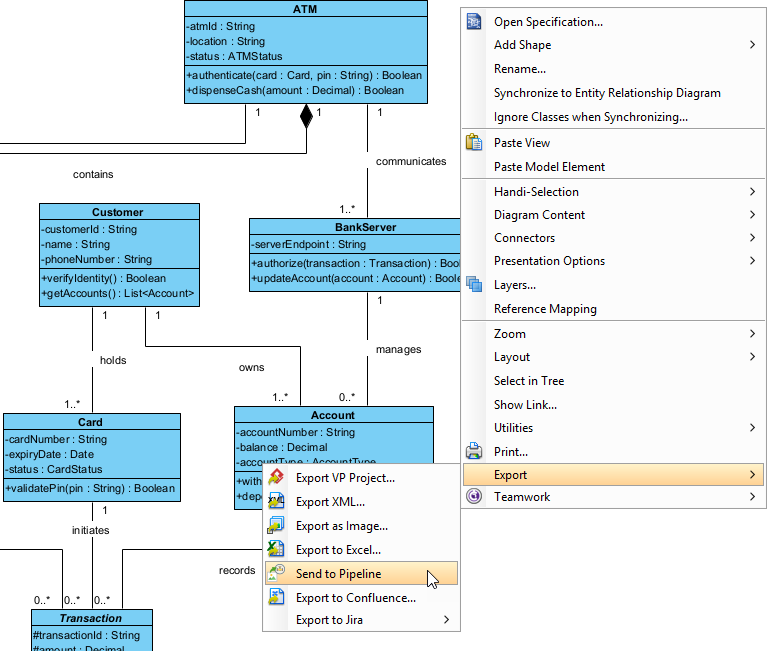
Export to Pipeline
-
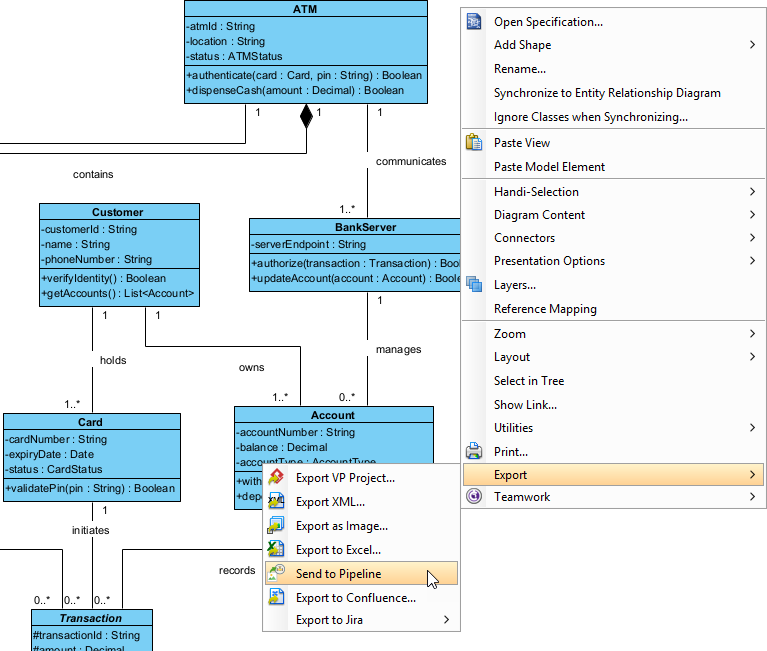
Right-click on the background of the diagram (not on any specific element).
-
Select Export > Send to Pipeline from the context menu.
-
-
Name Your Artifact
-
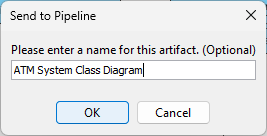
In the Send to Pipeline dialog, enter a name for the artifact. The diagram’s current name is filled in by default, but you can modify it if needed.
-
-
Confirm and Send
-
Click OK to initiate the transfer.
-
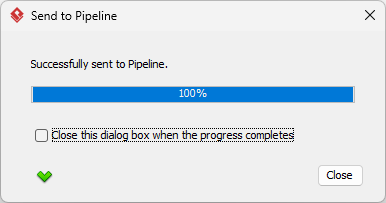
Wait for the progress dialog to complete, then click Close.
-
Your diagram is now stored in the Pipeline and ready for retrieval in VPasCode (if it supports diagram-as-code conversion).
Part 2: Retrieving and Editing the Diagram in VPasCode
-
Open VPasCode
-
Navigate to VPasCode Editor in your web browser.
-
-
Access the Pipeline
-
Click the Pipeline button located at the top of the page to open the Pipeline window.
-
-
Locate Your Diagram
-
Browse or search for the diagram you sent from Visual Paradigm Desktop.
-
-
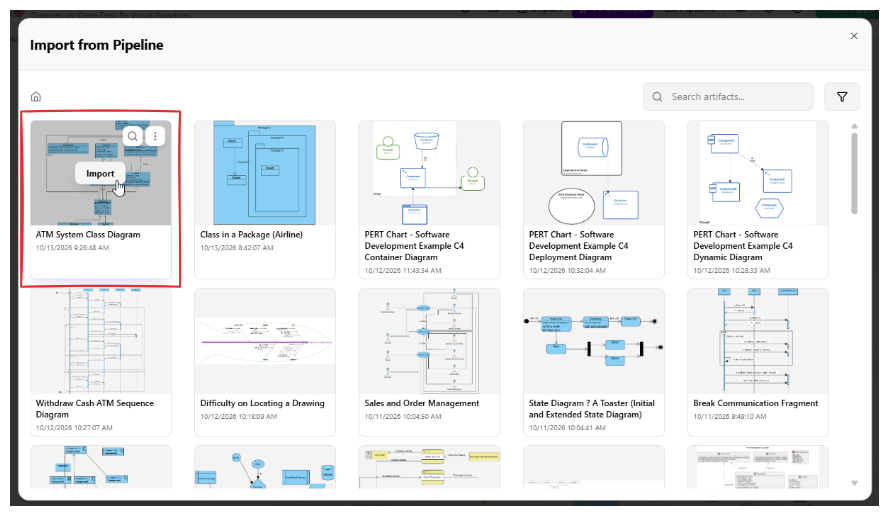
Import the Diagram
-
Hover over the artifact and click Import.
-
-
Edit the Code
-
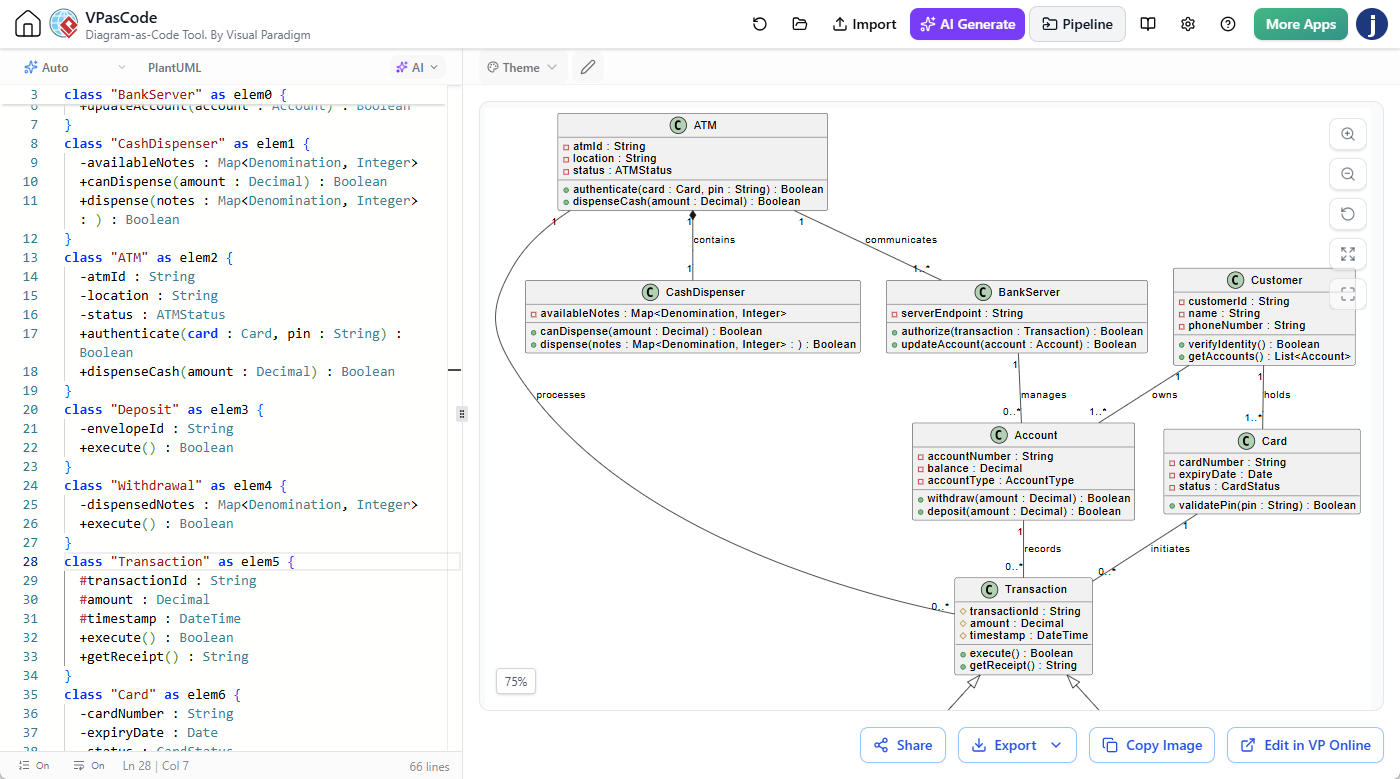
The diagram code will load into the VPasCode editor. Depending on the diagram type, it will be in PlantUML, Mermaid, or Graphviz format.
-
Make any necessary edits to the code. The preview pane will update in real-time to reflect your changes.
-
-
Save or Export
-
Once satisfied with your edits, you can save the code, export it as an image, or integrate it into your documentation or codebase.
-
Understanding the Workflow
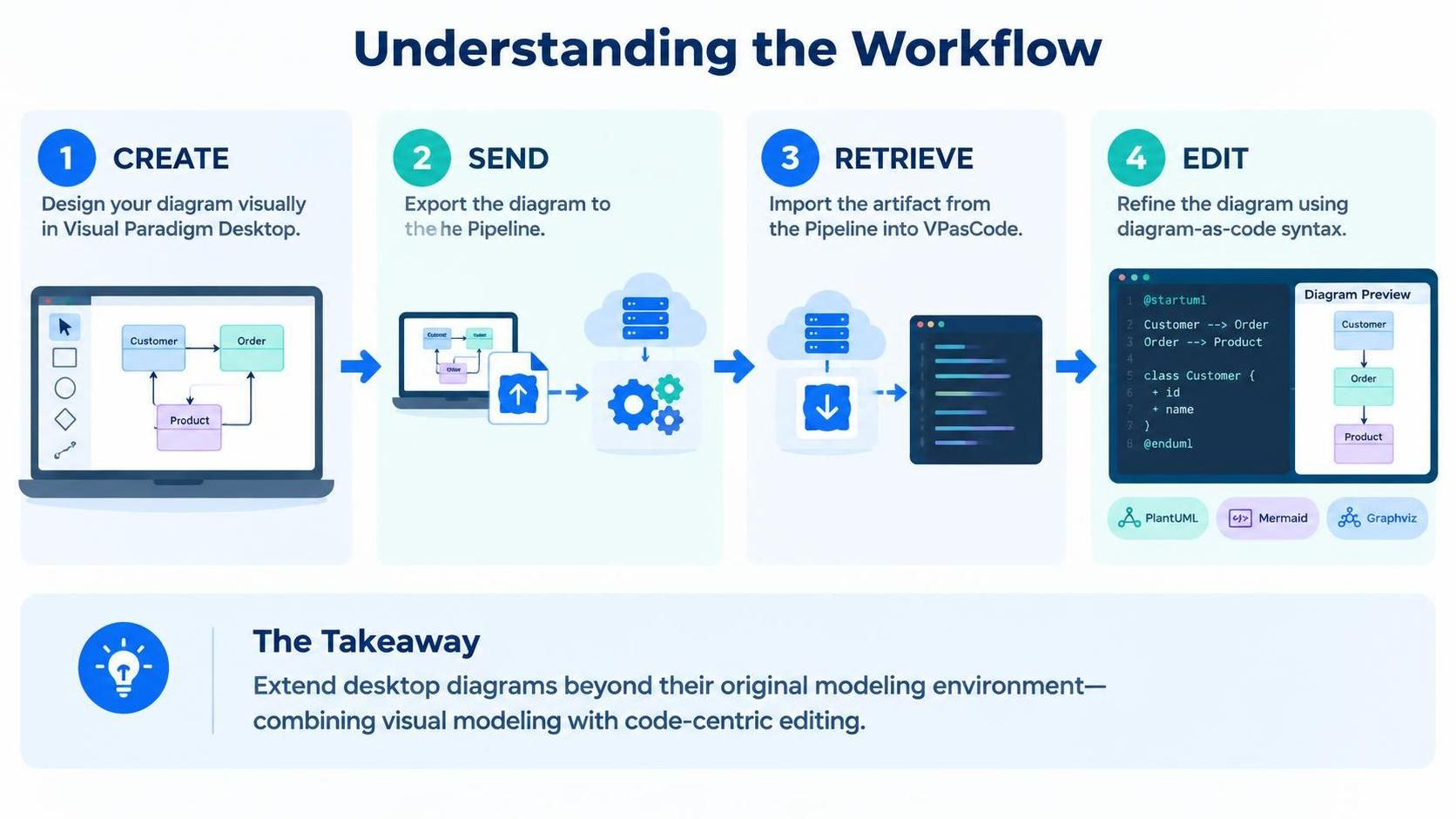
The entire process follows a simple four-step pattern:
-
Create: Design your diagram visually in Visual Paradigm Desktop.
-
Send: Export the diagram to the Pipeline.
-
Retrieve: Import the artifact from the Pipeline into VPasCode.
-
Edit: Refine the diagram using diagram-as-code syntax.
This workflow makes it easier to extend the usefulness of desktop diagrams beyond their original modeling environment and supports teams that combine visual modeling with code-centric diagram editing.
Important Considerations
Limitations and Best Practices
-
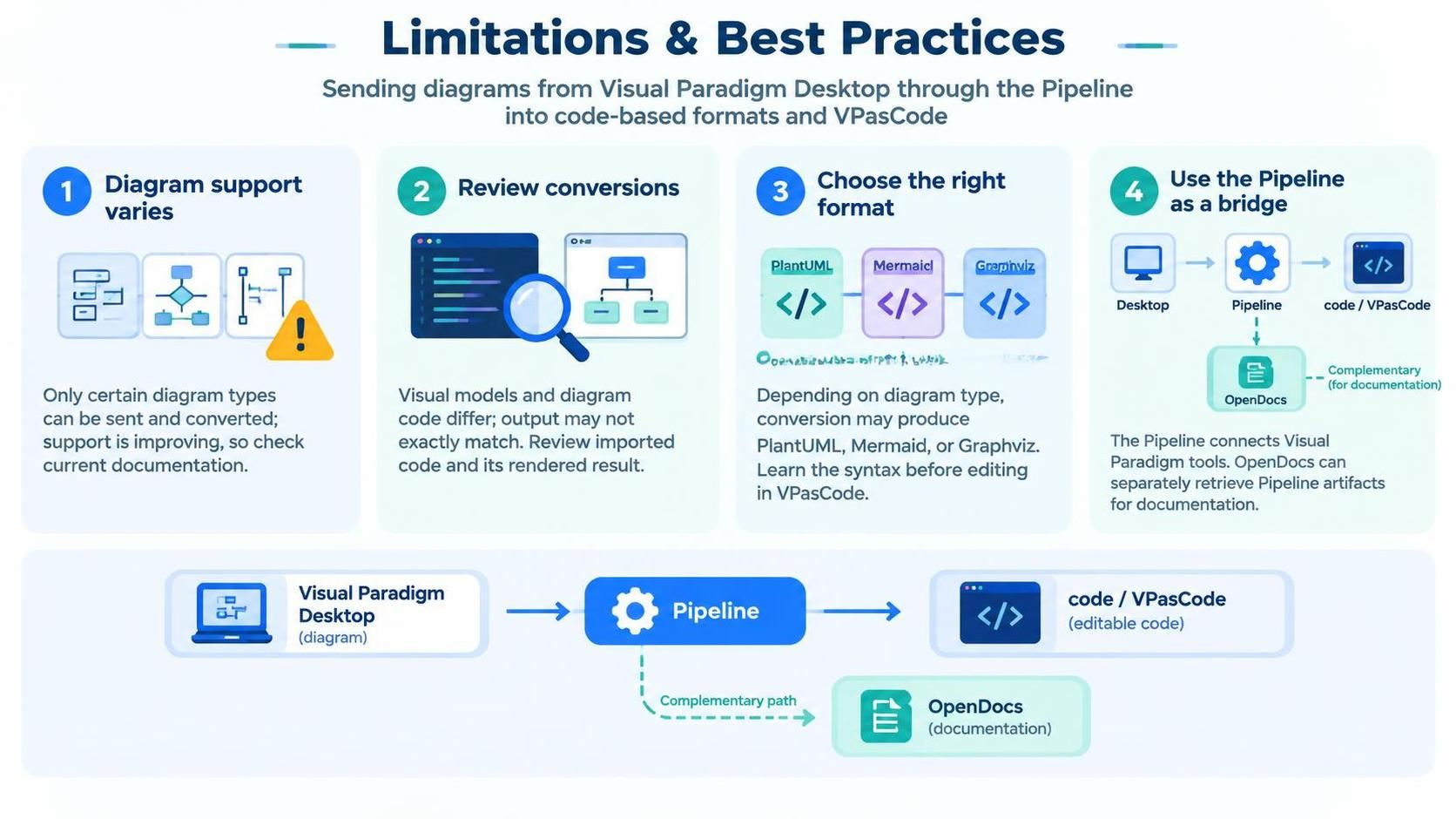
Not All Diagram Types Are Supported: Only certain diagram types can be sent to the Pipeline and converted to code. Support is continuously improving, so check the latest documentation for updates.
-
Conversion May Not Be Perfect: Visual models and text-based diagram code have different structures and capabilities. The converted code may not exactly match the original diagram in every detail. Always review the imported code and its rendered output before relying on it as an exact reproduction.
-
Choose the Right Format: Depending on the diagram type, the conversion may produce PlantUML, Mermaid, or Graphviz code. Familiarize yourself with these formats to make effective edits in VPasCode.
-
Use the Pipeline as a Bridge: The Pipeline is designed to connect different Visual Paradigm tools. If your workflow also involves documentation, remember that you can retrieve Pipeline artifacts in OpenDocs for documentation purposes—a separate but complementary capability.
Practical Examples
Example 1: Class Diagram Conversion
A software architect creates a detailed class diagram in Visual Paradigm Desktop to model a new microservice. After reviewing the design with stakeholders, they send it to the Pipeline. A developer retrieves it in VPasCode, converts it to PlantUML, and integrates it into the project’s documentation repository, ensuring the diagram stays in sync with the codebase.
Example 2: Flowchart for Process Documentation
A business analyst designs a process flowchart in Visual Paradigm Desktop. They export it to the Pipeline, and a technical writer imports it into VPasCode as Mermaid code. The writer embeds the Mermaid code directly into Markdown documentation, enabling automatic rendering in GitHub or GitLab wikis.
Example 3: Collaborative Architecture Review
A team uses Visual Paradigm Desktop for initial architecture modeling. During a review, a developer suggests changes that are easier to express in code. The diagram is sent to the Pipeline, retrieved in VPasCode, edited as Graphviz code, and then shared back with the team for further refinement.
Conclusion
The ability to convert Visual Paradigm Desktop diagrams into diagram-as-code formats via the Pipeline represents a significant step forward in bridging visual modeling and code-based workflows. By leveraging the Pipeline as a central repository and VPasCode as a code-centric editor, teams can enjoy the best of both worlds: the intuitive design capabilities of Visual Paradigm Desktop and the flexibility, version control, and automation benefits of diagram-as-code.
This workflow enhances collaboration, improves reusability, and ensures that diagrams remain integral parts of your development and documentation processes. Whether you’re a modeler, developer, or technical writer, understanding and utilizing this pipeline will streamline your workflow and make your diagrams more powerful and accessible.
Ready to try it out? Explore the Visual Paradigm Desktop Pipeline feature and open VPasCode to start converting your diagrams today.