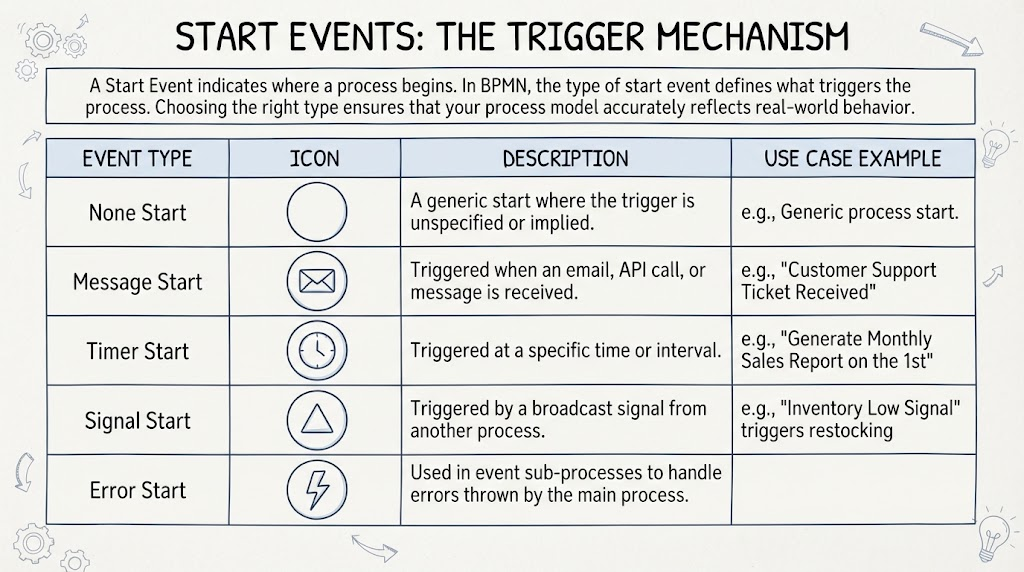
In the world of Business Process Model and Notation (BPMN), the starting point of a process is just as critical as the steps that follow. It defines the very nature of how work is initiated. This tutorial explores the Start Event—the trigger mechanism that breathes life into a static diagram and transforms it into a dynamic workflow.
What is a Start Event?
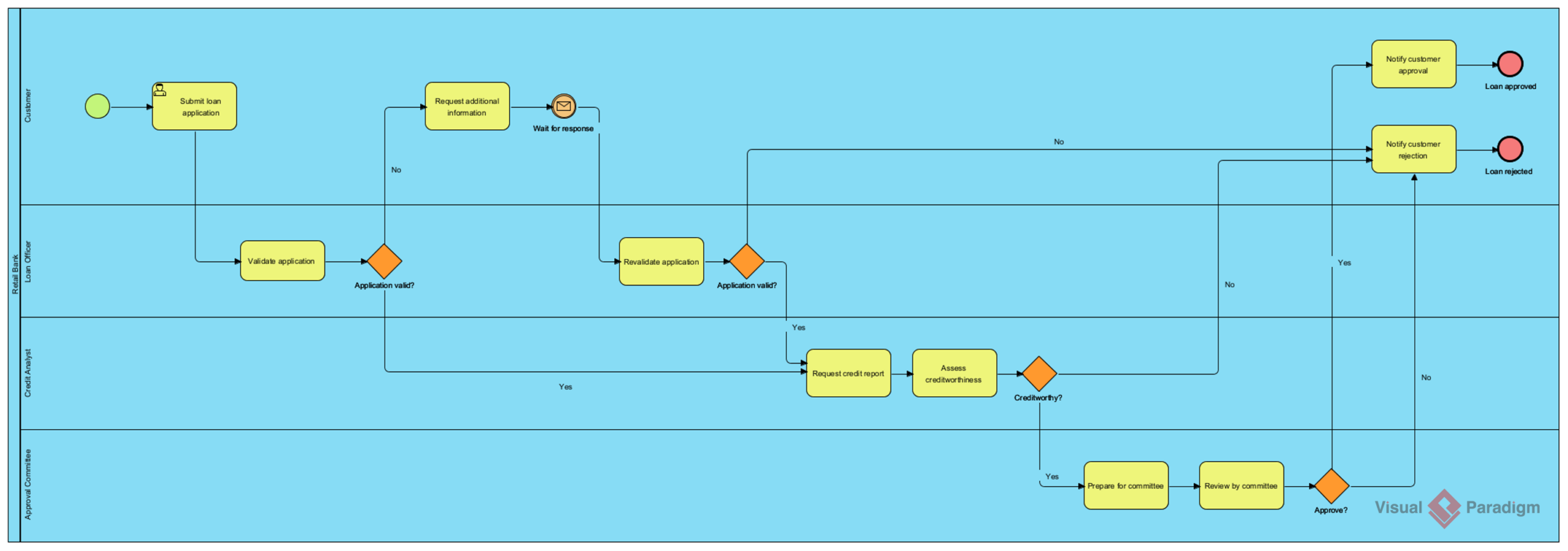
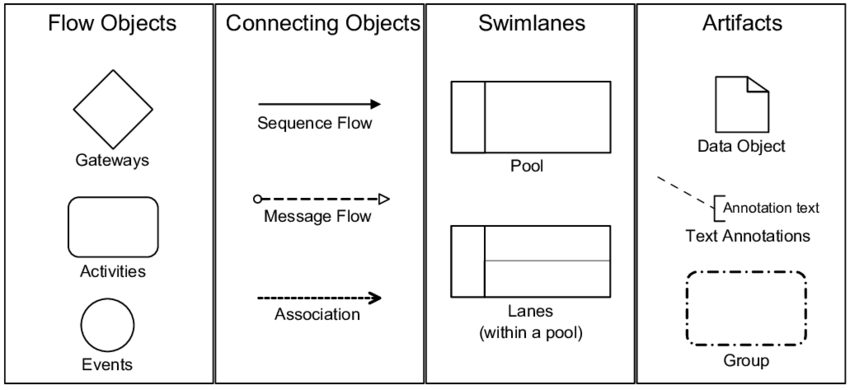
A Start Event serves as the boundary between the “universe” outside your process and the internal logic of the process itself. It indicates exactly where a process begins. However, in BPMN, a circle is not just a circle. The type of Start Event you choose defines what triggers the process.
Choosing the correct type is a crucial architectural decision. It ensures that your process model accurately reflects real-world behavior, distinguishing between manual triggers, automated system calls, and scheduled tasks.
The Five Core Start Event Types
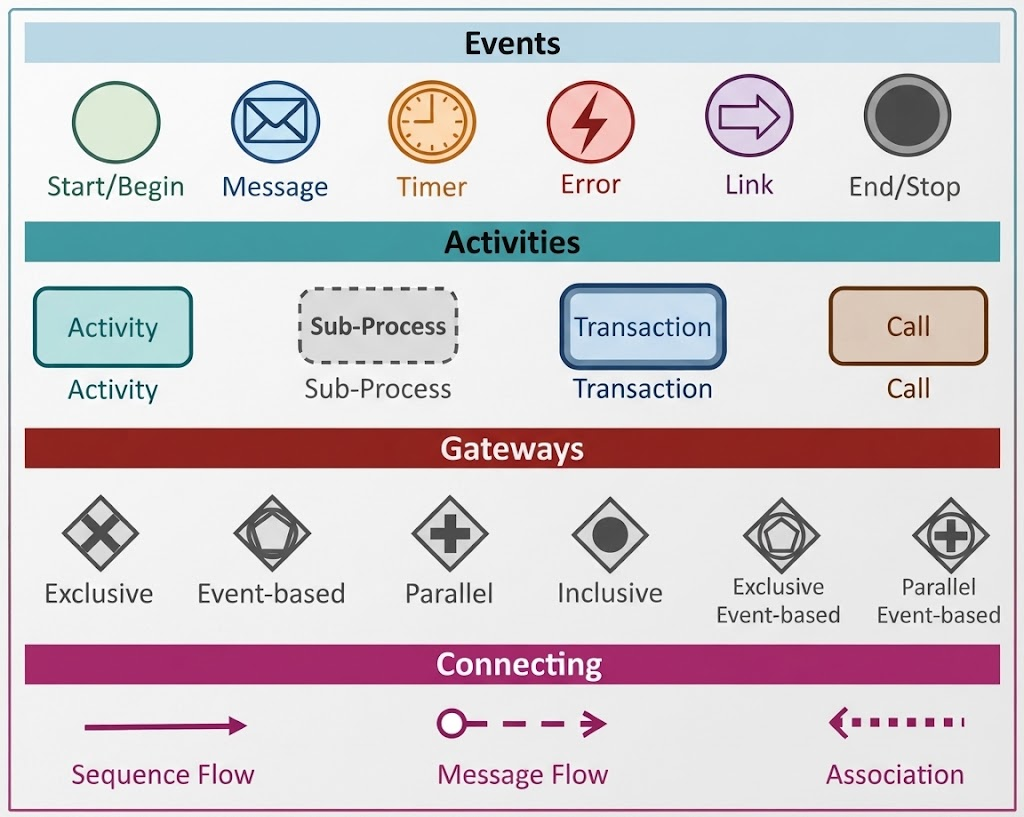
To build robust process models, you must understand the five primary categories of Start Events. Each has a distinct icon and a specific technical implication.
1. None Start Event
- Icon: A thin single circle.
- Description: This is the most generic form of a start event. It implies that the trigger is unspecified or implied by the context.
- Technical Implication: In a technical architecture, this often represents a process that is started manually by a human operator or is triggered by a mechanism not explicitly modeled in the BPMN diagram.
- Use Case: A “Generic process start” where the exact moment of initiation is less important than the process flow itself.
2. Message Start Event
- Icon: A circle containing an envelope.
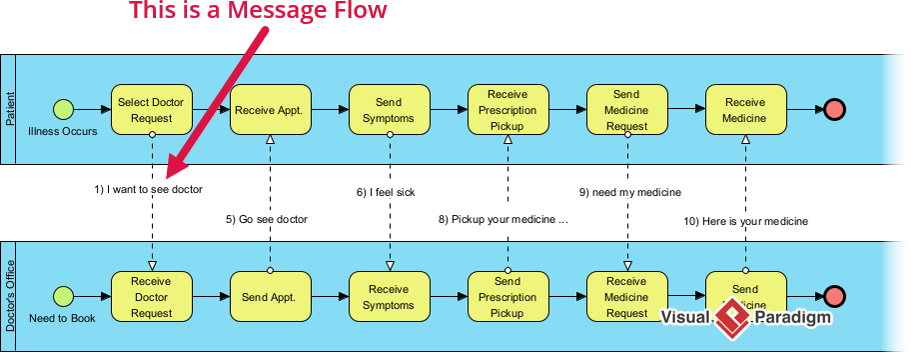
- Description: This event is triggered when a specific message is received. In a digital environment, this message could be an email, an API call, a database update, or a file drop.
- Technical Implication: This represents an external actor or system initiating work. It implies an inbound integration point. If you are building a workflow engine, this event waits for a specific payload before executing.
- Use Case: “Customer Support Ticket Received.” The process cannot begin until the ticket arrives via the support portal.
3. Timer Start Event
- Icon: A circle containing a clock.
- Description: This event is triggered at a specific time or interval. It does not require an external trigger; the system clock initiates it.
- Technical Implication: This represents a batch job or a recurring task. It implies a scheduled task (like a Cron job) running in the background.
- Use Case: “Generate Monthly Sales Report on the 1st.” The process is designed to run automatically regardless of user input.
4. Signal Start Event
- Icon: A circle containing a triangle.
- Description: This event is triggered by a broadcast signal from another process within the same system or a different system.
- Technical Implication: Unlike a Message Start (which is usually point-to-point), a Signal Start implies a broadcast mechanism. Multiple processes can listen to the same signal simultaneously.
- Use Case: “Inventory Low Signal.” When the inventory process detects low stock, it broadcasts a signal that triggers the restocking process.
5. Error Start Event
- Icon: A circle containing a lightning bolt.
- Description: This event is used within an Event Sub-Process to handle errors thrown by the main process.
- Technical Implication: This is not a way to start a process from scratch, but rather a “catch block” for exceptions. It allows the system to recover gracefully when the main workflow fails.
- Use Case: Handling a “System Timeout” error that occurred during a data synchronization step.
Why This Matters for Agile Teams
Understanding these distinctions is vital for Agile development teams. Different triggers create different process behaviors that require different technical implementations and acceptance criteria.
- SLA Tracking: If you use a Message Start, you must define Service Level Agreements (SLAs) regarding how quickly the system must respond to that incoming message.
- Monitoring vs. Initiation: If you use a Timer Start, the focus of monitoring shifts. You are not monitoring if the process was initiated (it happens automatically); you are monitoring for completion and data accuracy.
By defining these triggers clearly, you ensure that the automation works exactly as intended in the real world.