


In the complex world of Business Process Model and Notation (BPMN), clarity is king. When processes grow too intricate to manage in a single flow, we need a way to organize complexity without losing sight of the big picture. This is where the Sub-Process comes into play. It is the primary mechanism for hierarchical process development, allowing us to encapsulate logic into reusable, manageable components.
This tutorial explores the mechanics of Sub-Processes, distinguishes between their visual states, and explains how to model them effectively using tools like Visual Paradigm.
1. The Compound Activity: A Process Within a Process
At its core, a Sub-Process is a Compound Activity. It is not merely a simple task like “Send Email” or “Approve Document.” Instead, it acts as a container—a boundary that holds an entire miniature process inside the main parent process.
Think of it as a black box that you can open when necessary. Inside this boundary, you can find:
- Start and End Events: Defining where the sub-logic begins and ends.
- Gateways: Decision points (like Yes/No paths) that control flow.
- Activities: Detailed tasks that make up the sub-logic.
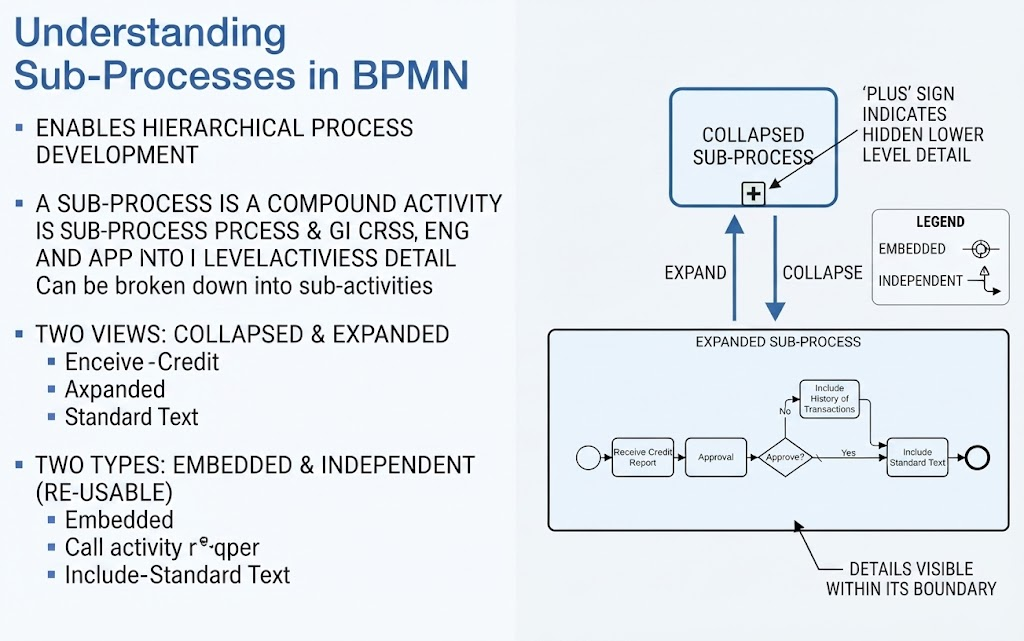
These internal elements function independently of the main flow but ultimately contribute to the parent process’s overall goal. For instance, a “Credit Check” process might be a sub-process containing the detailed steps of receiving a report, approval, and transaction history checks.
2. Visual States: Collapsed vs. Expanded Views
One of the most powerful features of BPMN is the ability to toggle between different levels of detail. This is achieved through two distinct visual states:
The Collapsed View (The “Plus” Sign)
The Collapsed Sub-Process is the default view. It appears as a simple rectangle with the name of the activity. Crucially, it features a small Plus (+) sign at the bottom center. This visual cue indicates “hidden lower-level detail.” It tells the reader, “There is more to this process, but for now, we are looking at the high level.”
The Expanded View (The “Details Visible” State)
When you need to understand the logic, you Expand the sub-process. This reveals the internal architecture. As shown in the diagram, the expanded view displays:
- A clear Start Event (circle).
- Intermediate tasks (rounded rectangles) such as “Receive Credit Report” or “Include History of Transactions.”
- Decision Gateways (diamonds) that route the flow based on conditions (e.g., “Approve?”).
- An End Event (double circle).
This transition allows for a seamless workflow: you can view the “Macro” view of the enterprise process, and drill down into the “Micro” view of specific operations as needed.
3. Types of Sub-Processes: Embedded vs. Independent
Beyond visual states, Sub-Processes differ in how they relate to the rest of the diagram. Understanding the distinction between Embedded and Independent (Reusable) sub-processes is critical for system architecture.
Embedded Sub-Processes
An Embedded Sub-Process is strictly local to the diagram it is drawn in. It cannot be called from other diagrams. It is a “One-Off” logic block that is tightly bound to its parent. In Visual Paradigm, this is often represented by the standard sub-process icon.
Independent (Reusable) Sub-Processes
An Independent Sub-Process (often called a Reusable Sub-Process) is global. It is defined once and can be referenced (called) by multiple different parent processes. It acts like a function in programming.
Visually, these are often denoted by a specific icon (sometimes a gear or specific symbol depending on the tool) and are used when you have a standard procedure, such as “Standard Text” or “Credit Check,” that needs to be applied across multiple different workflows.
4. Practical Application: The Credit Check Workflow
To see this in action, let us walk through the “Credit Check” example found in the source material. This workflow demonstrates how a sub-process manages logic:
- Start: The process begins with a “Receive Credit Report” task.
- Approval Logic: An activity “Approval” occurs, leading to a Gateway labeled “Approve?”.
- The “No” Path: If the answer is “No,” the flow moves to a task labeled “Include History of Transactions,” suggesting a review of past data before potentially restarting or ending.
- The “Yes” Path: If the answer is “Yes,” the flow moves to “Include Standard Text” and concludes.
By encapsulating this entire sequence into a single “Collapsed” box in the parent process, the main diagram remains clean, readable, and focused on the strategic flow rather than the tactical details.
Related posts:
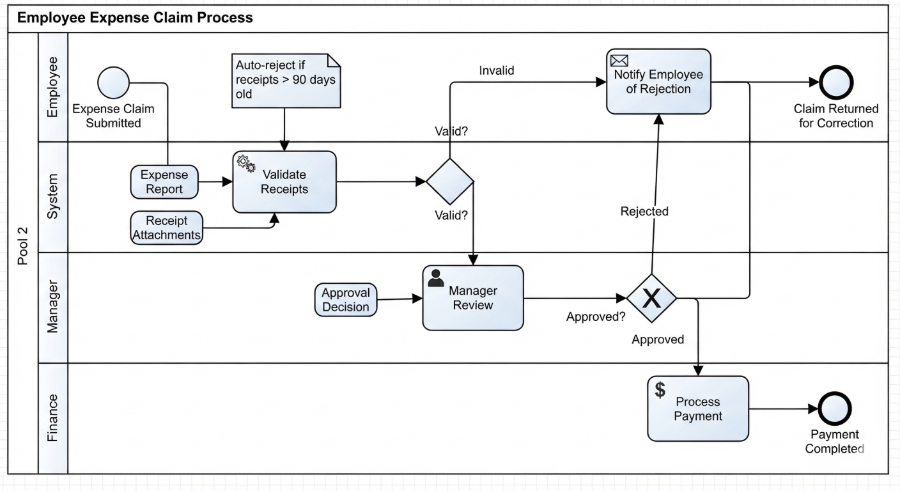 Mastering Business Processes: The Employee Expense Claim Flow
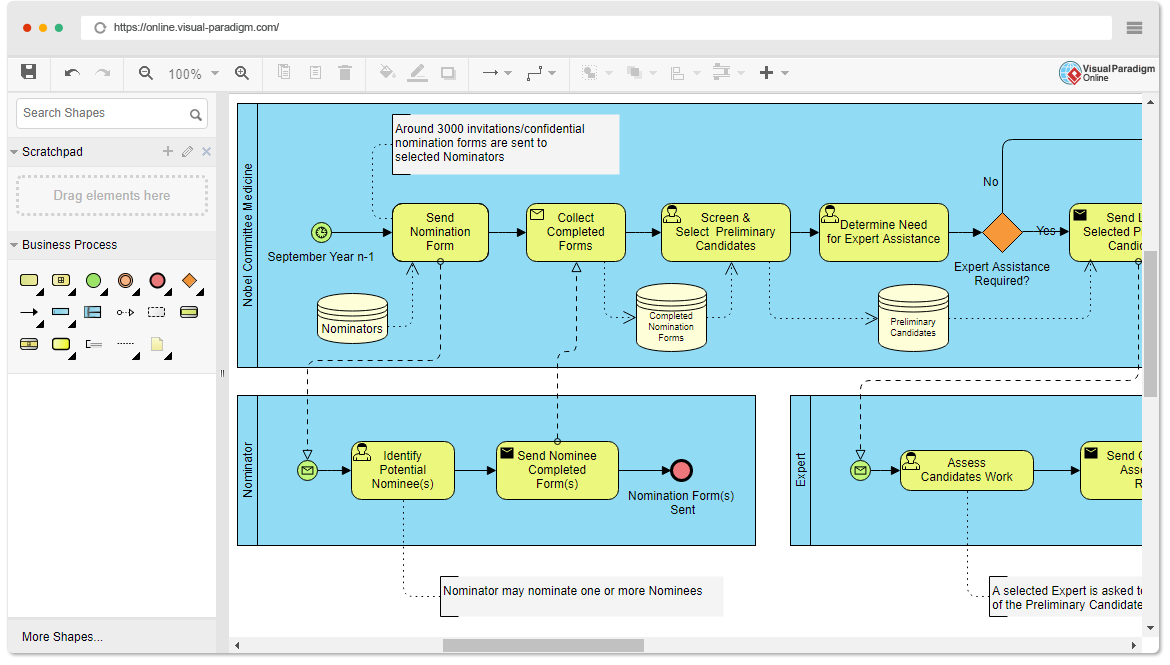 Mastering Business Process Modeling: The Nobel Prize Nomination Workflow in BPMN
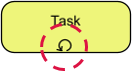 Mastering Iterative Processes: A Deep Dive into Loop Markers in Visual Paradigm
 Mastering BPMN: A Comprehensive Guide to Process Modeling Elements & Best Practices