In the fast-paced world of system design and product development, clarity is king. Whether you are mapping out a complex microservices architecture, brainstorming user journey maps, or refining business process flows, visual models are essential for translating abstract ideas into concrete plans. However, as conversations with AI assistants deepen, the sheer volume of generated content can become overwhelming. Previously, navigating back to a specific diagram version or revisiting a critical design decision meant endless scrolling through long chat threads. This friction not only disrupted workflow but also made it difficult to maintain context across iterative design sessions.
Enter the Artifacts Pane in Visual Paradigm Chatbot—a game-changing feature designed to streamline your visual modeling experience. This guide explores how the Artifacts Pane transforms chaotic chat sessions into organized, navigable design workflows, ensuring you never lose track of your creative progress again.
The Challenge of AI-Generated Content
When designing complex systems, a single conversation session can generate dozens of diagrams. You might start with a high-level context diagram, move to a detailed sequence diagram for a specific transaction, and then refine a state machine for error handling. Without a dedicated organizational tool, these assets become buried in a linear text history.
The “Scroll of Doom”
Imagine asking the AI to “show me the updated state machine for the withdrawal process.” In a traditional interface, you would have to scroll back through the entire chat history, hoping to find the specific message where that diagram was generated. This context switching kills momentum and increases the cognitive load on the designer.
Introducing the Artifacts Pane
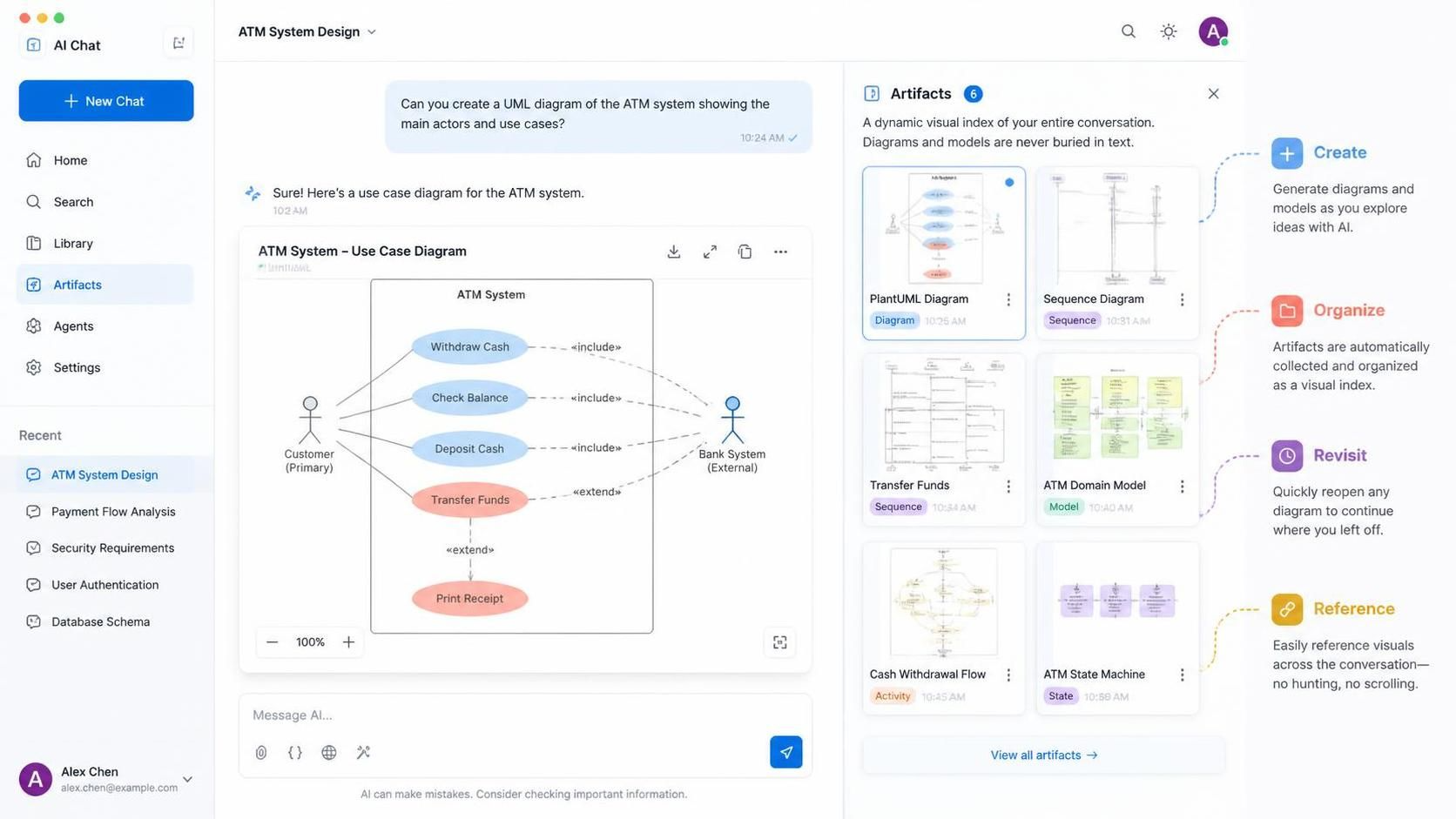
The Artifacts Pane acts as a dynamic, visual index of your entire conversation. It solves the problem of content fragmentation by automatically collecting and organizing the diagrams and models generated during your session.
Key capabilities include:
- Creation: Generate diagrams and models as you explore ideas with AI.
- Organization: Artifacts are automatically collected and organized as a visual index, categorizing them by type (e.g., Diagram, Sequence, Model, Activity).
- Revisiting: Quickly reopen any diagram to continue where you left off without searching through text.
- Reference: Easily reference visuals across the conversation—no hunting, no scrolling.
💡 Pro Tip: Rapid Prototyping Workflow
Use the Artifacts Pane to build a “Design Library” on the fly. Instead of saving files to your hard drive after every chat, keep the session open and use the pane to drag and drop key artifacts (like a Use Case or Domain Model) onto a new blank canvas to merge them into a master architecture document.
Step-by-Step: Managing Your System Design
Step 1: Initiating the Design Session
Begin by defining your system scope. For example, you might ask, “Create a UML diagram of an ATM system showing the main actors and use cases.” The AI will generate the diagram directly within the chat window. Notice how the artifact appears with a clear label (e.g., “ATM System – Use Case Diagram”) and metadata.
Step 2: Generating Diverse Models
As you iterate, you will request different types of views. The Artifacts Pane automatically tags these based on their type. You might request:
- Sequence Diagram: To map the flow of messages between the Customer and the Bank System.
- Activity Diagram: To visualize the logic of the Cash Withdrawal Flow.
- State Machine: To define the lifecycle of the ATM hardware.
Each of these is instantly added to the Artifacts grid on the right-hand side of the interface.
Step 3: Navigating and Revisiting
This is where the feature shines. If you need to check a specific detail, such as the “Transfer Funds” extension logic shown in the Use Case diagram, you simply click the thumbnail in the Artifacts Pane. The system instantly loads that specific view, allowing you to zoom in, edit, or export it without losing the context of your previous conversation.
Technical Implementation: From Text to Model
The Artifacts Pane is powered by Visual Paradigm’s underlying modeling engine. When you request a diagram, the AI translates natural language into modeling code (such as PlantUML or VP-Java), renders it, and stores it as a distinct object within the session’s memory.
This separation of concerns allows the AI to manage the “chat” (the conversation history) independently from the “model” (the actual diagrams). This architecture ensures that even if you close the chat and reopen it later, your visual assets remain accessible and organized.
Example: The Logic Behind a Use Case Diagram
When the AI generates the diagram shown in the interface, it applies specific UML rules. For instance, it distinguishes between an <include> relationship (mandatory behavior) and an <extend> relationship (optional behavior). The Artifacts Pane preserves these semantic relationships, allowing you to edit the diagram later while maintaining the integrity of the model.
@startuml
left to right direction
actor Customer as c
actor "Bank System" as bs

rectangle "ATM System" {
  usecase "Withdraw Cash" as wc
  usecase "Check Balance" as cb
  usecase "Deposit Cash" as dc
  usecase "Transfer Funds" as tf
  usecase "Print Receipt" as pr

  c --> wc
  c --> cb
  c --> dc
  c --> tf
  tf ..> pr : <>
  wc ..> pr : <>
}

wc ..> cb : <>
dc ..> cb : <>
tf ..> bs : <>

@enduml
Conclusion
The Artifacts Pane in Visual Paradigm Chatbot represents a significant leap forward in how we interact with AI for software engineering. By decoupling visual models from linear text, it restores the “visual-first” mindset essential for effective system design. It transforms the AI from a simple text generator into a powerful modeling partner that keeps your creative progress organized and accessible.
For those looking to integrate this workflow into their broader software engineering lifecycle, it is highly recommended to pair this tool with Visual Paradigm CRC (Class-Responsibility-Collaborator) cards. While the Artifacts Pane organizes your high-level diagrams, CRC cards are the perfect companion for the object-oriented design phase, allowing you to rapidly prototype class responsibilities and collaborator relationships before committing them to full UML class diagrams.