In the world of Business Process Model and Notation (BPMN), clarity is king. One of the most powerful tools a modeler has to achieve this clarity is the Sub-Process. It allows us to manage complexity by breaking down massive workflows into manageable chunks. However, using a sub-process effectively requires more than just drawing a box; it requires understanding the distinct difference between how you view it and what it actually is.
In this tutorial, we will dissect the two primary dimensions of BPMN sub-processes: the Visual View (Collapsed vs. Expanded) and the Architectural Type (Embedded vs. Independent). By the end of this guide, you will be able to design diagrams that communicate precisely with your audience.
1. The Visual View: Collapsed vs. Expanded
Before we look at the underlying code or architecture, let’s look at the canvas. BPMN provides two distinct ways to visualize a sub-process. These views are purely about information management—telling the viewer exactly how much detail they need to see at a given moment.
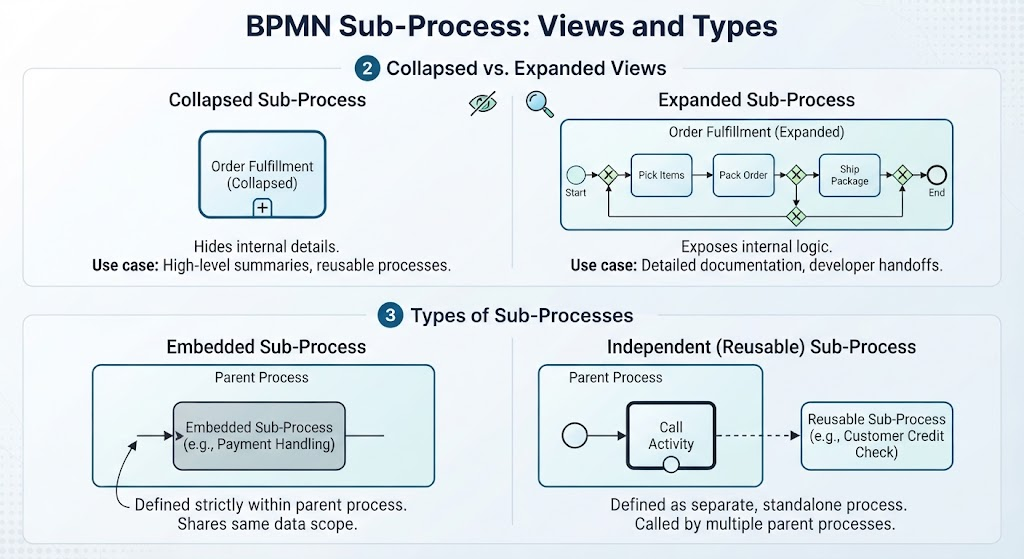
The Collapsed Sub-Process
The collapsed view is your “high-level” abstraction. It acts as a container that hides the internal chaos of a complex process.
- Visual Indicator: You will recognize this immediately as a rounded rectangle with a small “plus” (+) sign at the bottom center. This “plus” is a critical affordance; it signals to the user, “Click here to reveal the hidden details.”
- Function: Its primary job is to hide internal details. It tells the viewer, “There is a lot happening here, but we don’t need to see it right now.”
- Use Case: This is the standard for high-level executive summaries, process maps for non-technical stakeholders, or when a sub-process is reused in multiple places and you don’t want to redraw the entire flow every time.
The Expanded Sub-Process
The expanded view is the “technical” deep dive. It strips away the abstraction to show exactly how the magic happens.
- Visual Indicator: A large rounded rectangle that physically contains the internal flow elements (tasks, gateways, flows). Crucially, there is no “plus” sign.
- Function: This view exposes the internal logic. It shows exactly how the compound activity is achieved.
- Use Case: Essential for detailed technical documentation, developer handoffs, or process optimization analysis where the specific steps matter.
2. The Architectural Type: Embedded vs. Independent
While the visual view handles the presentation, the architectural type defines the functionality. This distinction is vital for understanding how data flows and how processes interact with one another.
Embedded Sub-Processes
An embedded sub-process is the most common form of grouping. Think of it as a function inside a class in programming—it belongs entirely to the scope of the parent.
- Definition: It is defined strictly within the parent process. It cannot be used by other processes.
- Data Scope: It shares the same data scope as the parent. Any variable created in the main process is visible here, and any variable created here is available to the rest of the parent process.
- Best For: Logic that is specific to this one process and will never be needed elsewhere.
Independent (Reusable) Sub-Processes
Independence is the key feature here. This sub-process is a standalone entity.
- Definition: It is defined as a separate, standalone process. It can be called by multiple parent processes.
- Visual Marker: In strict BPMN 2.0, these are often represented by an empty circle marker at the bottom of the box (rather than a plus sign), though tools often group them conceptually.
- Use Case: This is the gold standard for reusable logic. For example, a “Credit Check” or “Payment Processing” sub-process might be called by an “Order Placement” process and a “Return Processing” process. You define the logic once and call it whenever needed.
Conclusion
Mastering BPMN sub-processes is about knowing which lens to use. Are you presenting to a C-level executive? Use a Collapsed view of an Embedded process. Are you handing off code to a developer? Use an Expanded view of an Independent process. By combining these visual and architectural choices, you create diagrams that are not just pretty pictures, but functional blueprints for business success.