


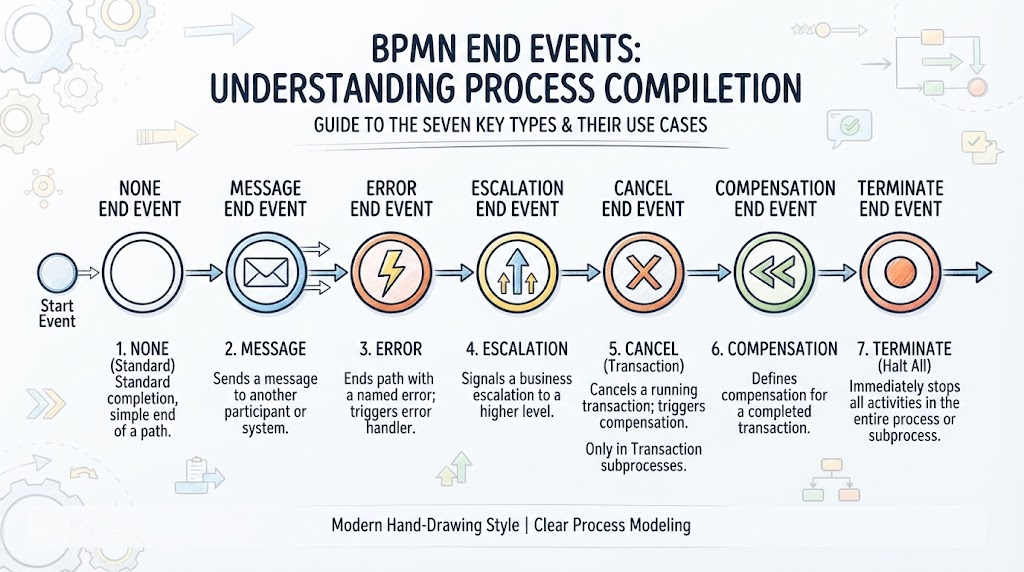
In the world of Business Process Model and Notation (BPMN), the journey is just as important as the destination. While Start Events act as the ignition for our workflows, End Events serve as the critical destination markers that define the outcome of a business activity. Without a clear understanding of how a process concludes, stakeholders cannot accurately assess success rates, error handling, or system efficiency.
This tutorial explores the architecture of BPMN termination. We will deconstruct the seven primary types of End Events, analyze their specific roles in process modeling, and explain how to implement them effectively to create robust, error-resistant business diagrams.
The Architecture of an End Event
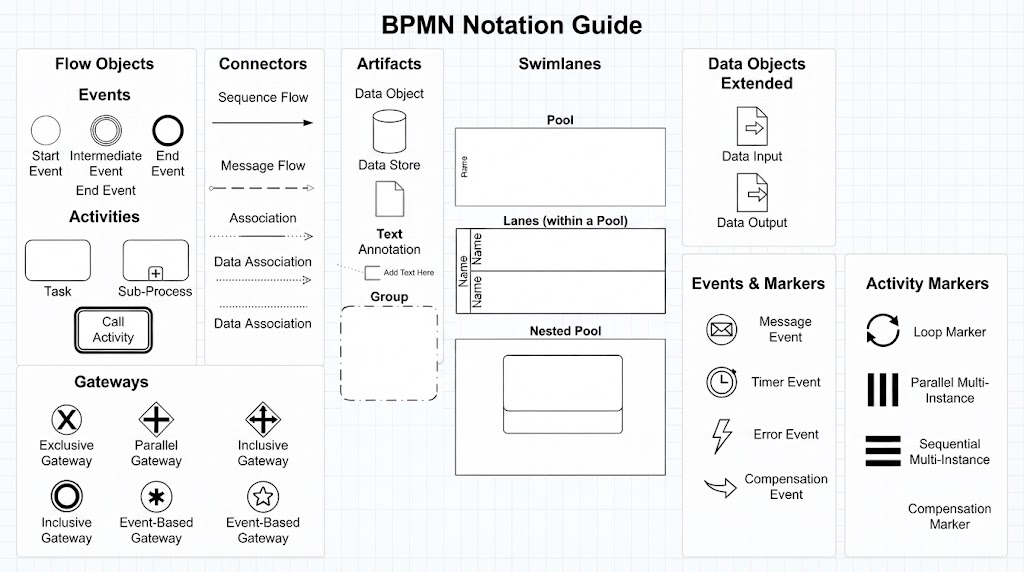
In BPMN notation, an End Event is universally depicted as a circle with a thick black border. While the shape remains consistent, the “Result”—the specific circumstance under which the process ends—is determined by the icon placed inside the circle.
Understanding these nuances is vital. A process path ending in a “None” event implies success, while one ending in an “Error” event implies a failure condition. Choosing the correct type ensures that the system (and the human operator) knows exactly what to expect when the workflow stops.
The Seven Types of BPMN End Events
Based on industry standards, here is a detailed breakdown of the seven types of End Events and how to apply them.
1. None End Event (The Standard Completion)
Symbol: A thick circle with no inner icon.
This is the most common end event in BPMN. It represents a standard process completion where the workflow has reached its logical conclusion without triggering any special actions. It implies that the process is done successfully and no further interaction is required.
- When to use: Use this for the “Happy Path”—a standard approval, a completed form submission, or a successful transaction where no data needs to be sent to an external system.
2. Message End Event (Communication)
Symbol: A thick circle with an envelope icon.
This event signifies that the process has reached a conclusion, but its final act is to communicate. When a token reaches this event, a message is immediately sent to another participant (often in a different Pool), such as a customer or an external partner system.
- Use Case: Completing an online order. Once the order is finalized, the system must send a confirmation email to the customer. The Message End Event triggers this email and then terminates the process instance.
3. Error End Event (Exception Handling)
Symbol: A thick circle with a lightning bolt icon.
An Error End Event indicates that the process has ended due to a specific business error or exception. Crucially, this event “throws” an error that can be caught by an Error Boundary Event or an Error Start Event in a sub-process. It allows the modeler to separate normal flows from failure flows.
- Use Case: A loan application is rejected because the applicant has an insufficient credit score. Instead of a standard “Approved” path, the process hits an Error End Event, which triggers an exception flow to notify the applicant of the rejection.
4. Escalation End Event (Process Hierarchy)
Symbol: A thick circle with a double-headed upward arrow.
This event signals a business escalation to a higher level. It is used when a process cannot be resolved at the current level and requires intervention from a higher management tier or a different organizational unit. Unlike the Error End Event (which usually stops the process), an Escalation event often implies that the current process is handing off responsibility upwards.
- Use Case: A customer service agent cannot resolve a complaint. The process hits an Escalation End Event, signaling that the ticket must be escalated to a “Senior Manager” pool.
5. Cancel End Event (Transaction Cancellation)
Symbol: A thick circle with a large “X”.
This is a specialized event used strictly within Transaction Subprocesses. A transaction is a sub-process that requires all steps to succeed or all to fail (atomicity). The Cancel End Event is used to abort the transaction if a specific condition is met, ensuring that no partial changes are committed.
- Use Case: A banking transaction where funds must be debited from Account A and credited to Account B. If the credit fails, a Cancel End Event triggers the rollback of the debit from Account A, ensuring data consistency.
6. Compensation End Event (The Undo Button)
Symbol: A thick circle with a rewind/undo icon.
This event does not end the process immediately in the traditional sense; instead, it signals that previous activities need to be “undone” or compensated for. It triggers compensation logic for activities that have already been completed but are now invalid due to a later failure.
- Use Case: A travel booking. A flight is booked, then a hotel is booked. If the flight is cancelled, the Compensation End Event triggers a task to cancel the hotel reservation to maintain data consistency.
7. Terminate End Event (The Hard Stop)
Symbol: A thick circle with a solid black dot.
This is the ultimate “hard stop.” When a token reaches a Terminate End Event, it immediately stops all execution within the current process instance. This includes any parallel paths that might still be active. It effectively kills the entire workflow instance instantly.
- Use Case: A user clicks “Cancel Order” on a dashboard. Even if the payment is still processing and the warehouse is packing the item, the Terminate End Event instantly kills the entire order processing instance.
Summary Table of End Events
| Event Type | Symbol | Key Function |
|---|---|---|
| None | Empty Circle | Standard success completion. |
| Message | Envelope | Sends a message to a participant. |
| Error | Lightning Bolt | Triggers an exception/handler. |
| Escalation | Upward Arrows | Escalates to a higher level. |
| Cancel | X Icon | Aborts a transaction. |
| Compensation | Rewind Icon | Triggers “undo” logic. |
| Terminate | Solid Dot | Stops all parallel activities instantly. |
By mastering these seven types of End Events, you ensure that your BPMN diagrams are not just visual representations of work, but precise specifications of business logic that can be executed by automation tools.
Related posts:
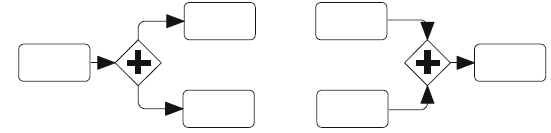 Mastering Parallel Gateways in Visual Paradigm: A Beginner’s Guide to BPMN Modeling
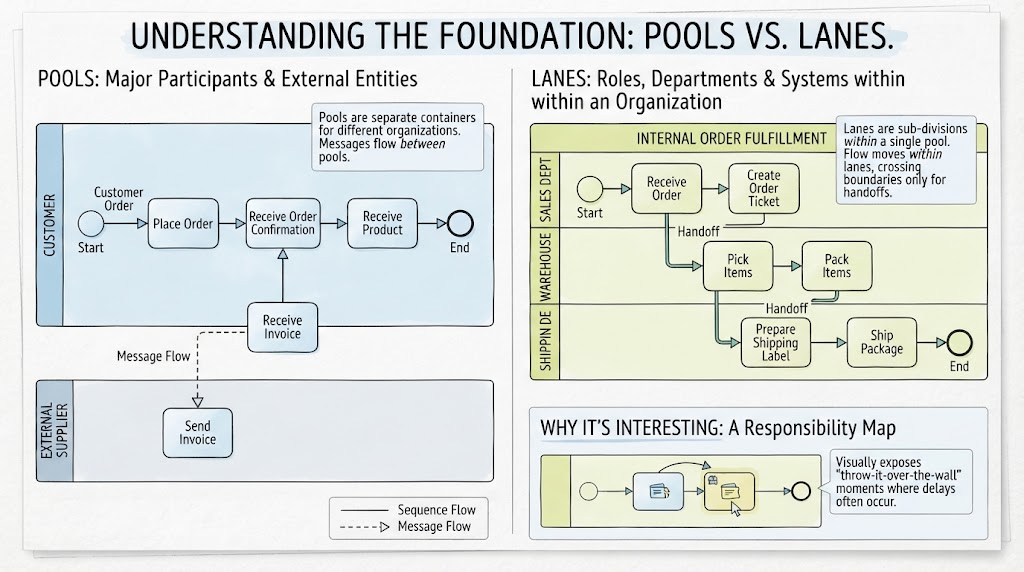 Mastering BPMN Structure: A Comprehensive Guide to Pools, Lanes, and Process Responsibility Mapping
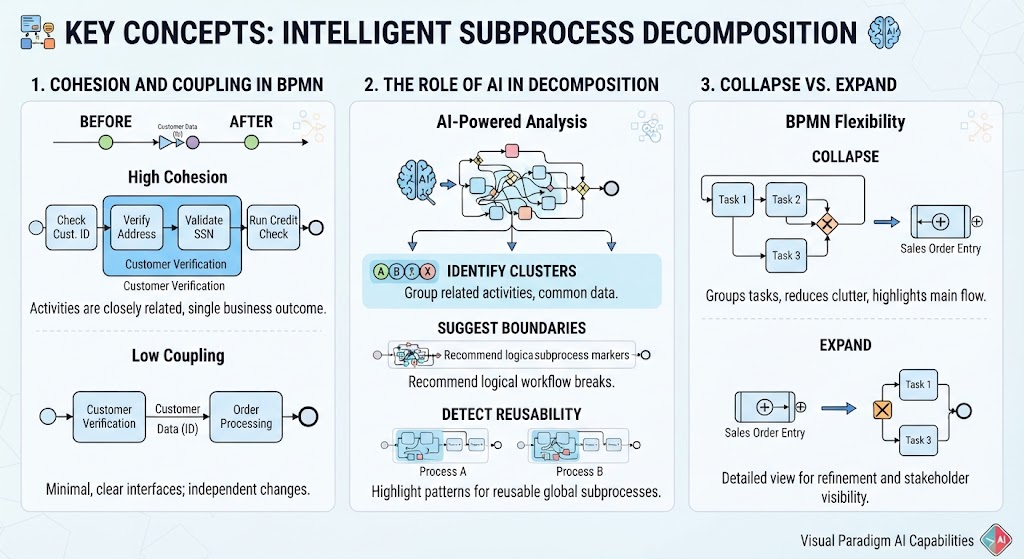 Mastering Intelligent Subprocess Decomposition in BPMN
 Mastering BPMN: A Visual Guide to Business Process Modeling Notation