


BPMN (Business Process Model and Notation) is more than just a diagramming language; it is a standardized method for modeling business processes. When moving from simple flowcharts to robust process automation, the distinction between Intermediate Events becomes critical. These events act as the connective tissue of a process, handling waiting periods, message exchanges, and exceptions without cluttering the primary workflow.
This tutorial explores how to model these events effectively using Visual Paradigm, a comprehensive BPMN 2.0 modeling environment. We will walk through the architecture of intermediate events, compare normal flow versus boundary events, and discuss best practices for creating semantically precise diagrams.
The Anatomy of Intermediate Events
In Visual Paradigm, intermediate events are categorized by their function and their position within the process. They serve two distinct purposes:
- Normal Flow Events: These occur on the sequence flow between tasks. They represent a pause in the process, such as waiting for a message or a timer to expire.
- Boundary Events: These are attached to the boundary of an activity (task or sub-process). They act as “safety nets” or monitors, handling exceptions like timeouts or errors without interrupting the main flow unless configured to do so.
Setting Up Your Modeling Environment
To begin, open Visual Paradigm and create a new BPMN Business Process Diagram. Navigate to the BPMN Shape Palette on the left-hand side. Under the “Events” category, you will find various intermediate event icons. Key types include:
- Message Events: Represented by an envelope icon.
- Timer Events: Represented by a clock icon.
- Signal, Error, Escalation, and Link Events: Each serving specific logic control needs.
Visual Paradigm supports both Catching (empty circle) and Throwing (filled circle) variants, allowing you to model the receipt and sending of data or signals explicitly.
Modeling Normal Flow: The Voting Example
Intermediate events on the main sequence flow are used to model sequential dependencies. Let’s look at a practical scenario: a voting system.
Step-by-Step Implementation
- Initiate Process: Place a Task labeled “Announce Issues for Vote” on the canvas.
- Wait for Input: Drag a Catching Message Intermediate Event (the empty envelope icon) to the right of the task.
- Connect the Flow: Use the Sequence Flow connector to draw an arrow from the task to the message event. Label this flow “Await Response” to clarify the intent.
- Continue Process: Add a Task labeled “Increment Tally” and connect it from the message event.
Configuration: To define the specifics of this event, double-click the message icon. In the specification dialog, you can define the Message Name and Correlation Keys. In a multi-participant system, correlation keys are vital as they ensure the process engine knows which specific message belongs to which process instance.
Modeling Boundary Events: The Timeout Example
Boundary events are powerful tools for handling exceptions. Unlike gateways, which force a decision at a specific point, boundary events allow the main process to continue while an exception is handled in parallel.
Step-by-Step Implementation
- Place the Task: Add a Task labeled “Receive Confirmation”.
- Attach the Event: Select a Timer Boundary Event from the palette. Hover over the task until attachment points appear on the border, then click the bottom edge to attach the timer.
- Configure Interrupting vs. Non-Interrupting: By default, Visual Paradigm attaches boundary events as Interrupting (solid border), meaning the timer will stop the task if it fires. To allow the task to continue, right-click the event and select “Toggle Interrupting”—the border will change to dashed.
- Define Logic: Connect a sequence flow from the timer to a new task, such as “Send Cancellation Notice”.
Advanced Pattern: Layered Monitoring
For complex SLA (Service Level Agreement) monitoring, you can stack multiple boundary events. Imagine a “Review Application” task:
- Non-Interrupting Timer (24h): Triggers a “Send Reminder” task but leaves the review ongoing.
- Interrupting Timer (48h): Triggers an escalation to a manager if the review is not complete.
Best Practices for Professional Diagrams
To ensure your diagrams are not only visually clear but semantically correct for execution engines, adhere to the following best practices.
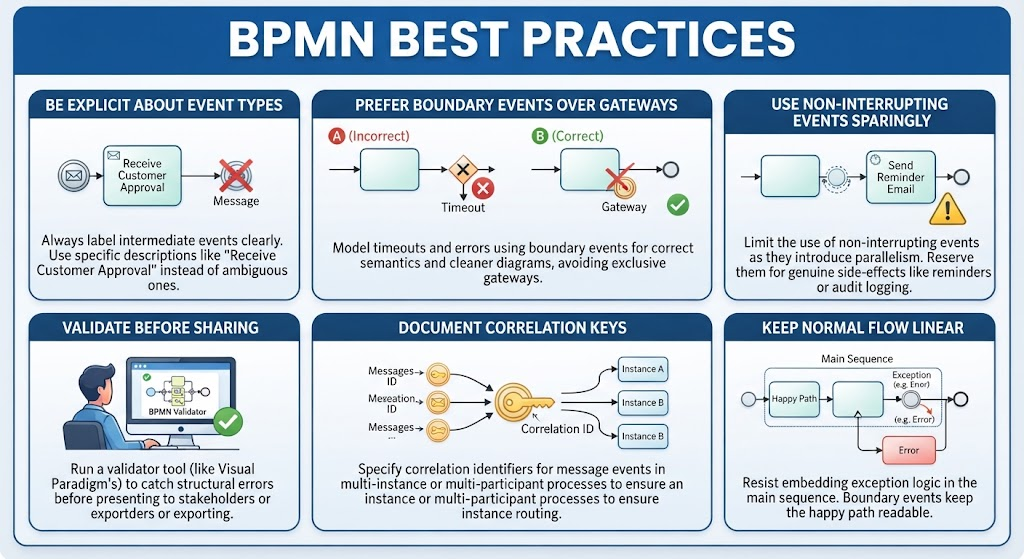
1. Be Explicit About Event Types
Avoid generic labels. Instead of labeling a message event simply as “Message,” use descriptive text like “Receive Customer Approval” or “Send Invoice Notification.” This reduces ambiguity for stakeholders who may not be BPMN experts.
2. Prefer Boundary Events Over Gateways
A common mistake is modeling timeouts or errors using Exclusive Gateways (decision diamonds). For example, adding a decision diamond after a task to check if a timeout occurred. This is semantically incorrect. Boundary events are the proper tool for handling timeouts and errors, keeping the diagram cleaner and more accurate.
3. Use Non-Interrupting Events Sparingly
Non-interrupting boundary events introduce parallelism (the main task continues while the side effect happens). While powerful, they can confuse readers if overused. Reserve them for genuine side-effects like sending reminders or logging audit trails.
4. Validate Before Sharing
Visual Paradigm includes a robust BPMN Validation feature (found under Tools > Validate). This tool will flag common mistakes, such as missing outgoing flows from catching events or improperly attached boundary events. Always run this check before presenting diagrams to stakeholders.
5. Keep Normal Flow Linear
Resist the temptation to embed exception logic directly into the main sequence. Boundary events exist specifically to keep the “Happy Path” (the normal flow) readable and linear. By offloading exceptions to the edges of the diagram, you make the primary business logic easier to follow.
Conclusion
Intermediate events are the connective tissue of BPMN diagrams. They transform static flowcharts into dynamic process models that accurately reflect waiting periods, message exchanges, timeouts, errors, and compensations. By mastering the distinction between normal-flow events and boundary events—and by leveraging Visual Paradigm’s intuitive modeling interface—you can produce process diagrams that are not only visually clear but also semantically precise and ready for automation.
Related posts:
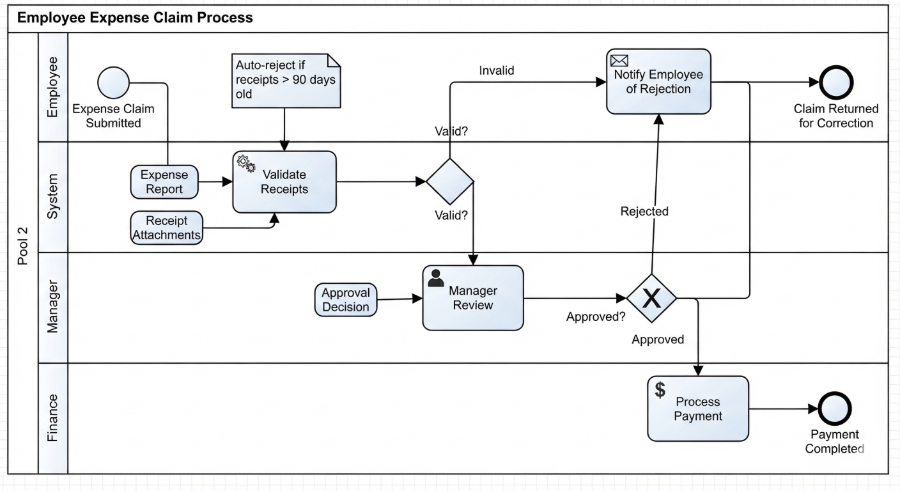 Mastering Business Processes: The Employee Expense Claim Flow
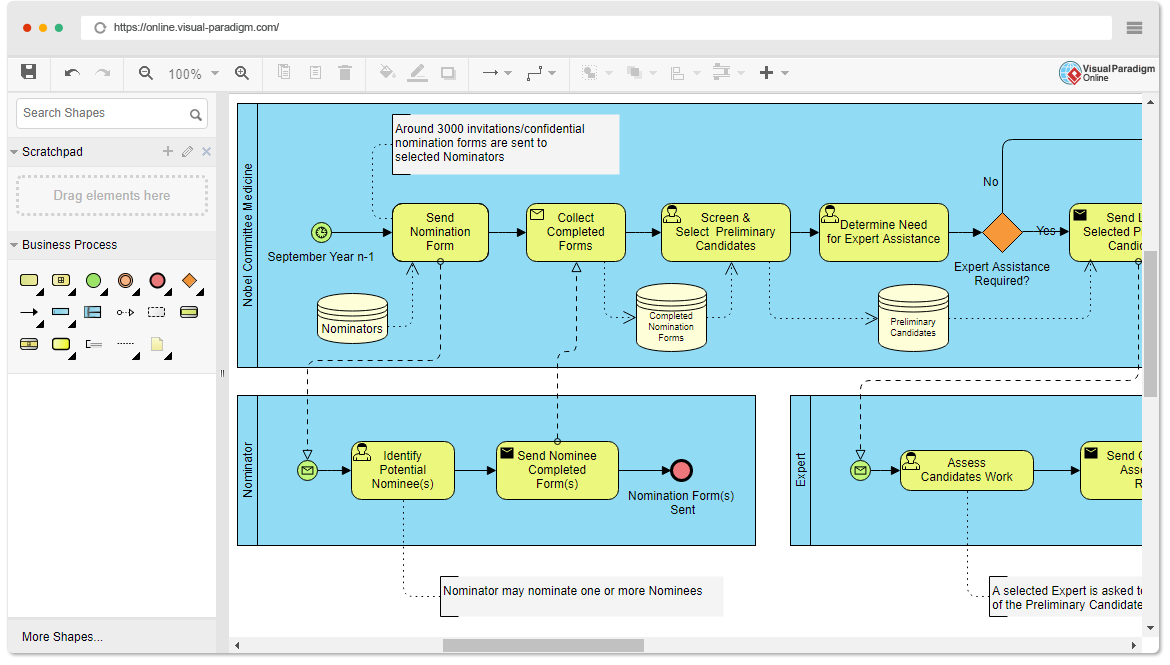 Mastering Business Process Modeling: The Nobel Prize Nomination Workflow in BPMN
 Mastering Iterative Processes: A Deep Dive into Loop Markers in Visual Paradigm
 Mastering BPMN: A Comprehensive Guide to Process Modeling Elements & Best Practices